

Fujifilm’s XApp tested: It’s finally the app your Fujifilm camera deserves
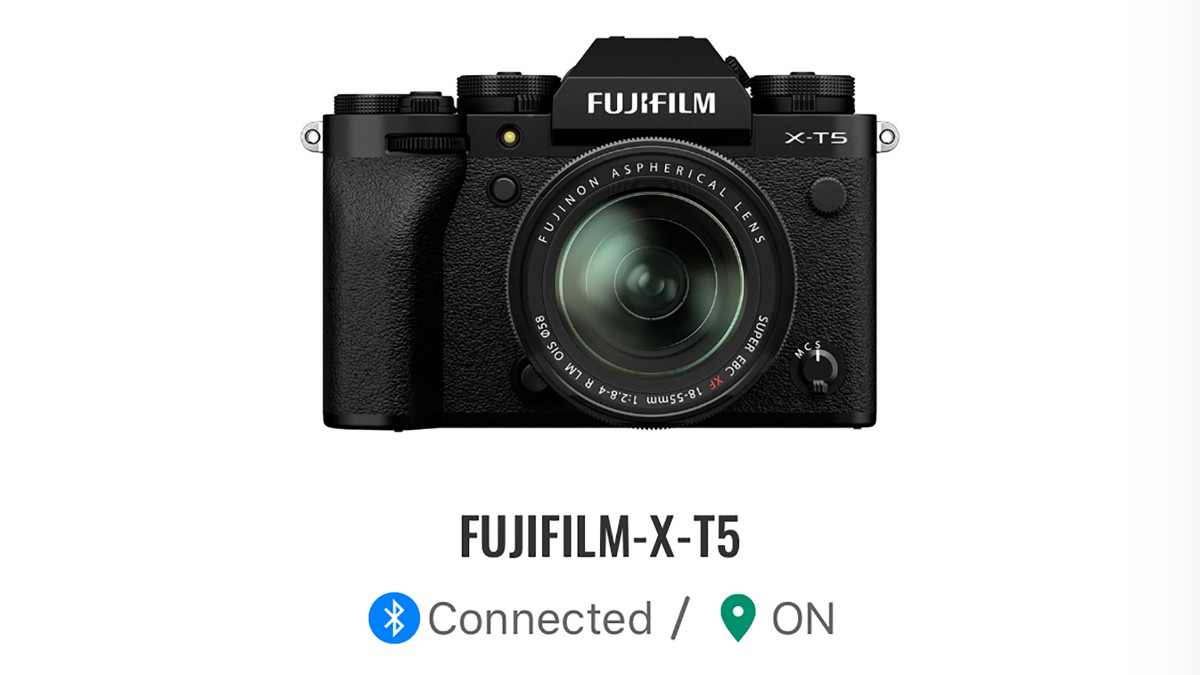
We tested every corner of Fujifilm’s XApp with an X-T5 – from image transfers to camera backups, it’s a solid companion app, with a few rough edges.

When you use DPReview links to buy products, the site may earn a commission.
For many years, camera companies built excellent hardware while shipping smartphone apps that felt like an afterthought. That trend has changed. Today, apps for cameras do much more than transfer photos to your phone: they can serve as the camera’s dashboard, providing a variety of useful tools and features, and in most cases, they do so much more reliably than in the past.
Fujifilm’s XApp is no exception. It replaced Camera Remote – Fujifilm’s previous app that was dogged by reliability issues and low app store ratings – and the difference is substantial. In addition to manual and automated image transfer, it can control cameras remotely, provide geolocation data, backup multiple sets of camera settings, manage firmware updates and provide a record of your camera’s activity.
We tested XApp on an iPhone 17 Pro Max and a Google Pixel 11 Pro XL with the Fujifilm X-T5. While this provides a solid baseline, keep in mind that features and performance may vary slightly depending on the specific camera model and phone you use.
Index
- Camera compatibility
- Wireless setup and image transfer
- Remote control and live view
- GPS location sync
- Backing up camera settings
- Timeline and Activity
- Firmware updates
- The verdict
Camera compatibility
Fujifilm launched XApp in 2023, but not every Fujifilm body works with XApp, and some older models still require the old Camera Remote app.
 XApp supports camera models dating back to 2018. We tested it on an X-T5.
The company maintains a list of compatible cameras and mobile operating systems on its website, including camera models dating back as far as 2018, with the GFX 50R being the oldest camera we spotted on the list.
Wireless setup and image transfer
Pairing your camera with XApp is relatively straightforward, and the app provides instructions to guide you through the process. Initial pairing is done via Bluetooth but hands off to Wi-Fi for data-intensive tasks like image transfers and remote camera operation. Once paired, the connection generally remains stable, though the app can occasionally lose its connection and fail to recover. In almost all cases, forcing the app to quit and restarting it reestablished the connection. It’s more an annoyance than a limitation.
 XApp pairs initially via Bluetooth, then hands off to Wi-Fi for data-intensive tasks like image transfers and remote control.Dale Baskin
Image transfer options and speed
Transferring photos from your camera to your phone is straightforward, and the gallery-like interface works well for selecting images, individually or in batches. If you have a camera with two memory cards, it’s easy to select which card to browse.
 Dale Baskin
One feature we really appreciated was the image filtering options, which let you filter by star rating (if you’ve set ratings in-camera), file type, folder name, subject type, including person, animal, bird, automobile, bike or motorcycle, train, and airplane (or whatever subset of subject your camera model is trained to detect). You can set a range for capture date – helpful if there are a lot of images on a card and you want to narrow the selection down to a time window. We found the star-rating filter particularly useful; if you rate images in the field as you shoot, you can quickly find your favorites and transfer them.
On the X-T5, which captures 40MP images, it took just under three minutes to transfer five full-resolution Raw/JPEG image pairs (10 files total), or about 45 seconds for just the JPEG images. Transfer times for other cameras may differ: one would expect a Fujifilm model with a 26MP sensor to transfer images a bit more quickly, whereas a medium format model with a 100MP sensor will take longer.
 XApp lets you filter images by star rating, file type, folder name and subject type before transferring.Dale Baskin
Images can be transferred at full resolution, but there’s also an option to downsize images. The app doesn’t indicate what resolution images will be downsized to, but according to Fujifilm’s documentation, it’s 3MP, which could be useful for social media posts.
Automatic image transfer
XApp can manage automatic image transfers from your camera, but you set this up on the camera, not in the app. To do so, navigate to the camera’s Bluetooth/Smartphone settings and turn Auto Image Transfer (or Auto Image Transfer Order) to ‘On’.
It’s worth noting that automatic image transfer doesn’t transfer images to your phone in real-time as you shoot; it’s effectively a send/queue mechanism. As you shoot, images are tagged for transfer, and once you switch to playback mode or turn the camera off, the transfer process begins. Your phone will receive a notification that images are queued for transfer, and you can choose to start the transfer right then or wait until later.
 You receive a message on your phone when the camera is ready to transfer a batch of images.Dale Baskin
Remote control and live view
Live view and remote shooting work as expected. Triggering the shutter over a wireless connection isn’t as instantaneous as clicking the physical shutter button, but the lag is minimal, and you would probably only notice it if you were shooting something moving quickly enough that split-second accuracy was critical.
 Remote camera operation is one of XApp’s core features, turning a paired smartphone into a wireless camera controller.Dale Baskin
When using remote shooting, you can adjust the shutter speed, F-stop, ISO, film simulation, WB and flash from the app. Tap-to-focus on the image lets you set your AF point. The lag between tapping to set the AF point and the camera activating it is just enough to be slightly annoying, but it’s not a showstopper. For situations like tripod self-portraits, remote triggering for group photos, or landscape setups, it’s a useful feature; it does what it needs to do, and it does it well. If you want to adjust any of the camera’s other settings, you’ll need to do it directly from the camera.
GPS location sync
When GPS location sync is turned on in the app (labeled “smartphone location sync”), XApp pulls location data from the phone’s GPS and syncs it to the camera over Bluetooth, embedding it in the image’s metadata.
In principle, this should function seamlessly in the background, and it generally does. However, when syncing with the iPhone 17 Pro Max, we discovered that if we hadn’t used the camera or the app for a few days, photos stopped getting geotagged. Opening XApp on the phone generally restored geotagging activity. Reports online, as well as in app store reviews, suggest others have run into the same issue, so if geotagging is important to you, it’s a good idea to launch the app if it’s been dormant for a few days before heading out on your next shoot.
 The geotagging feature lets you select the synchronization interval so you can balance accuracy with battery usage.Dale Baskin
One other setting to be aware of is the “Location synchronization interval,” which is set in XApp’s app-wide settings rather than on a per-camera basis. You can set this interval to as short as 10 seconds to prioritize accuracy, or as long as 480 seconds to prioritize battery usage. On the iPhone 17 Pro Max, we left it set on 10 seconds and didn’t notice a big impact on battery life, but this will obviously vary based on what phone you’re using, how big its battery is, and even the age of the battery, so it’s worth testing various settings to get a sense of what works with your own setup.
Backing up camera settings
The ability to back up and restore camera settings from XApp is a useful and, thankfully, easy-to-use feature. Tapping the Backup/Restore button under your camera model will save the camera’s current settings to the app and add them to a list. You can save multiple sets of settings and even name them. Tapping any item on the list restores those settings to the camera.
 XApp can back up multiple sets of camera settings, making it easy to save and restore configurations.Dale Baskin
Not only does this let you restore your camera’s settings if they get changed or deleted, but it also lets you save specific profile settings for different subjects or shooting situations, allowing you to quickly reconfigure your camera as needed. It also allows you to apply the same settings to multiple cameras as long as they’re the same model – useful for someone like a wedding photographer who rapidly switches between two bodies.
There are a couple of caveats to be aware of. First, network settings and custom white balance settings don’t get backed up. Second, some users have reported that mismatched firmware versions can cause restore failures, so it’s a good idea to ensure all cameras are running the same firmware version if possible.
Timeline and Activity
Timeline and Activity are features that display information based on how you use any connected Fujifilm equipment.
Activity provides a visual summary of what you’ve done in the form of infographics: how many images or how much video you’ve shot, how those captures break down across the various cameras and lenses that have connected to the app, how many photos you’ve taken with each film simulation and what types of subjects you’ve captured.
 The Activity feature shows infographics that show how you have used your camera, like the number of photos on a card shot with each film simulation.Dale Baskin
One potentially useful feature is that tapping on the infographics (except for subject type) opens a gallery displaying the corresponding photos. For example, you can tap a film simulation and see all the photos captured using that film simulation. However, as of the time of writing, this particular feature was very unstable for us – more often than not, tapping an item caused the app to crash and close (at least on iOS).
Timeline shows your photographic activities chronologically, like a diary. If you take several photos together, it identifies it as a shoot. Tapping the link takes you to the photos from that shoot and displays shoot-specific Activity infographics. When you link a new camera to the app or attach a new lens to a linked camera, that shows up in the timeline, too.
 The timeline feature lets you see your history, including groups of images shot together.Dale Baskin
Unhelpfully, Fujifilm also inserts ads for Fujifilm events and products into the timeline, though fortunately, not very often.
It’s easy to see Timeline and Activity as eye candy, but they can be quite useful. If you’re looking for a set of photos from a specific shoot or all the photos you’ve captured with a particular camera, lens or film simulation, it’s an easy way to find them.
There’s a caveat here, too, though. Using Timeline and Activity requires you to sign in with an Apple or Google account, and the features aren’t available in all countries or regions.
Firmware updates
Finally, XApp facilitates firmware updates to your camera when they become available. If the app detects a firmware update for your camera, it downloads the update. The next time the app connects to your camera via Wi-Fi, it transfers the update to the camera’s memory card.
What XApp doesn’t do is automatically install the firmware, which is up to you. When you next power on the camera, it displays a screen letting you know an update is ready, and you can choose to update right then, be reminded later, or schedule a date and time for the camera to update. XApp doesn’t manage firmware updates for lenses.
The verdict
Fujifilm’s XApp is a well-rounded companion app for your camera, and it’s a huge improvement over the company’s old Camera Remote app. It may have taken Fujifilm a few years to ship an app that runs reliably, but for the most part, XApp delivers on its feature set.
However, there’s one thing we still wish XApp could do: manage custom film recipes on your camera. Film Recipes have been popular in the Fujifilm user community for years, and Fujifilm has expanded support for them on recent models. Additionally, custom looks have already found their way into other companies’ apps. Fortunately, several third-party developers have stepped in to fill that gap; if you’re interested, check out this article covering some of our favorites.
 Fujifilm
Fujifilm XApp
Want to stay up to date on the latest product news and releases? Add DPReview as a preferred source to ensure our independent journalism makes it to the top of your Google search results.

What's Your Reaction?
 Like
0
Like
0
 Dislike
0
Dislike
0
 Love
0
Love
0
 Funny
0
Funny
0
 Wow
0
Wow
0
 Sad
0
Sad
0
 Angry
0
Angry
0








Comments (0)