

How Photoshop Blend Modes Actually Work
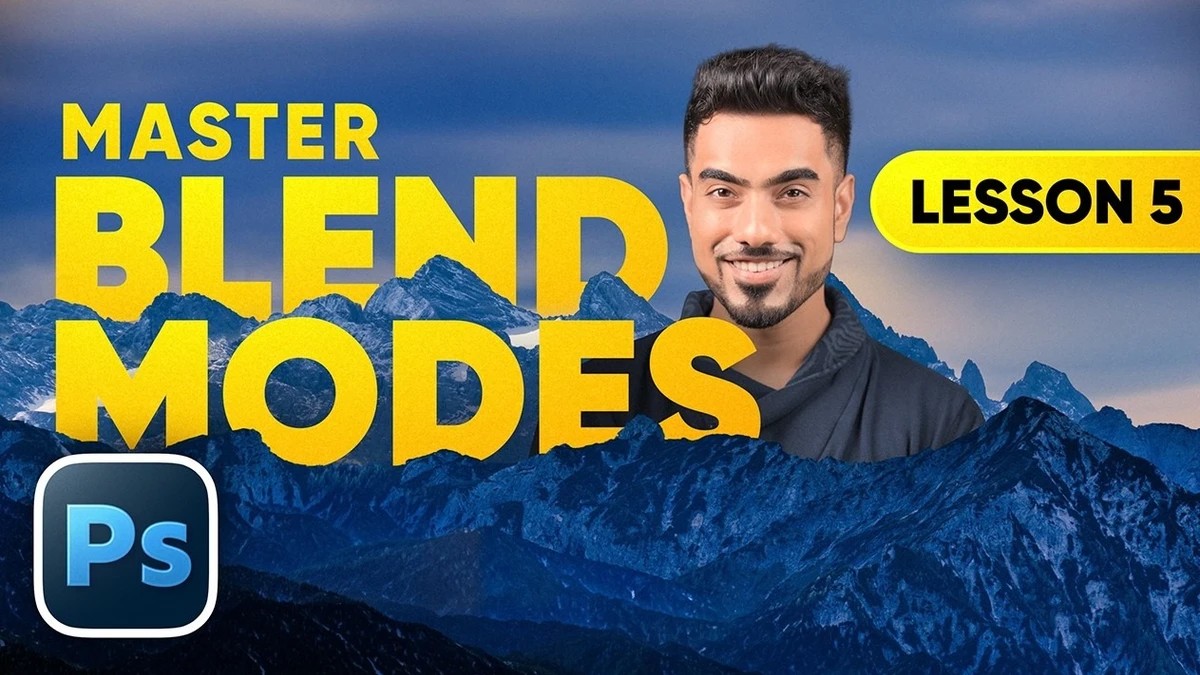
Blend modes sit in a dropdown at the top of the Layers panel in Photoshop, and a lot of people choose one by scrolling until something looks right. Once you know what each mode does to light pixels, dark pixels, and everything in between, that guessing becomes a choice you can repeat on sky replacements, retouching, textures, and composites.
Photoshop gives you 27 layer blend modes. That's too many to memorize one at a time. Unmesh Dinda of PiXimperfect makes the list manageable by sorting it into six groups that line up with the dividers in the menu: Normal, Darken, Lighten, Contrast, Comparative, and HSL. Every mode in the Darken group can only darken, and pure white disappears. The Lighten group flips that, so black vanishes and white stays. Overlay, Soft Light, and the rest of the Contrast group hide 50% gray and push everything else away from the middle. If you know a group's rule, you can predict what a mode will do before you hover over it.
Dinda also untangles a mix-up that trips up a lot of newer users. Brush blend modes and layer blend modes are separate settings. The brush version lives in the options bar and works per stroke, so with Multiply selected, each pass over the same spot gets darker. The layer version lives in the Layers panel and affects the whole layer at once. Leave the brush on Screen or Multiply after a quick job, and the next time you paint, Photoshop will seem to be misbehaving. Groups add one more wrinkle. Their default mode is Pass Through, which lets any adjustment inside the group affect everything below it. Switch the group to Normal and those adjustments stay confined to the layers inside, which can save you from clipping curves to several layers one by one.
The names of these modes describe physical processes that came long before Photoshop. Multiply works like sandwiching two slides and holding them up to a light. Each layer can only block more light, clear areas let the other image through, and the stack never gets brighter. Screen comes from projecting two slides onto one screen with two projectors. The light adds up, and black areas contribute nothing. Dodge and burn are darkroom terms, too. The math behind these modes shows up almost unchanged in Affinity Photo, GIMP, After Effects, and Procreate, so learning the rules once carries over to whatever software you use next. You can also plan for these modes while you shoot. Capture bokeh, sparks, smoke, or dust against black, and the file is ready for Screen. Scan paper or photograph a texture on a bright, even surface, and it's ready for Multiply.
Most of the video is hands-on, and each example builds on one of those rules. A dramatic sky dropped onto a silhouette with Multiply loses some punch at first, because the original sky isn't pure white. A curves layer that pushes it to white fixes that. The same logic pulls a product's real shadow onto a new background. Duplicate the product, clip a curves layer that turns everything except the shadow white, set the copy to Multiply, and only the shadow remains. Screen handles a bokeh overlay on a night portrait and scratch textures for a vintage black and white edit built in the Camera Raw filter. For retouching, Dinda paints on a blank layer set to Soft Light at 1% flow, brightening under-eye shadows while keeping skin texture intact.
The later sections get more inventive. A blank adjustment layer, one that changes nothing on its own, acts as a virtual copy of everything below it. Set it to Multiply, Screen, or Soft Light, and you can darken, brighten, or add contrast with a mask and no duplicate pixels to keep aligned. Difference turns black wherever two layers match, so it works as an alignment guide when you swap a smile in from another frame of a family photo. Color mode cleans up background color spilling into fine hair and pulls only the color from an AI colorization in Firefly Image 5 while keeping the original detail. Then there are eight special modes, including Hard Mix and Color Dodge, where lowering Fill behaves differently from lowering Opacity.
Dinda's color dodge lighting effect, and more, is in the video above.
What's Your Reaction?
 Like
0
Like
0
 Dislike
0
Dislike
0
 Love
0
Love
0
 Funny
0
Funny
0
 Wow
0
Wow
0
 Sad
0
Sad
0
 Angry
0
Angry
0










Comments (0)