These 15 under-$50 gadgets have upgraded my tech life, and they're all on sale
Oct 07, 2026 - 19:12
00
(Image credit: Tom's Hardware)
As much as I love high-priced tech like my potent RTX 4090-equipped custom gaming rig or the 65-inch LG OLED TV I use as my monitor, most of us can't spend several hundred dollars on a tech purchase or gift all the time. But you can still improve your tech life (or the lives of your friends and family) while spending a comparatively small amount of money.
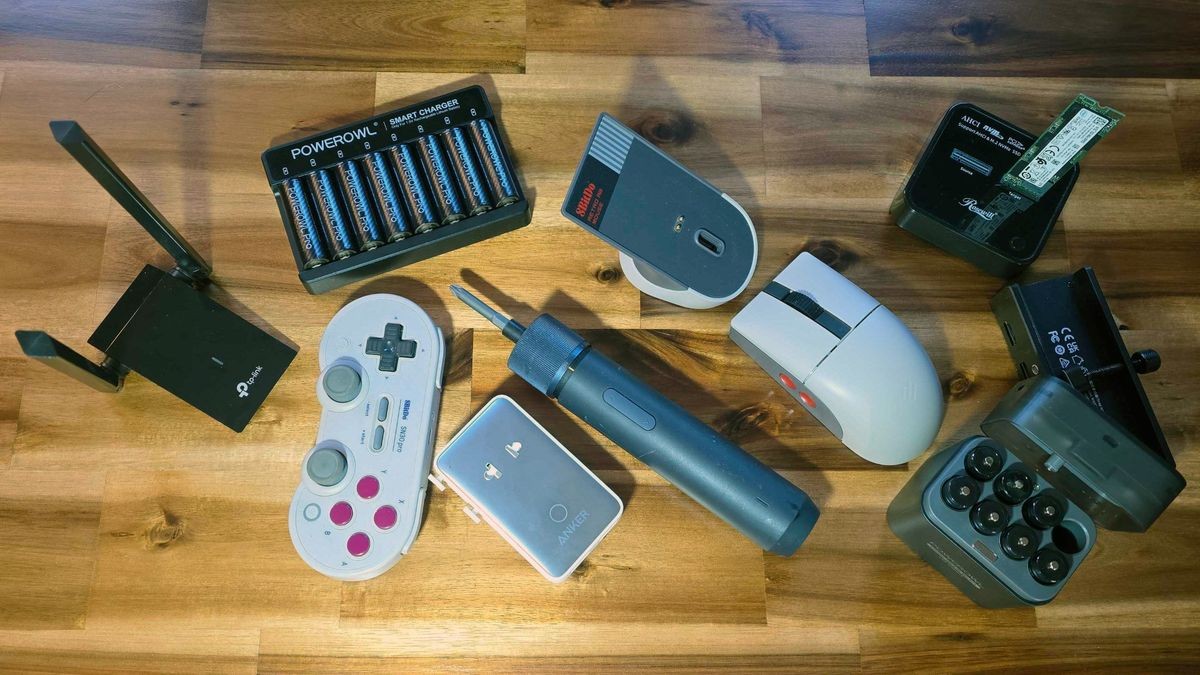
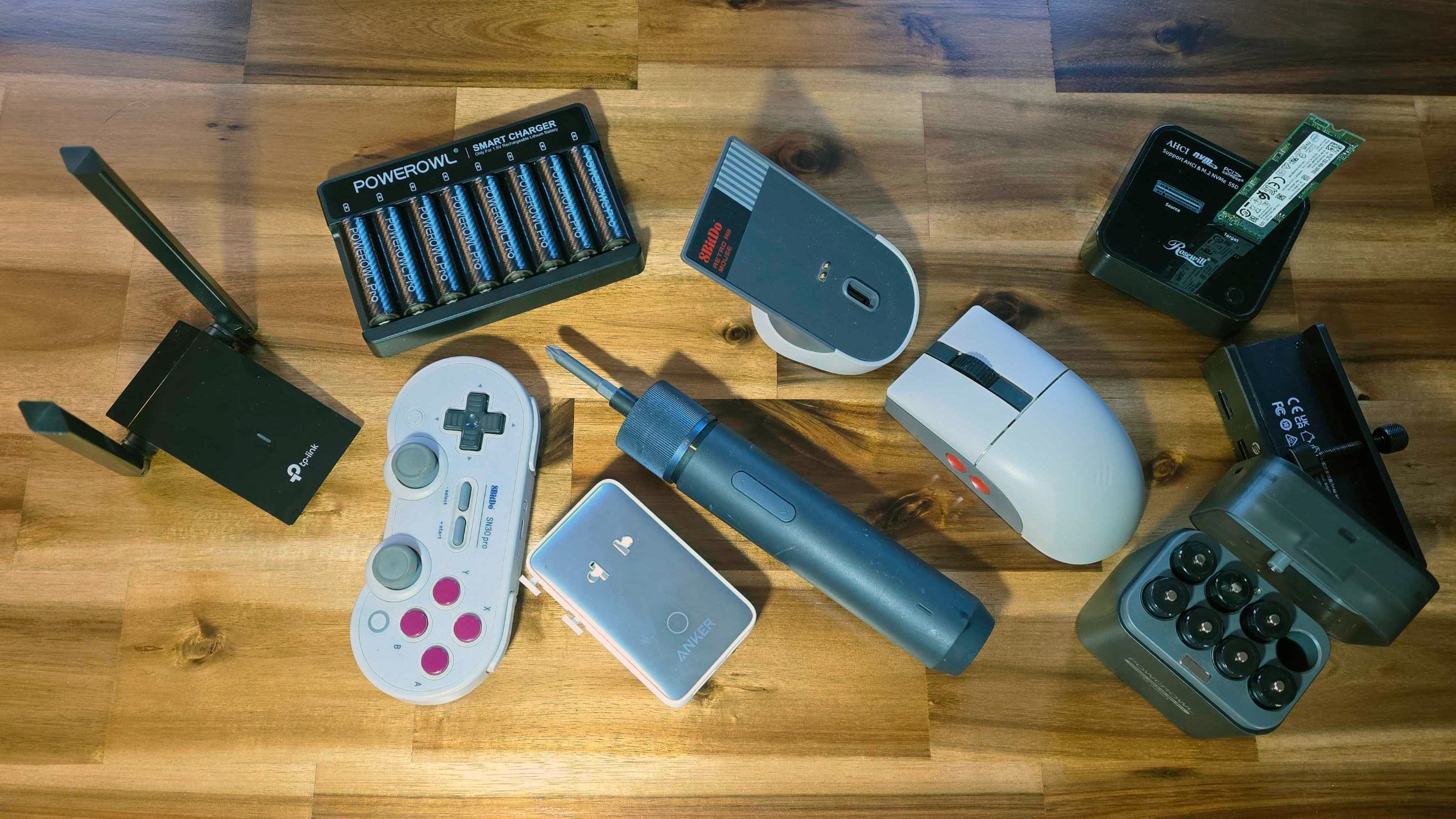
I own all of the affordable devices listed below, and all are on sale for under $50. Some are even under $25! All of these products have made my tech-saturated world a little nicer in their own way. If you're looking for a small tech splurge for yourself during this deals season, or an affordable gift for that tech-savvy friend or family member, one of these $50-or-under options might be a good fit and a great deal.
Last year, a family member asked me for help with an older PC, which was trying to run Windows 10 and several programs on a cramped 110 GB SSD. At first, I figured I could clone the boot drive onto a more spacious drive so the OS and programs had more space to stretch out.
But the thought of using multiple USB enclosures or shuffling drives in and out of my desktop filled me with dread as I pictured being there for hours getting everything done and the system back up and running. So I looked into getting an M.2 SSD cloner and was surprised to see they can be found for less than $50.
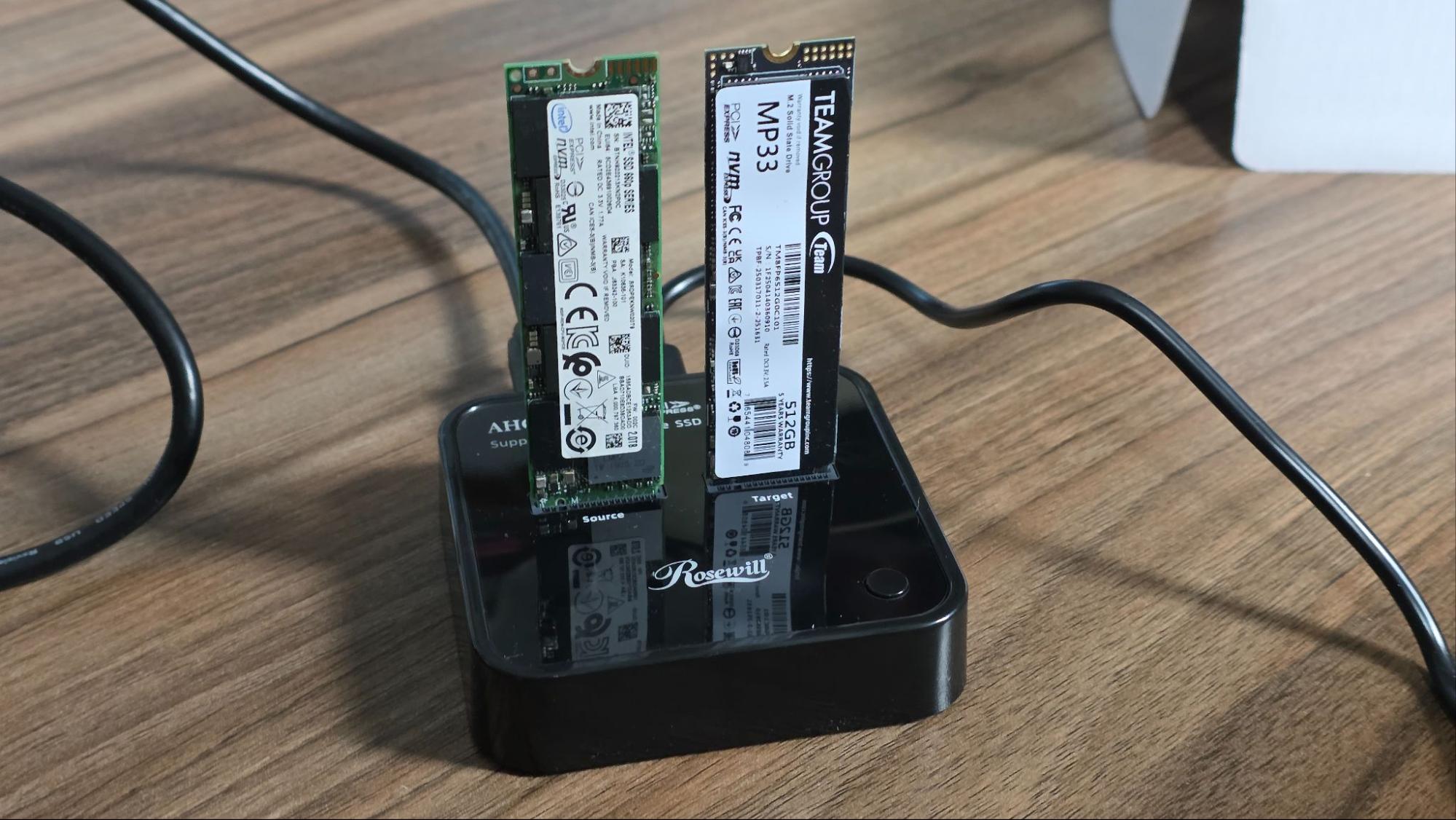
While I don't love the glossy plastic shell of Rosewill's model, it's one of the more affordable options. And it supports both NVMe M.2 drives and older AHCI models (Sorry, SATA). Using the cloner is pretty straightforward. You plug in the included USB-C power adapter, put your source drive in the left slot, the destination drive in the right slot, press the power button on the back, and a few logos light up, letting you know you're ready to go. Press the clone button on the top, and drive cloning will commence (provided your destination is the same size or larger than your source).
That's assuming you want to do an offline clone. But because I wanted to also resize the partition between the old 110 GB and the newer Team Group 512 GB SSD, I used the second included USB-C cable to connect the Rosewill cloner to my laptop and powered up the device. Within seconds, both drives were recognized in Windows, so I fired up the excellent free
, cloned the old partition to a new Team Group drive with a few clicks, and then used the software to drag the boot partition to the full size of the new drive. The whole process took just a few minutes, since the Rosewill cloner supports 20 Gbps USB, and I wasn't exactly copying a huge partition.
When the cloning process was finished and the partition inflated, it was hard to believe it was all that easy. I had expected to be at the task for hours, but I was done in less than 30 minutes. Sure, unless you're in IT, a drive cloner might not be something you use regularly, but it's sure handy to have around. You could also use it to save some money by buying a laptop with a cramped SSD and swapping in something much roomier – provided, of course, the laptop's storage isn't soldered to the motherboard.
The Rosewill cloner is also handy for just checking the contents of old M.2 drives you may have lying around. But if that's all you need, you can buy an NVMe enclosure or a single-drive dock. I also own a version of
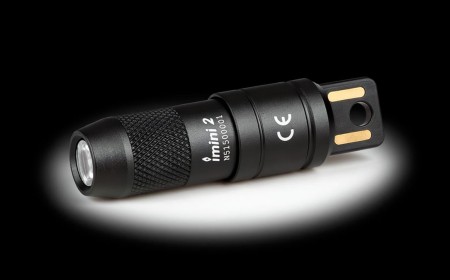
This tiny, cheap, magnetic, USB-charging flashlight is great for PC building and other everyday tasks
(Image credit: Tom's Hardware)
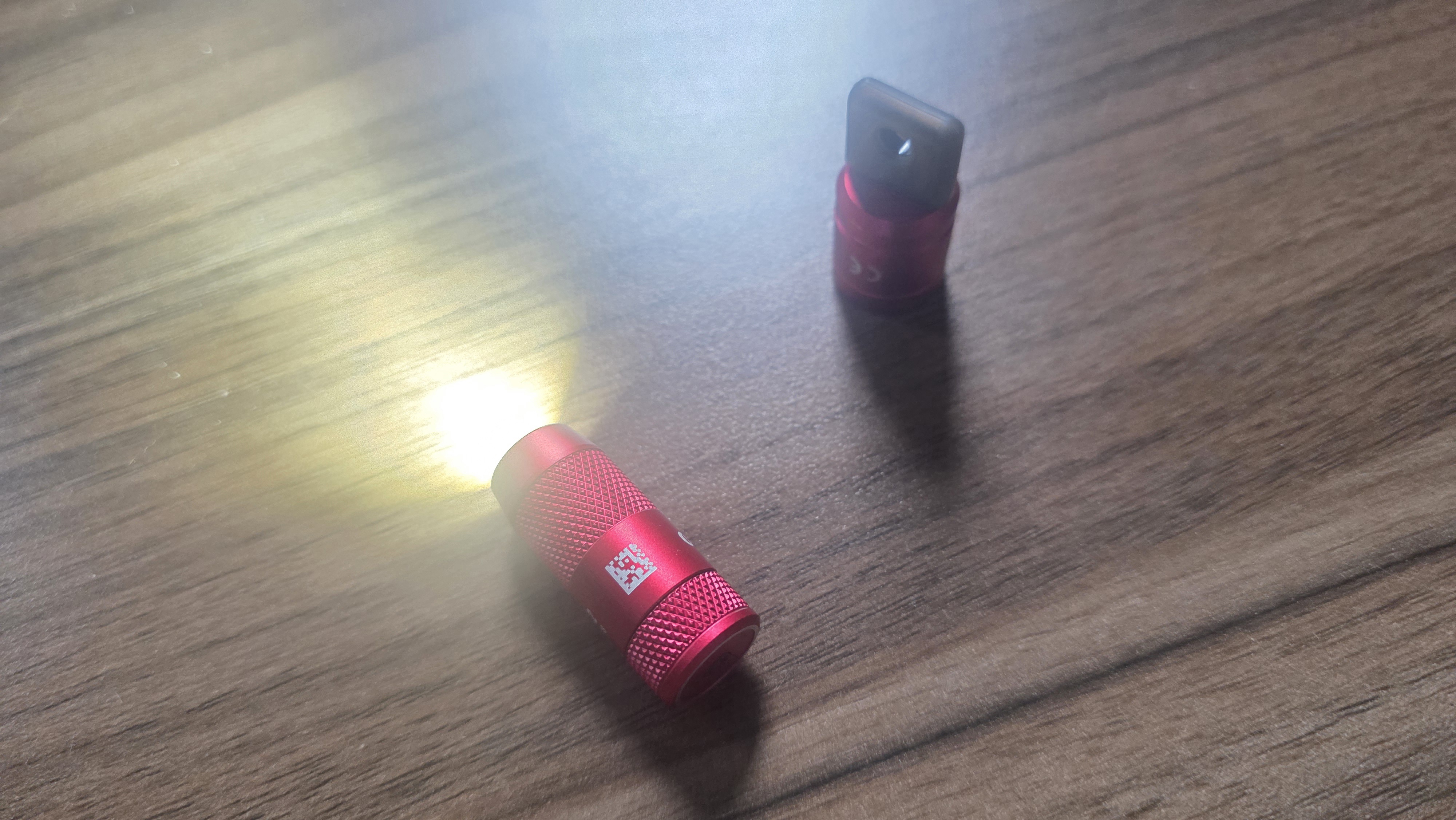
I picked up the OLIGHT IMINI 2 mini flashlight last year on impulse because it looked well-designed and cost around $20, but now it's down to just $12. Its simple design and built-in USB-A plug for charging make it fun to use – just pull the back off, and it turns on. The magnet at the back lets you easily mount it anywhere you need a little extra light. I've used it inside a steel PC case while fiddling with RGB wires.
The OLIGHT IMINI 2 is also small enough for your keychain, is designed to live with your keys, and includes two silicone covers for the USB port and a little carabiner clip. But the flashlight portion is only held to the charging port via a magnet, and I feel like (for me, at least) it would fall off and get lost before too long.
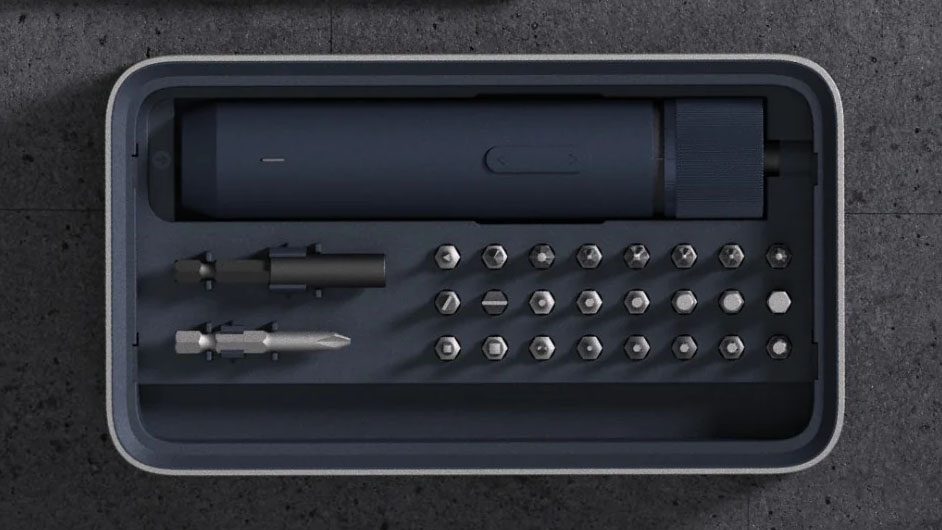
I've used the HOTO 3.6V Screwdriver Set to build dozens of PCs
(Image credit: Hoto)
I build a lot of PCs, though not as many lately thanks to the RAMpocalypse, and I also do regular home improvement work around my apartment. So a cordless screwdriver is a nice thing to have. I also own a much slimmer Wowstick, but have found HOTO's NEX O1 Pro to be more useful thanks to its extra (and variable) torque. It's great for loosening those factory-installed screws on PC cases that just don't want to let go, and also good for assembling furniture.
The HOTO won't replace my DeWalt drill for bigger, tougher jobs. But for everyday tasks, it's powerful enough, easy to charge over USB-C, and even looks good on my workbench.
(Image credit: Amazon)
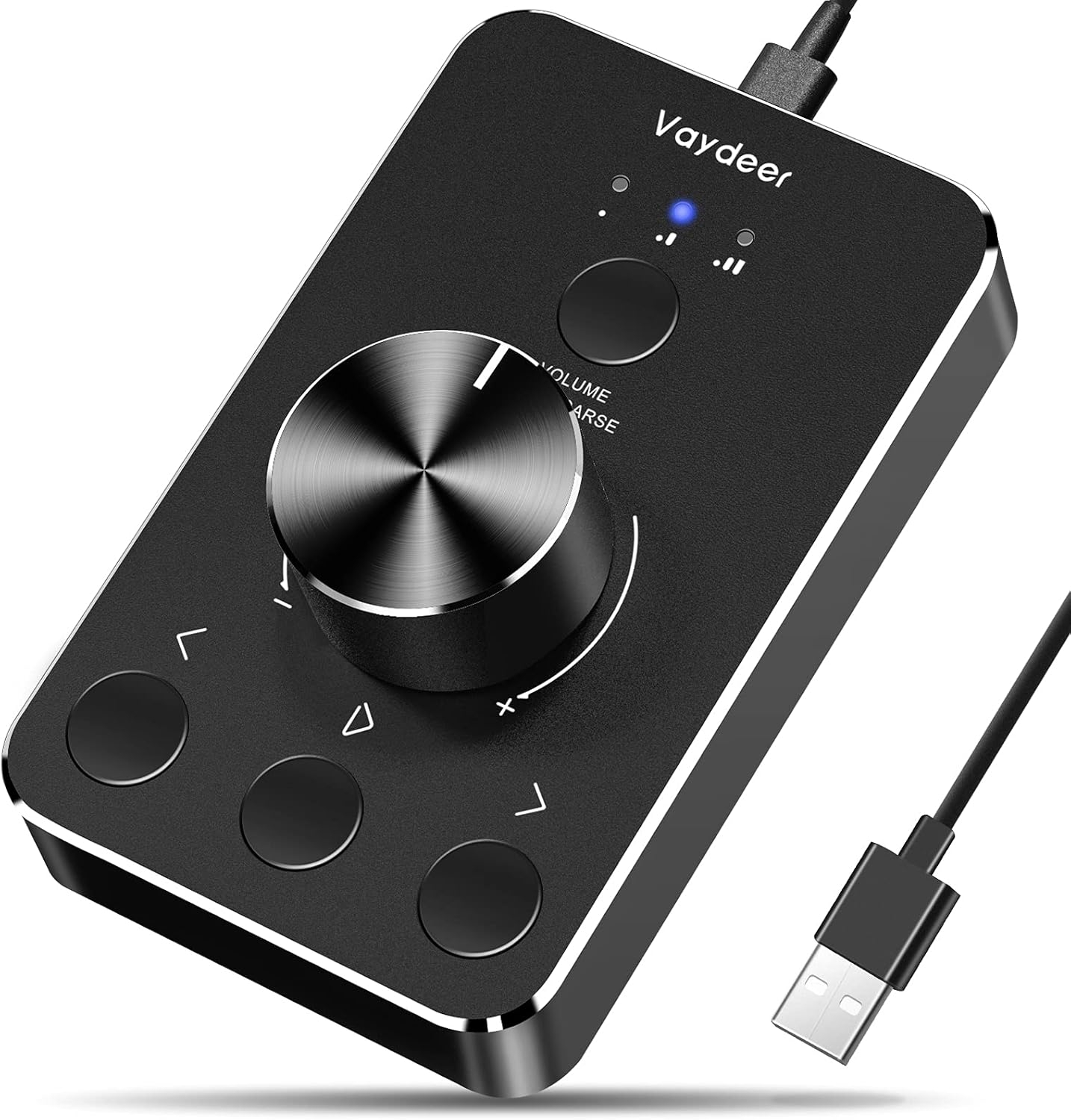
For those of us who grew up in the 1900s, few things beat a chunky tactile volume knob and physical buttons for controlling media, and Vaydeer's USB device provides that and then some. I own the previous version of this device and love it for controlling and muting music at my treadmill desk while I work.
I use the buttons on it to play / pause audio and video and move forward to the next track or backward to the previous one. It's totally plug and play, as no drivers are needed.
that's compatible with Windows, Mac, Android, and the Nintendo Switch? Not much, as far as I'm concerned.
As you might expect given this controller's small size and many more buttons than the SNES controller it was based on, its Rumble motors aren't the strongest, and the layout can feel kind of cramped for some modern games. But for any retro game and especially platformers (I'm looking at you, Super Mario Bros. Wonder), this is my go-to controller. At this price, maybe I should pick up another one.
Go retro with modern specs with this NES-themed mouse from 8BitDo
There are so many gaming mouse options, most with specs that go well above and beyond my abilities. So I chose something with style that caught my eye, 8BitDo's Retro R8 Mouse with Charging Dock. This NES-inspired mouse is designed for nostalgia, with its black, gray, and red color scheme and round red side buttons. But 8BitDo went the extra mile (or two) by designing a weighted charging dock (with its own NES-like touches), and a spot for the 2.4 GHz dongle. This is the kind of extra feature that's more common in mice that cost twice as much.
Under the hood, you get a decent 26,000 DPI sensor and 4K polling (plenty for us older, non-esports gamers), and an ambidextrous design with two side buttons on either side, and a clicky, rubberized scroll wheel. The side buttons, which are concave, took a little getting used to for me. But they are also so distinctive that now I miss them while using other mice.
Never run out of USB ports with this powered 11-port hub
If you're like me, you never have access to enough USB ports. I solved this problem by picking up this Ikai hub, with 60W of power for your drives and peripherals and a premium metal shell. It sports three speedy 10 Gbps ports (two USB-C), along with seven 5 GBps USB-A ports. The final USB-C on the end of the hub is for charging your phone or other devices, and delivers 20W.
The other nice feature, is that all the data ports have a button on the side so you can toggle them on and off. Aside from saving a bit of power, I also find this handy for swapping between wireless mice and keyboards, while keeping the tiny dongles plugged in so I don't lose them.
The sole thing to keep in mind about this (and basically any) hub, is that it has a single 10 Gbps input. So don't expect to plug in multiple high-data devices (like SSDs) and have them run simultaneously at full speed. If that's what you need, you'll need to get a Thunderbolt or USB4 hub (and spend significantly more).
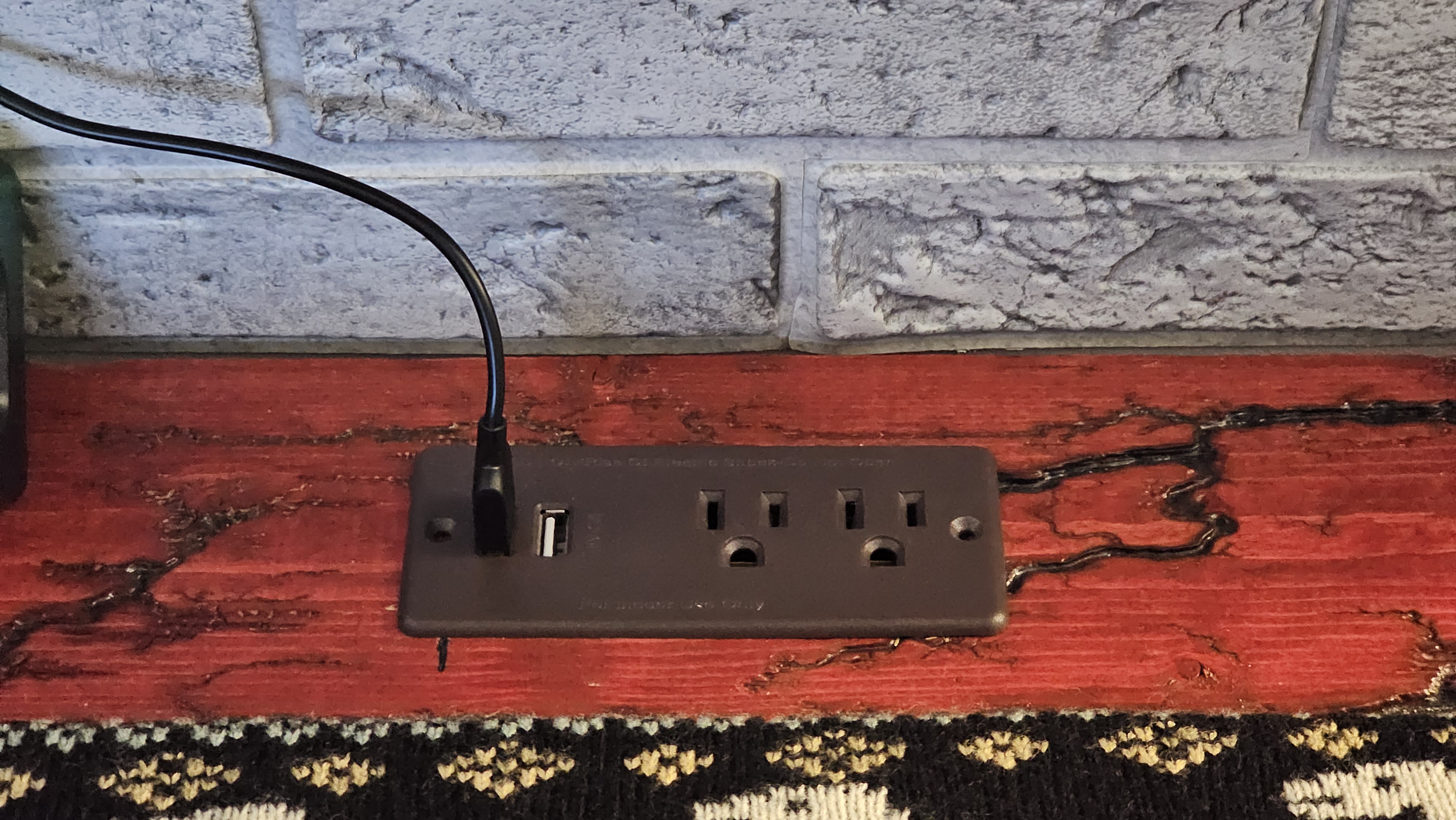
Add recessed power and USB ports to your desk for just $16
(Image credit: Tom's Hardware)
OK, this one's only for the DIY-inclined, because it involves cutting a rectangle in your desk (or anywhere else you might want some flush-mount power ports, like a nightstand). Jgstkcity's recessed power strip lets you drop a couple of AC outlets and two USB charging ports (one 30W USB-C) anywhere you need them – again, once you've cut a hole for it.
While it's smart to be wary of no-name power strips, I've used two variations of these strips for roughly three years, and nothing has ever felt hot or failed in any way. I have it installed in the narrow stand I built right behind my couch. It's a super-convenient place for power outlets, especially when friends or family stop by. I just warn people not to put drinks there. Thankfully, the coffee table is even more convenient for that, and it's right in front of the couch.
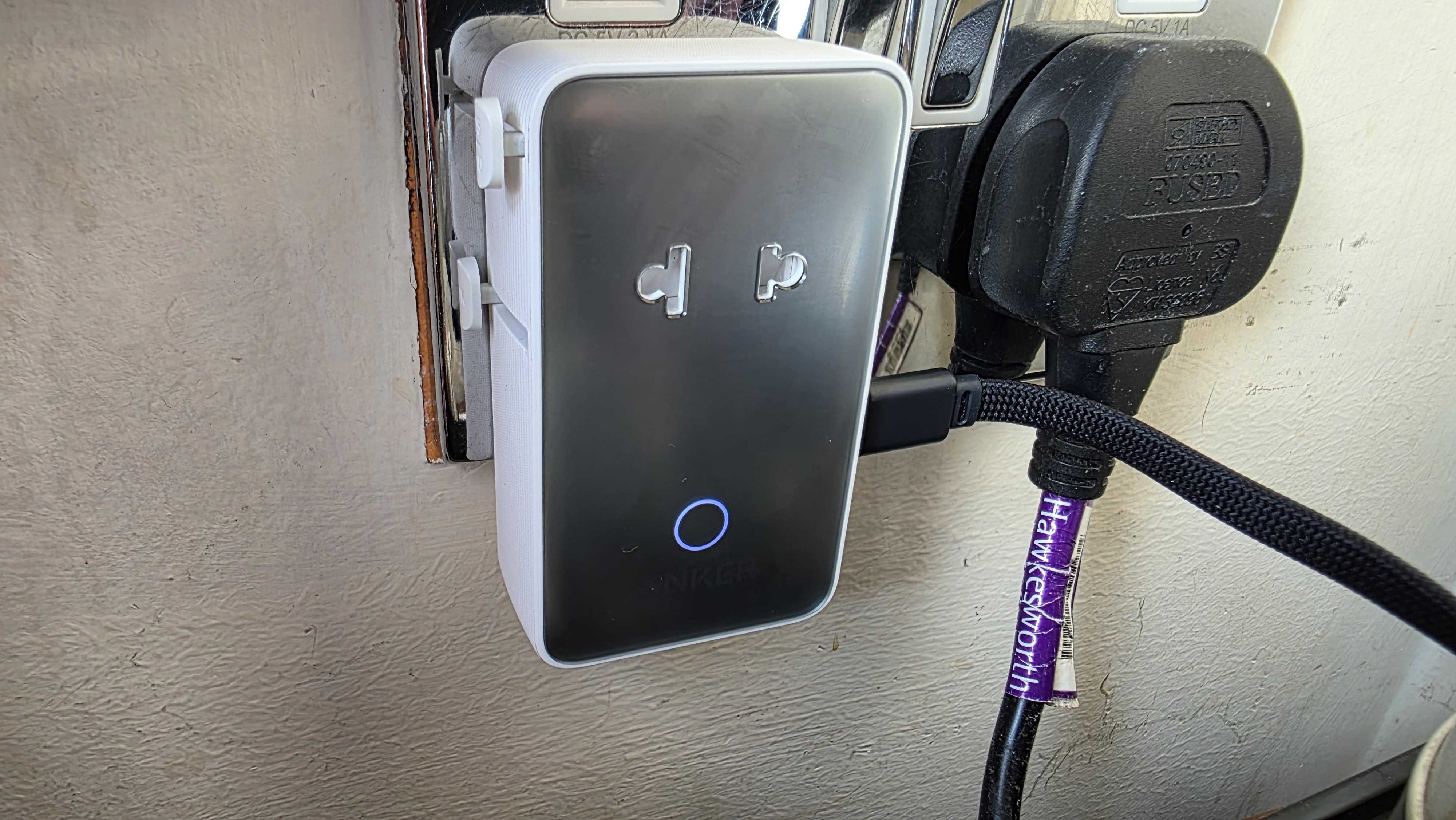
Stay charged and save space while traveling abroad with Anker's slim Nano Travel Adapter
(Image credit: Tom's Hardware)
When you're traveling to another country for more than a few days, every small bit of space you can save helps. But you also usually need a travel adapter to plug your devices into the outlets of other countries. Anker's Nano Travel adapter serves both needs well, as it's roughly half the thickness of other adapters and is designed to work in over 200 countries.
The Nano Travel Adapter also has four USB ports for charging, which I've found super convenient for keeping my phone, ereader, and earbuds juiced up without needing a separate charger. There are two USB-A ports on the bottom and two USB-C on the side, with the latter delivering up to 20W. It also comes in black or white/silver. I opted for the white one, which makes it easier to find after months in a drawer when I'm not traveling.
The major downside over other travel chargers is that the Nano Travel Adapter doesn't support plugging in devices with three-prong (grounded) plugs. But I haven't found this an issue since I typically plug things like my Baseus flat laptop charger in while traveling, rather than high-power devices like a desktop PC or hair dryer.
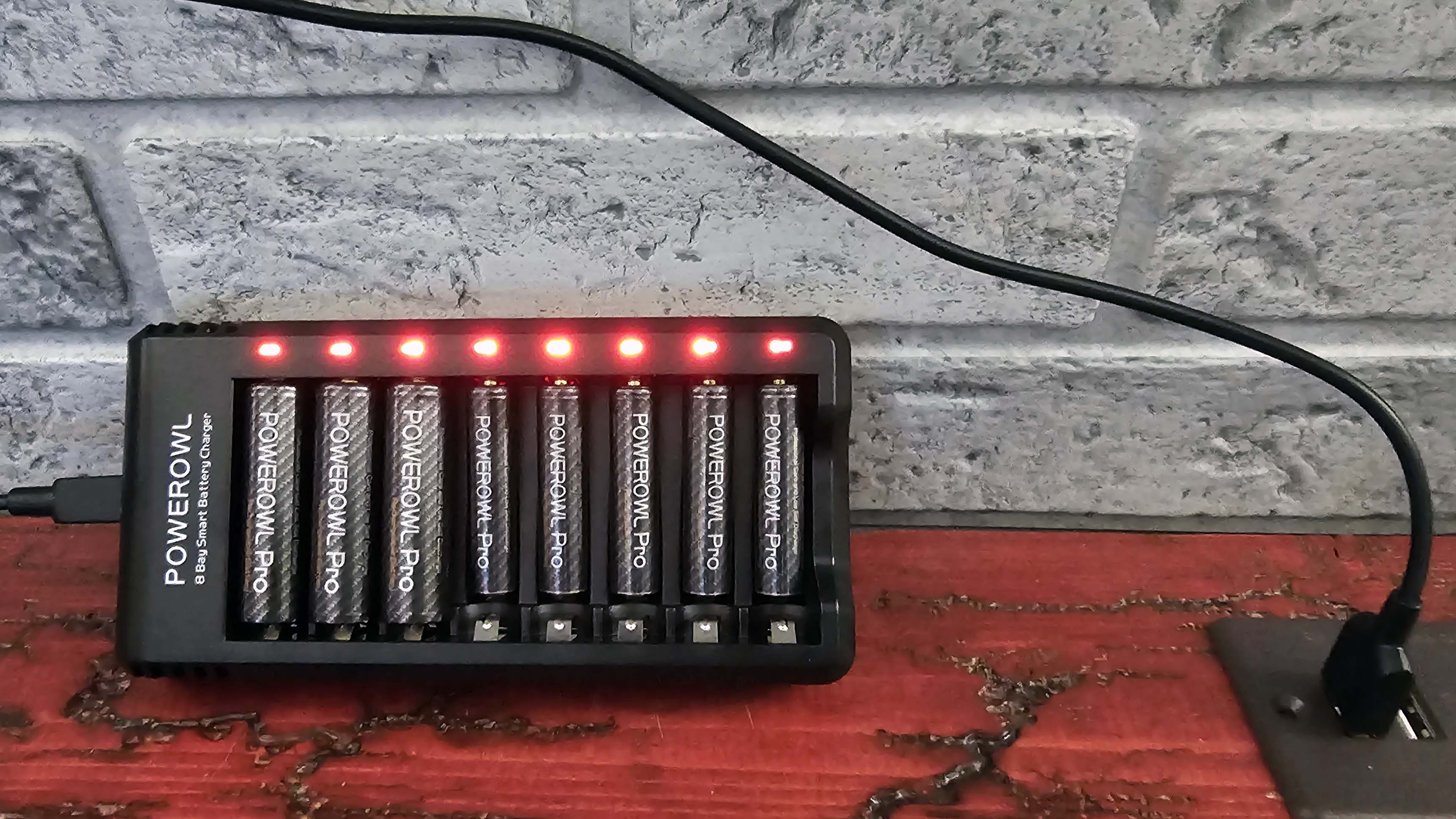
Powerowl's rechargeable batteries are good and surprisingly cheap
(Image credit: Tom's Hardware)
When I first started using rechargeable batteries with my Walkman in the early 90s, they were kind of awful (but still better than spending all my money feeding my music addiction). They couldn't hold a charge and didn't last nearly as long as name-brand disposable batteries. But here in the mid-2020s, rechargeables are surprisingly good.
Panasonic's Eneloops arguably ushered in the rechargeable AA and AAA renaissance, but PowerOwl's batteries are a lot more affordable and I haven't had a single one fail in over three years of using them in my various remotes, smart door locks, and other devices.
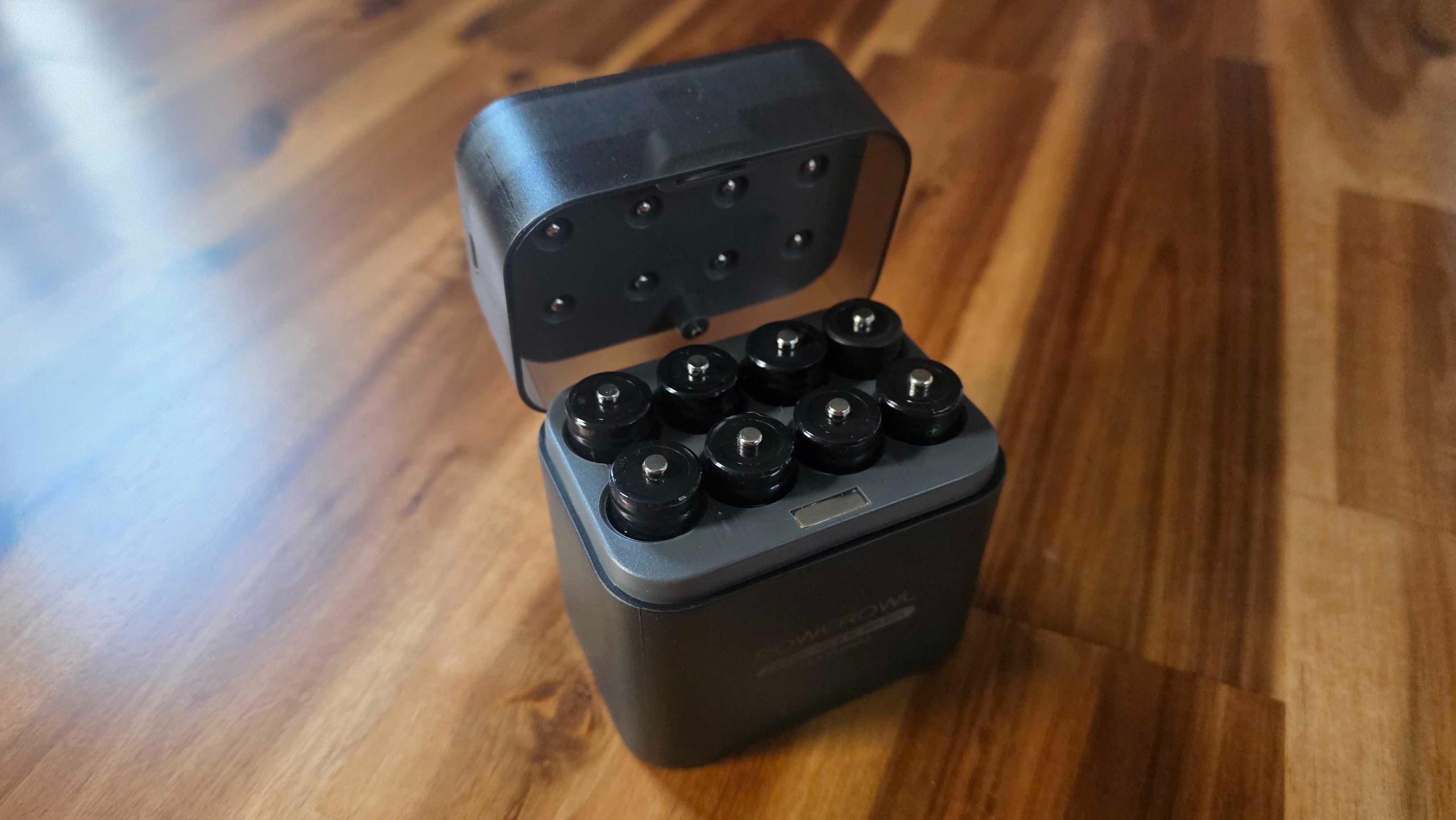
Lithium rechargeables are great for high-drain devices, and this 8-AA set with charger is just $23
(Image credit: Tom's Hardware)
After the good experience I've had with the company's NiMH batteries for years, I bought Powerowl's Lithium rechargeable batteries early this year. And boy am I glad I did. These last months longer in my smart door locks than those older batteries, which means I only have to swap the cells on two doors a few times a year now.
Full disclosure: I have had one of these batteries refuse to recharge after its first power cycle. But out of the three sets I now own, that's not a terrible track record. I just wish the company also made AAA lithium cells for my other devices.
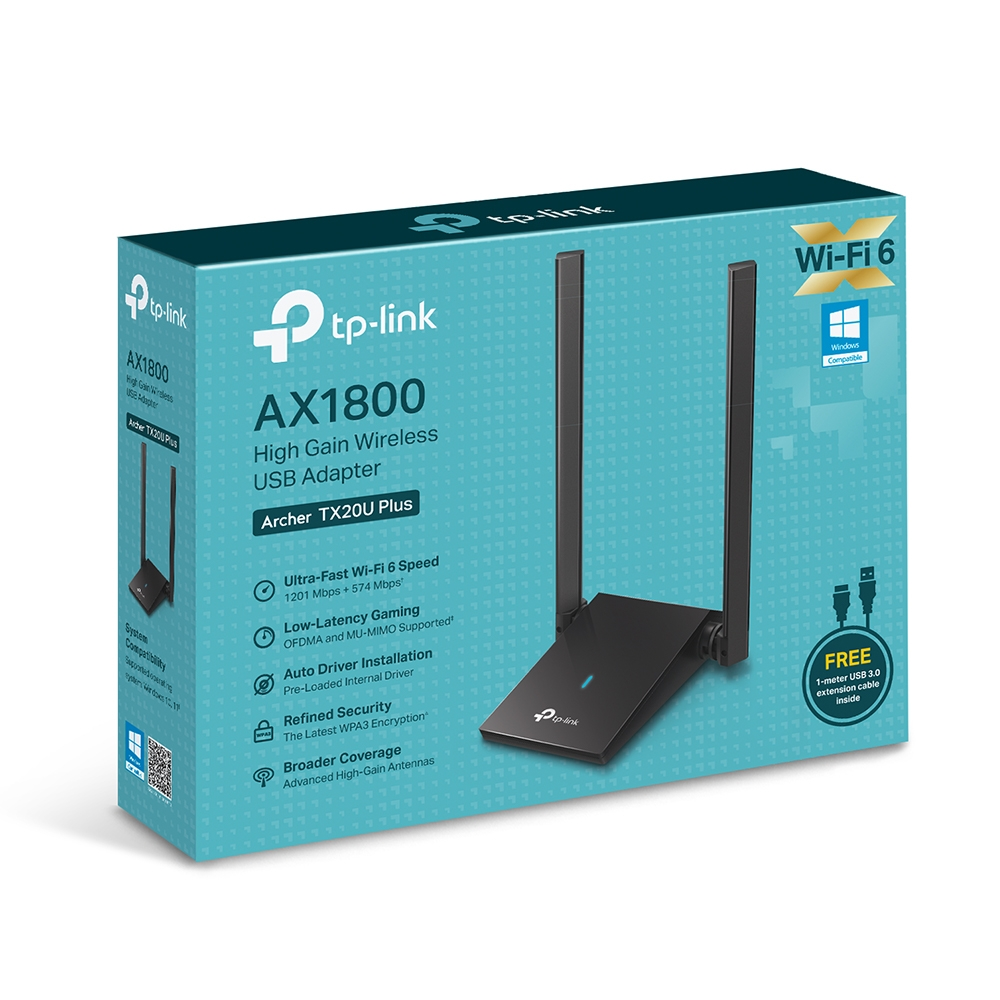
TP-Link's AX1800 WiFi 6 USB Adapter delivers Wi-Fi 6 to older devices over USB
(Image credit: TP-Link)
Have you upgraded your router to Wi-Fi 6 or later, but your desktop or laptop doesn't have the requisite hardware to take advantage of your recent network tech? TP-Link's AX1800 WiFi 6 USB Adapter is here to solve that problem for you. It's quite large by USB Wi-Fi dongle standards, but I've found it works quite well with the Wi-Fi 6 router I bought in 2020.
I have the router running downstairs from my office. And it instantly fixed an issue I was having with very poor reception from the SFF PC I built in the Fractal Terra case.
Orico USB 3.0 Clamp Hub is easy to mount on many desks
This is a four-port, 5Gbps USB-A hub that's designed to clamp onto your monitor or desk and give you extra convenient connectivity.
It comes in black or silver and has a nice, sturdy metal frame. Just note that its clamp section is pretty shallow and its adjustable screw can only open between 10 and 32 mm, so it won't fit on all monitors or desks.
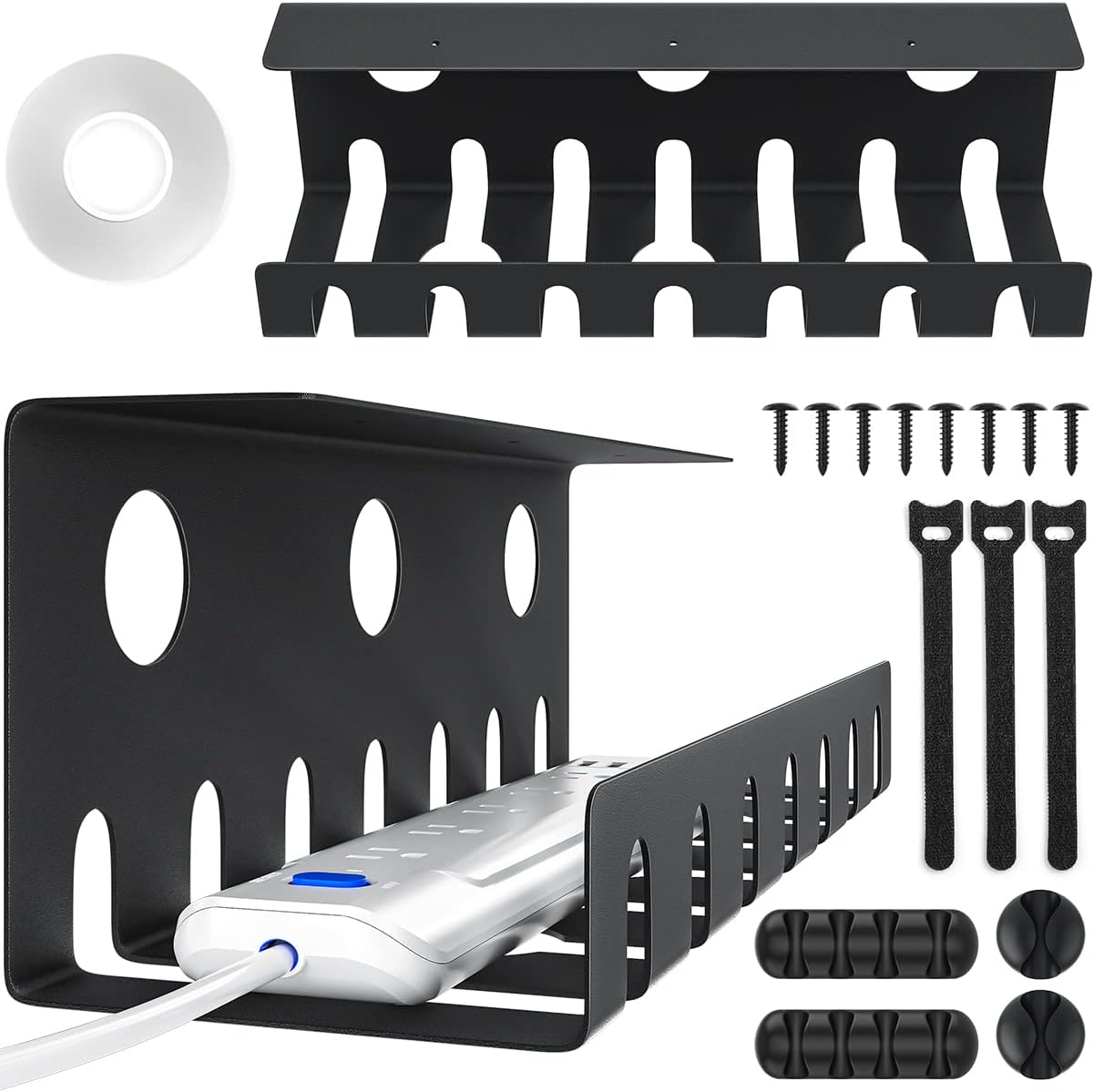
Clean up the cables under your desk with a tray
(Image credit: Delamu)
If you to get a handle on the PC cables in your home or office, some cheap cable management trays will do the job. This two-pack comes with tape, though heavier loads will ultimately require some screws.
Besides the trays, this kit also comes with cable ties and a few cable clips you can place along the bottom or sides of your desk. One of these has been holding up the PC cable clutter in my living room for the past year. But I had to screw it into my desk because it's holding one of the above Anker power strips, plus the large external power brick from my LG OLED TV / Monitor.
Keep a fast charging cable with your keys
(Image credit: Tom's Hardware)
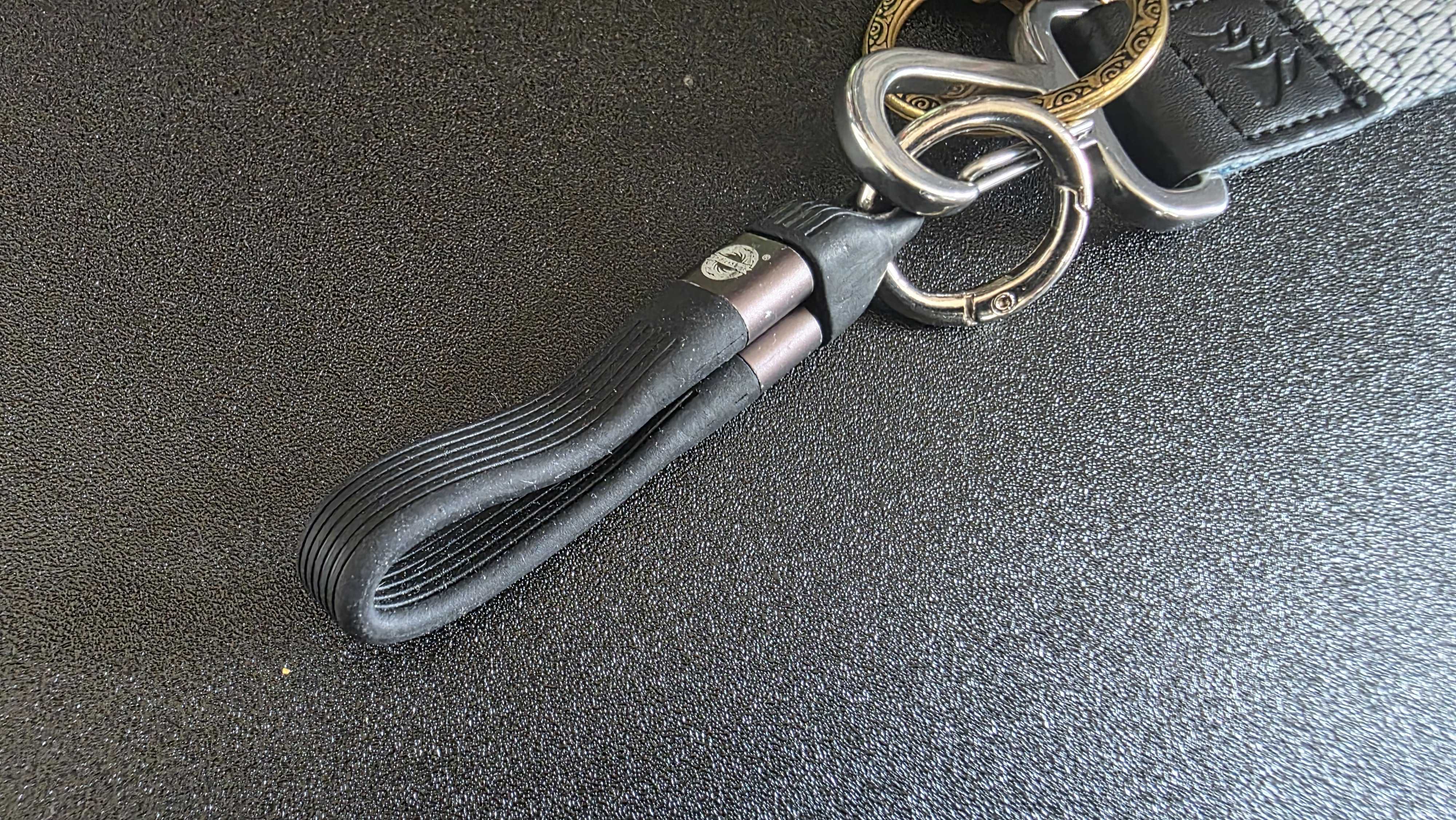
You may, like me, be swimming in a world of USB cables. But that doesn't mean you always have one when you need it away from home. This short 240W USB4 charging cable from EndlesShine solves that by being small enough to attach to your keys. It's not always convenient, at just over 5 inches long, but it will do in a pinch, and has come in handy more than once, particularly on trips when I'm traveling light.
If you're the type who is rough with your keys, the plastic cap may wear out over time, so you might want to just keep the cable in a pocket or your bag. It even comes in white and yellow if you don't like basic black.
Get Tom's Hardware's best news and in-depth reviews, straight to your inbox.
After a rough start with the Mattel Aquarius as a child, Matt built his first PC in the late 1990s and ventured into mild PC modding in the early 2000s. He’s spent the last 15 years covering emerging technology for Smithsonian, Popular Science, and Consumer Reports, while testing components and PCs for Computer Shopper, PCMag and Digital Trends.


 (Image credit: Tom's Hardware)
 Like
0
Like
0
 Dislike
0
Dislike
0
 Love
0
Love
0
 Funny
0
Funny
0
 Wow
0
Wow
0
 Sad
0
Sad
0
 Angry
0
Angry
0






Comments (0)