

This simple antivirus tool is the easiest way to scan your Linux PC for threats - for free

Follow ZDNET: Add us as a preferred source on Google.
ZDNET's key takeaways
- ClamUI is a user-friendly UI for ClamAV.
- This app is free to use and easy to install.
- The app includes profile scanning, logs, stats, and more.
It's long been debated whether Linux needs antivirus protection. I tend to fall on the side of not needing it, but I rarely share files with Windows users. However, on those rare occasions when I have to share files with Windows users, you can bet I want to make sure that they are free of viruses.
To that end, I depend on ClamAV to ensure I'm not sending malicious files to other people.
ClamAV is one of the more popular AV solutions for Linux. It's open source, free, and can run via the command line or a GUI. The thing is, I'm not a big fan of the default ClamTK GUI. I find that it looks out of date and isn't very intuitive.
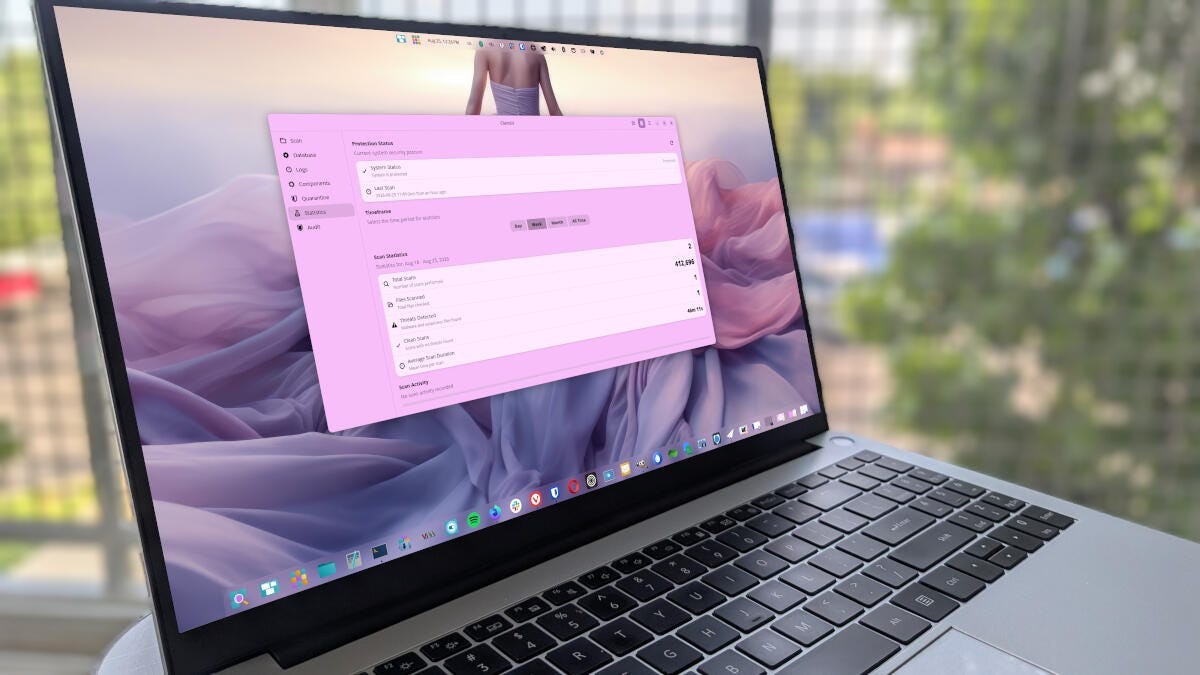
There's another option, however, called ClamUI, which is much more modern-looking and easy to use. ClamUI simplifies the process of updating the ClamAV database, gives you quick access to logs, and makes running scans easy.
Also: Try this new Linux security threat scanner to keep your system safe - you'll thank me
One of the best features of ClamUI is the Profile option, where you can select what to scan from a drop-down list of profiles, including your home folder, a full scan, or a quick scan. Or, you can manually scan specific directories.
You can even run EICAR tests with ClamUI. For those who don't know, EICAR tests use harmless sample files to safely test whether antivirus and anti-malware software is working correctly. That feature alone is very handy because you can randomly check to ensure that a database update is accurate and effective.
The EICAR test is done with a single click in the Scan area.
How to install ClamUI
ClamUI is installable via Flatpak. If your distribution of choice has Flatpak built into its GUI app store, open the app store, search for ClamUI, and click Install.
If your distro doesn't bundle Flatpak support into the GUI app store, you can install the app with this command:
flatpak install flathub io.github.linx_systems.ClamUI
Once installed, you'll find the ClamUI app in your desktop menu.
Also: I've used Linux for 30 years, and this free security suite does it all - almost perfectly
If you're looking for a ClamAV GUI, you probably already have ClamAV installed. If not, you'll need to do so. You may not find ClamAV in your distro's app store, but you can install it via the command line like so:
- Ubuntu/Debian - sudo apt install clamav clamav-daemon clamav-freshclam -y
- Fedora - sudo dnf install clamav clamav-update clamd -y
- Arch - sudo pacman -S clamav
How to use ClamUI
Using ClamUI is very easy. Open the app, and the first thing you should do is update the ClamAV database. Click the Database tab in the sidebar, and then click Update Database.
Regularly updating the database is important.
You'll be prompted for your user password. Once the database update is complete, you'll see UPDATE COMPLETE in the log window.
Also: Linux is getting a security wake-up call - why it was inevitable and I'm not worried
Click the Scan tab and select a profile. For instance, you might want to scan everything in your Home (~/) folder, so click the Profile drop-down and select Home Folder from the profile list.
My scan is running.
Click Start Scan, and you'll see the progress as it scans each file in the folders found in ~/. During the scan, you can go back to doing whatever you were doing before you launched it. ClamAV/ClamUI doesn't consume much in the way of resources, so you shouldn't notice even the slightest hit to performance.
Also: I used OpenFactory to build my own Linux distro overnight - this AI tool is going to be big
The number of files you have in your home directory will dictate how long the scan takes, but I've always found ClamAV to be very fast. I had 412,695 files in my home directory, including everything in .config and .cache, so it came as no surprise that the scan took over an hour. All the while, I continued working.
What it found
In the end, ClamUI/ClamAV found one threat.
Oops! Did I do that?
That was a surprise.
However, when I clicked View Results, a pop-up appeared showing that it found an old EICAR file I had downloaded some time ago for testing purposes.
Busted.
From the pop-up, I can opt to either quarantine or exclude the file, or I can copy the path to the file so I can easily find it. Since this is a file I use for testing, I'll exclude it so it won't be tagged in the next scan.
Also: Desktop Linux just cracked 10% market share - and Windows 11 is mostly to blame
The only caveat to ClamUI, just like ClamTK, is that there's no scheduled scan feature. For that, you have to set up a cron job using the ClamAV CLI, which cannot be done via this app.
Give it a try
And that's the gist of using ClamUI. I much prefer this GUI over ClamTK, and I'm confident that you'll find it preferable as well. It's easy to use, efficient, and reliable. Give it a try, and allow it to scan your home folder or entire system to see what it finds.
What's Your Reaction?
 Like
0
Like
0
 Dislike
0
Dislike
0
 Love
0
Love
0
 Funny
0
Funny
0
 Wow
0
Wow
0
 Sad
0
Sad
0
 Angry
0
Angry
0











Comments (0)