

USB4 Vs USB-C: What's the difference between them?
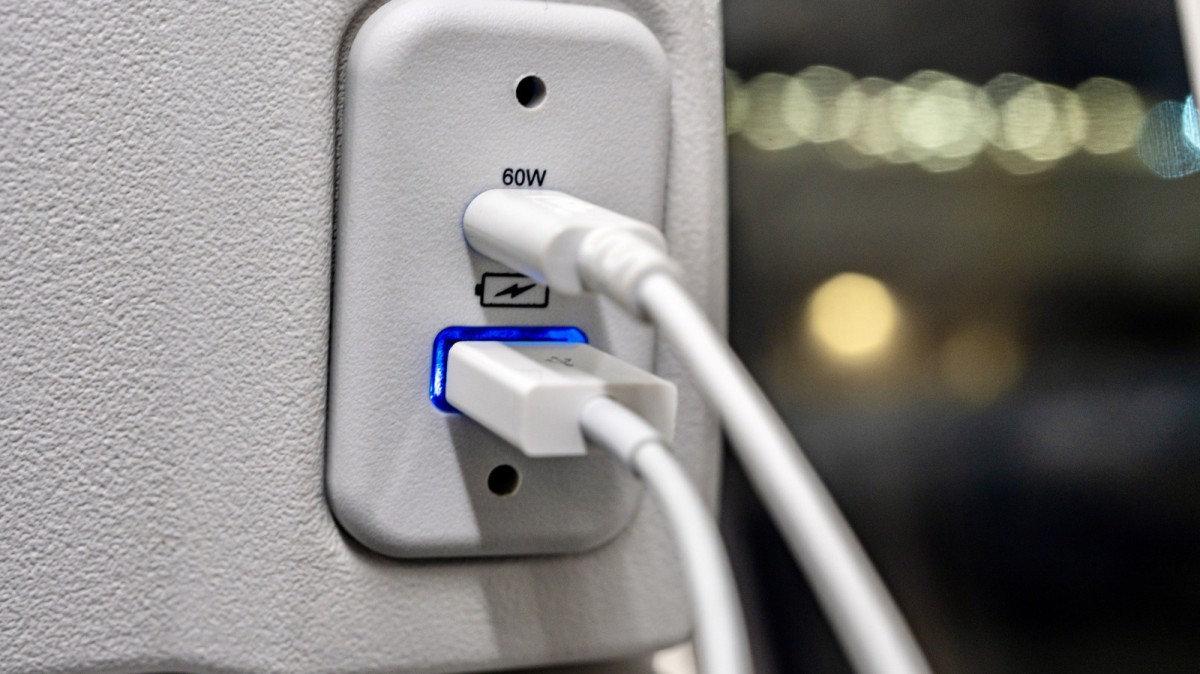
We're here to answer all your burning USB questions.
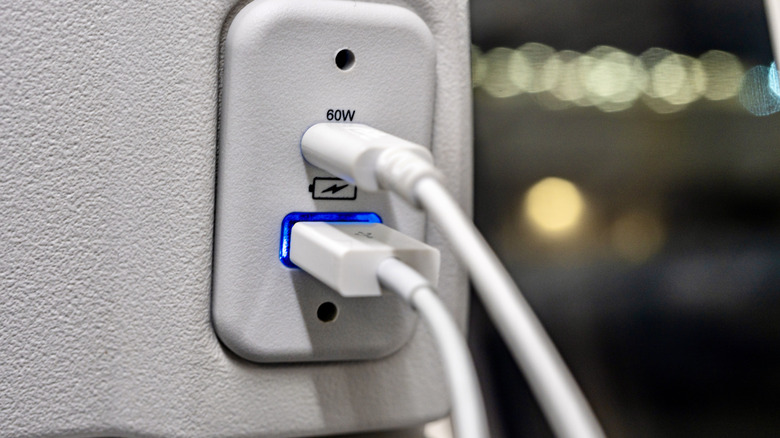
Redunnlev/Getty Images
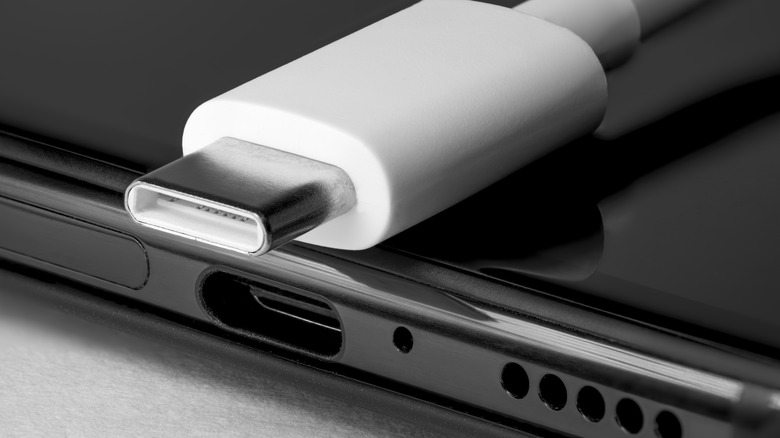
USB naming conventions are a smidge tricky. USB 3.2! USB-A! USB4! USB-C! When it comes to the latter two, you're actually dealing with two entirely separate entities.
When and why you should buy USB4 cables comes down to the hardware you're using. If you bought your laptop or PC before 2019, its ports will be limited to USB 3.2, meaning you'll have far less bandwidth for high-speed data transfers. USB4 represents a marked upgrade on previous generations, with a single cable capable of powering a setup that includes external monitors, docking stations and lightning-quick SSDs. Let's get into the specs of USB4.
How do I know if I have USB4 or USB-C?
Oleh Strus/Getty Images
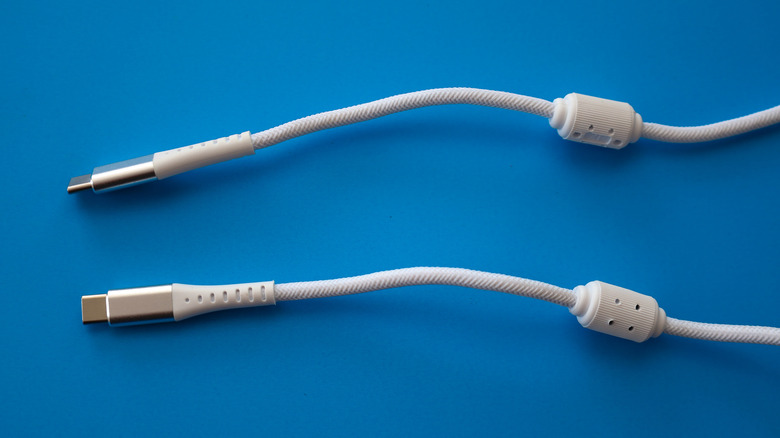
It's not either/or. USB-C is the connector you plug your charging cables or peripherals into; USB4 is the latest USB standard. It's also important to note that while all USB4 cables use USB-C, older USB-C connectors won't support USB4's higher bandwidth. That means if you plug a USB4 device into, say, a USB 3.2 port, you'll be limited to that standard's max 10 or 20 Gbps bandwidth (depending on the generation), not the 40 Gbps first-gen USB4 is capable of.
USB4 launched back in 2019, so if you've bought a new PC or laptop from 2020 onward, there's a good chance your hardware supports the latest USB standard. As for how to tell whether your device is compatible with USB4, check the connector for either a "USB4" or "Thunderbolt" lightning logo (USB supports Thunderbolt 3 tech). Not all manufacturers label the ports on their products the same way, so if you're still unsure, check your device's manual to find out whether it's USB4 certified.
What makes USB4 better?
Formatoriginal/Shutterstock
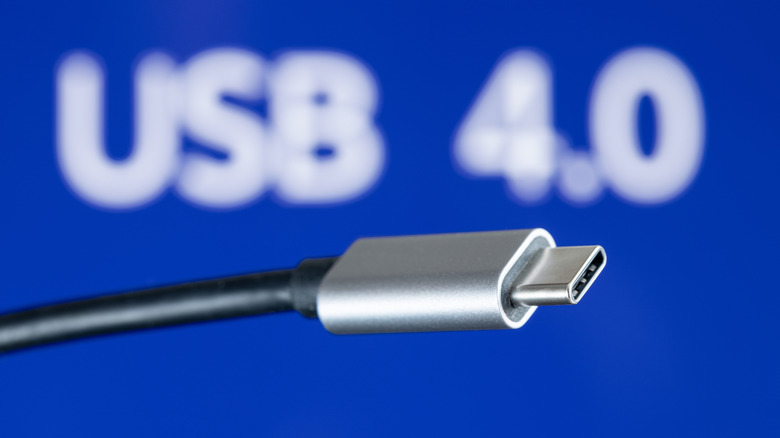
The most recent USB standard is a whole lot faster than previous generations. Whereas the first generation of USB 3.2 was limited to a measly max data transfer rate of just 5 Gbps, USB4 can hit 40 Gbps. If you regularly find yourself editing and transferring large 4K video files between workstations, you're really going to feel the benefit of that speed upgrade.
Unlike USB 3.2, USB4 supports video output. A single USB4 cable can simultaneously tackle speedy data transfers, host a video signal and handle charging. USB4 can also dynamically share its bandwidth between data transfer and video needs depending on what the user is doing. The standard's ability to support high-resolution signals means the tech is well suited for gaming monitors, many of which are now 4K (or above).
Is USB4 worth the upgrade?
Alexander_Evgenyevich/Shutterstock
USB4 is definitely worth the upgrade if you need fast transfer speeds. The latest USB4 Version 2.0 devices offer bandwidth up to 80 Gbps, which means you can transfer large files in ultra-fast fashion. Said bandwidth allocation also makes USB4 a terrific option if you have a good portable SSD, as the format supports write speeds of up to 4,000 MB/s (upped to 8,000 MB/s with USB4 2.0).
If you have your heart set on a shiny new laptop with USB4 ports, you're in for other benefits compared to USB 3.2. The more recent standard boasts excellent support for connecting dual hi-res monitors, in part because USB4 supports DisplayPort funneling. This means that if your laptop or PC supports USB4, you can broadcast high resolutions and responsive refresh rates through a single USB4 cable. On a slightly more niche note, USB4 also works far better with external GPUs than previous generations. Of course, if you only use low-power, everyday peripherals (like wired mice and keyboards), upgrading to a new laptop specifically because it supports USB4 doesn't make much sense.
What's Your Reaction?
 Like
0
Like
0
 Dislike
0
Dislike
0
 Love
0
Love
0
 Funny
0
Funny
0
 Wow
0
Wow
0
 Sad
0
Sad
0
 Angry
0
Angry
0










Comments (0)