

How I tag my files to avoid endless searching and disorganized folders

Follow ZDNET: Add us as a preferred source on Google.
ZDNET's key takeaways
- Tags are an ingenious way of organizing files.
- With tags, you can create relational searches for files.
- Tags are built into some of the more popular file managers.
When you open a file manager, you are most likely searching for a file. It makes sense, as that's one of the primary purposes of file managers… to make it easy for you to manage your files. Most file managers have fairly robust search and filter features to help you find what you're looking for.
Sadly, most users overlook these features. Instead of quickly locating a file, users will click around directories, hoping they remember where they left that particular file they're hunting for.
Also: My new favorite Android file manager is way better than Google's default - and it's free
If only there were features to help you out.
Oh, but there are!
One such handy feature is file tagging, and most file managers include it.
What is file tagging?
Imagine you have a file named linux.txt. In that file, you mention Ubuntu, Fedora, Pop!_OS, Linux Mint, and ZorinOS. You might also have a file named distrox.txt that mentions some of those distributions (and more). And then you might have files named ubuntu.txt, fedora.txt, linuxmint.txt, zorinos.txt, pop!_OS.txt, etc.
Now, what if you wanted to list only those files that mentioned Ubuntu? Since the filenames themselves don't include Ubuntu, you might have a hard time locating them.
That's where tagging comes into play. You can add multiple tags to a single file, which categorizes it so it's easier to find. Open your file manager, search for the Tag section, click on a particular tag, and all of the files that include the tag in question will be listed.
It's not only that simple, but it's also that effective. I've been using file tags for a long time, and they've never failed to help me not only find files fast but also keep them well organized.
Also: 5 easy ways to turn MacOS Finder into a way better file manager
Essentially, tagging is like using a relational database to tie files together via relationships. You can create any type of relationship you want. For example, you could have a metaphorical ton of recipe files on your machine and categorize them like so:
- Recipes
- Desserts
- Main Dishes
- Sides
- Drinks
- Vegan
- Vegetarian
Or you could have audio files and tag them via genre, artist, release date, etc.
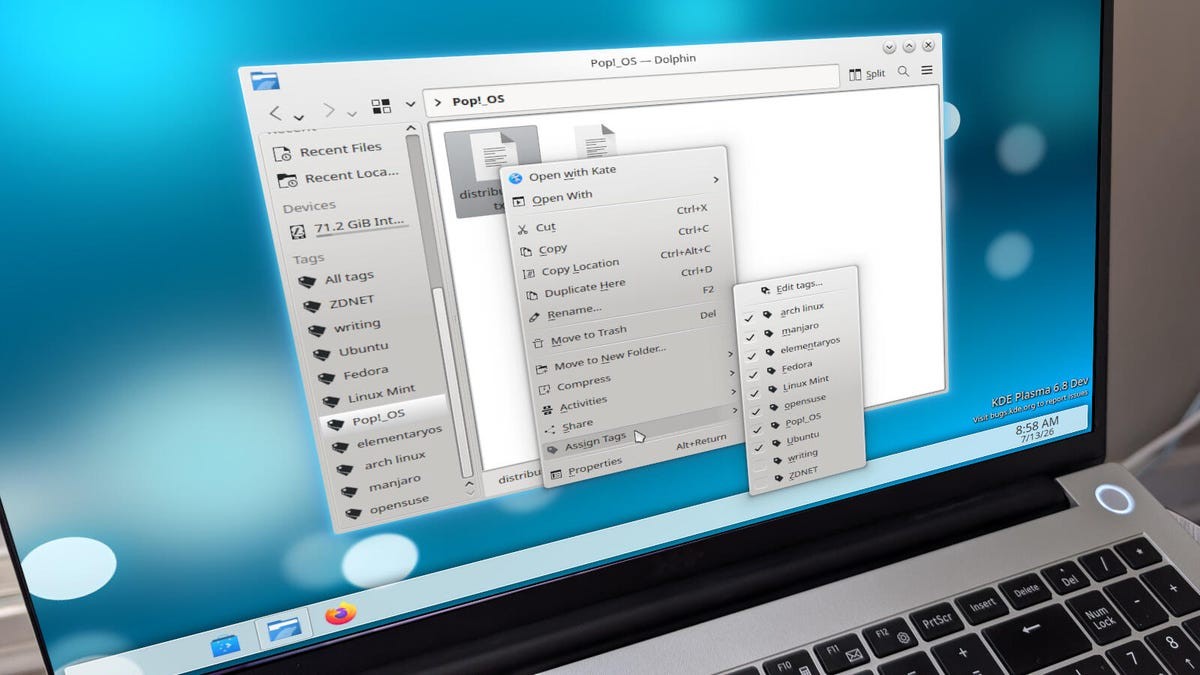
I've created tags for specific Linux distributions that can be assigned to files.
Once you see what file tagging does for you, you not only can't unsee it, but you can't not want to use it. Trust me when I tell you that file tags have made my PC life so much easier -- when the feature is supported.
The catch
The only catch is that not all file managers support the feature. MacOS, iOS, iPadOs, and Windows support tagging in their respective file managers. Android's default file manager does not support tagging. Some Linux desktop environments, such as KDE Plasma, support file tagging. It never ceases to amaze me that an operating system as efficient as Linux includes some desktop environments that don't have this feature.
Using tags
Since I've already demonstrated how to use tags in MacOS Finder, I'm going to show you how it's done in KDE Plasma. (Someday, hopefully, System76 will add the feature to COSMIC File Manager.)
To use tags in Dolphin (KDE Plasma's file manager), all you have to do is locate a file to be tagged and right-click it. From the resulting pop-up, you can either select from a tag you've already created or you can click "Edit tags" and create a new one from the Edit Tags window.
The KDE Plasma tag editor is simple to use.
You can assign as many tags to a file as needed. One minor glitch in the KDE Plasma matrix is that when you create a new tag, the Edit tags window goes away. To avoid this, type multiple tags in the Edit tags window, separated by commas, like so:
elementary os, openSUSE, Manjaro, Arch
Hit Save, and you're done. All new tags will be automatically assigned to the file.
Also: The latest KDE Plasma 6.7 surprised me with features I didn't expect from a point release
You should then see all of your new tags listed under the Tags section in the left sidebar of the file manager. If you click on any one of those tags, all associated files will appear.
If you have a hard time keeping your files under control, you should seriously consider using tags. Over the years, I've found them to be one of the best features for keeping tabs on files and file relations. Of course, if you don't mind spending a good chunk of your day searching for the files you need, then continue ignoring tabs. But why work harder when you can work smarter?
What's Your Reaction?
 Like
0
Like
0
 Dislike
0
Dislike
0
 Love
0
Love
0
 Funny
0
Funny
0
 Wow
0
Wow
0
 Sad
0
Sad
0
 Angry
0
Angry
0












Comments (0)