

How to turn your Canon camera's images into 3D objects and videos with Canon's free DP3D software
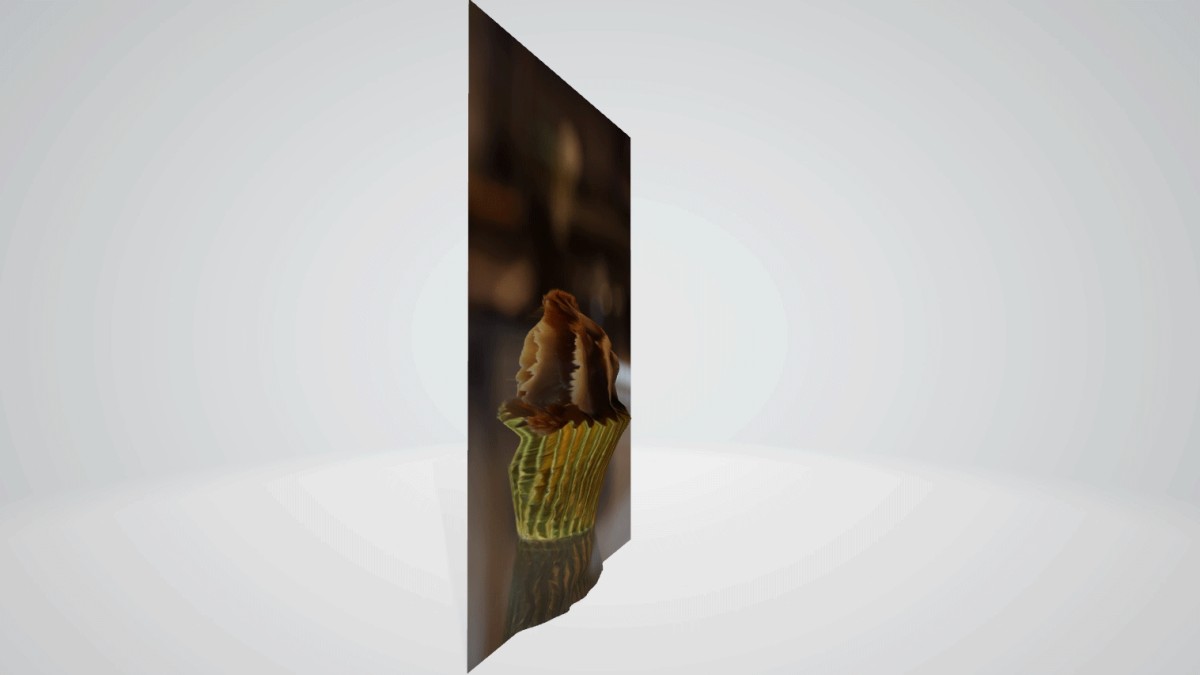
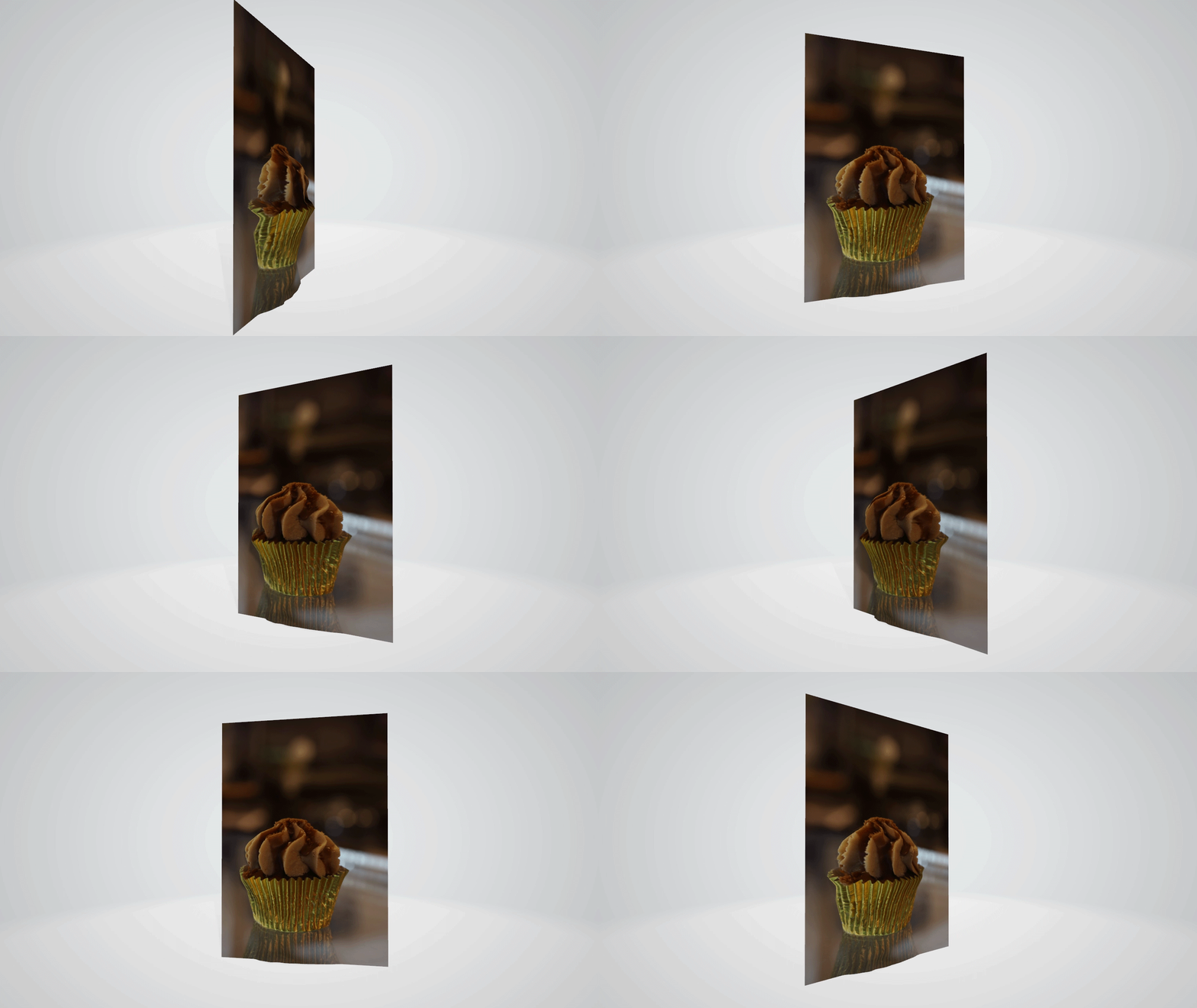
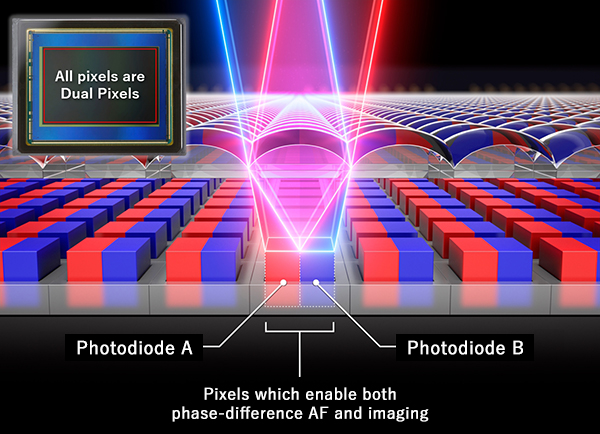
Canon recently unveiled its new Dual Pixel 3D, or DP3D for short — an image generation technology making use of Canon’s proprietary Dual Pixel AF technology. The new technology piggybacks off Canon’s proprietary Dual Pixel AF technology found in many of its EOS mirrorless cameras, which splits each pixel on the camera sensor into two separate light-sensitive photodiodes.
This tech has delivered reliable and snappy autofocus in recent years — if the two images on each photodiode line up perfectly, the image is in focus, if they don’t line up then the camera knows which direction to move the autofocus motor to rapidly lock on.
The new Dual Pixel 3D feature can be used to create immersive three-dimensional images via Canon’s new Dual Pixel 3D Converter app which was released in October.
While launched in tandem with the hotly-anticipated Canon EOS R8 Mark II on September 16 — a full-frame which makes use of the new feature — it’s good news for owners like myself of any Canon EOS mirrorless camera with Dual Pixel AF, stretching back to older generation models such as the EOS R5 and EOS R6 Mark II, which will be able to benefit without a firmware update (although updating the firmware is always a good idea to stay up date with the latest features and bug fixes).
I downloaded the Canon Dual Pixel 3D Converter app to put it through its paces — here’s everything you need to know to get started…
How to take photos for Canon DP3D
To begin, you’ll need a Canon EOS camera with Dual Pixel AF. It’s safe to say if you own one of Canon’s interchangeable lens mirrorless cameras in recent years, then your camera will likely feature Dual Pixel AF and be able to make use of this new tech.
This is great news for users of older Canon mirrorless cameras like myself as my older EOS R5 and previous generation Canon EOS R6 Mark II will still be able to make full use of this brand-new technology.
Sign up for breaking news, reviews, opinion, top tech deals, and more.
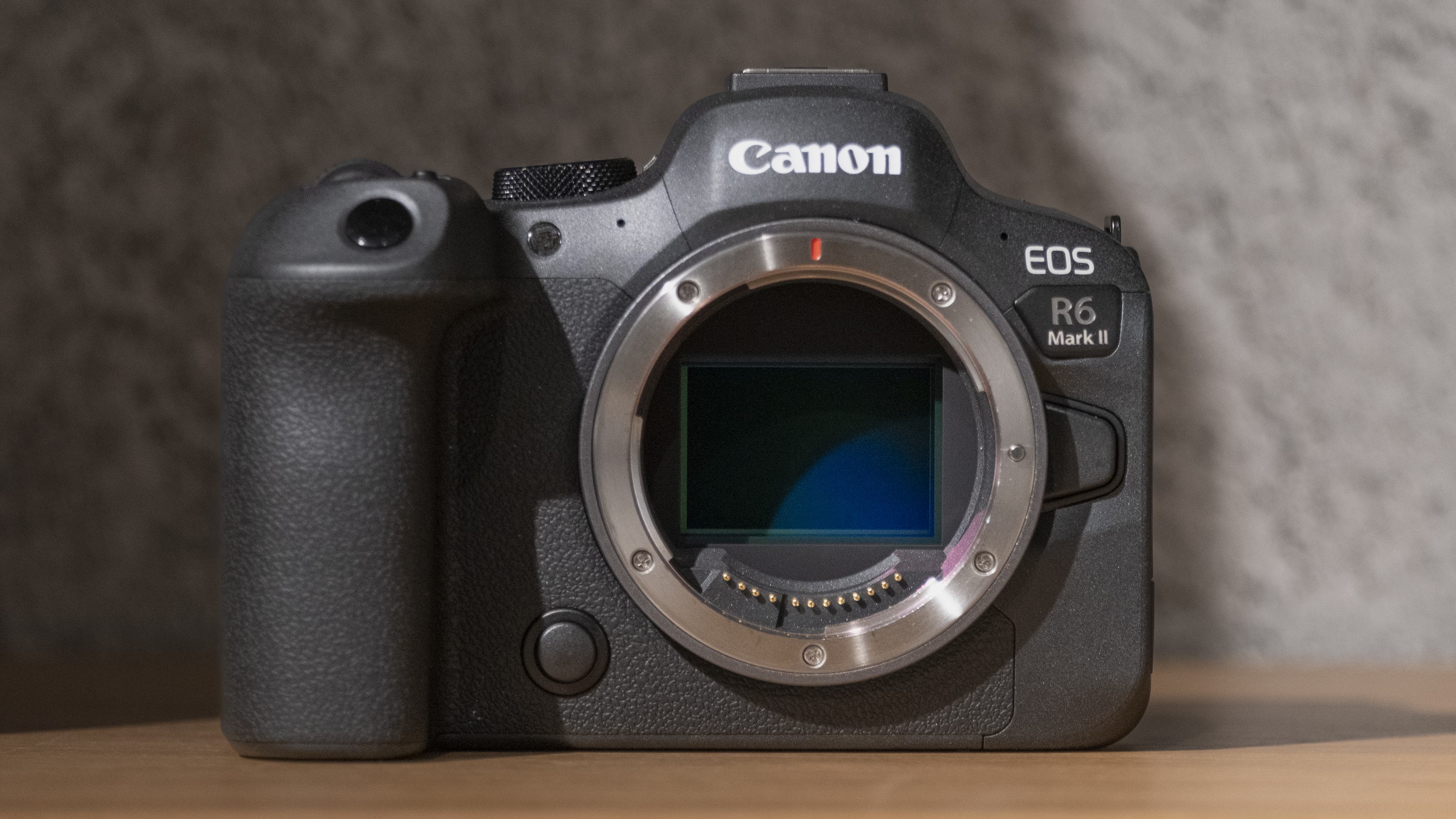
Your camera will, however, also need to be paired with one of the compatible Canon RF lenses. The list goes beyond specialist Canon RF 5.2mm F2.8L Dual Fisheye or RF-S 3.9mm F3.5 Dual Fisheye, but it is a little limited and also won't currently work with older EF or EF-S glass. We published a full list of compatible Canon cameras and lenses that you can use to enjoy this new technology when it was first announced.
Canon says, “Specific shooting conditions and techniques are necessary to generate accurate depth information to eliminate blind spots, allow for the required depth of field, subject and background separation, subject depth and surface texture.”
In my experience the software works best when your subject is taken on a clean background (no bokeh) and without too many blind spots which make it harder for the software to create its 3D effect.
You also want an object that’s relatively flat with not too much depth; little bumps are fine such as small pieces of fruit on a tart, but large peaks in depth will cause more significant issues and make the effect much more noticeable and fake-looking.
Two of the compatible lenses Canon lists are the Canon RF 100mm f2.8L Macro IS USM and Canon RF 35mm f1.8 IS Macro STM, both of which are macro lenses. Yet, when I shot with both of these I later got an alert in DP3D warning me for shooting too close to my subject! The result still turned out fine, though.
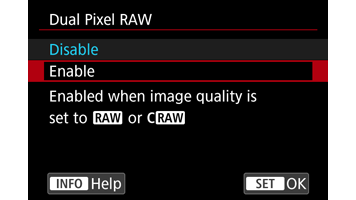
To use the new software you’ll need to make sure you’re shooting not only in the RAW format, but Canon's Dual Pixel RAW (see above). This setting was found in the very first camera menu on my Canon EOS R6 Mark II.
Note that shooting Dual Pixel RAW will produce files roughly twice the size, take longer to write to your memory card, and can't be taken when using the electronic shutter.
Alongside 3D, Dual Pixel RAW can be useful for correcting minor parallax error, shifting bokeh or focus and reducing flare, but if you don't intend to utilize these capabilities within Canon's DPP, I would suggest turning it off when you don't need it to avoid compromizing the camera's performance.
Make sure your subject and focal point are in focus and that your shutter speed is fast enough to shoot handheld – if you’re in doubt shoot on a tripod. You’ll also want to make sure your exposure is correct so that the image isn’t too bright or dark. Canon recommends you don’t close the aperture down past f/5.6 and also keep the camera's sensitivity under ISO 1600 – a warning sign will be displayed on your image when you import it into DP3D otherwise and you won’t get optimal 3D results.
Installing the Canon DP3D app on Windows 11
With the image taken it’s time to open up the new Canon Dual Pixel 3D Converter app, which is currently only available for Windows PC running the latest Windows 11 operating system. Read our guide on How to plan a smooth Windows 10 to Windows 11 migration.
Canon also added “The application will initially be available free of charge”, though specifications and terms of use may change in the future – in other words, it’s initially free but you might need to pay to use it in the future.
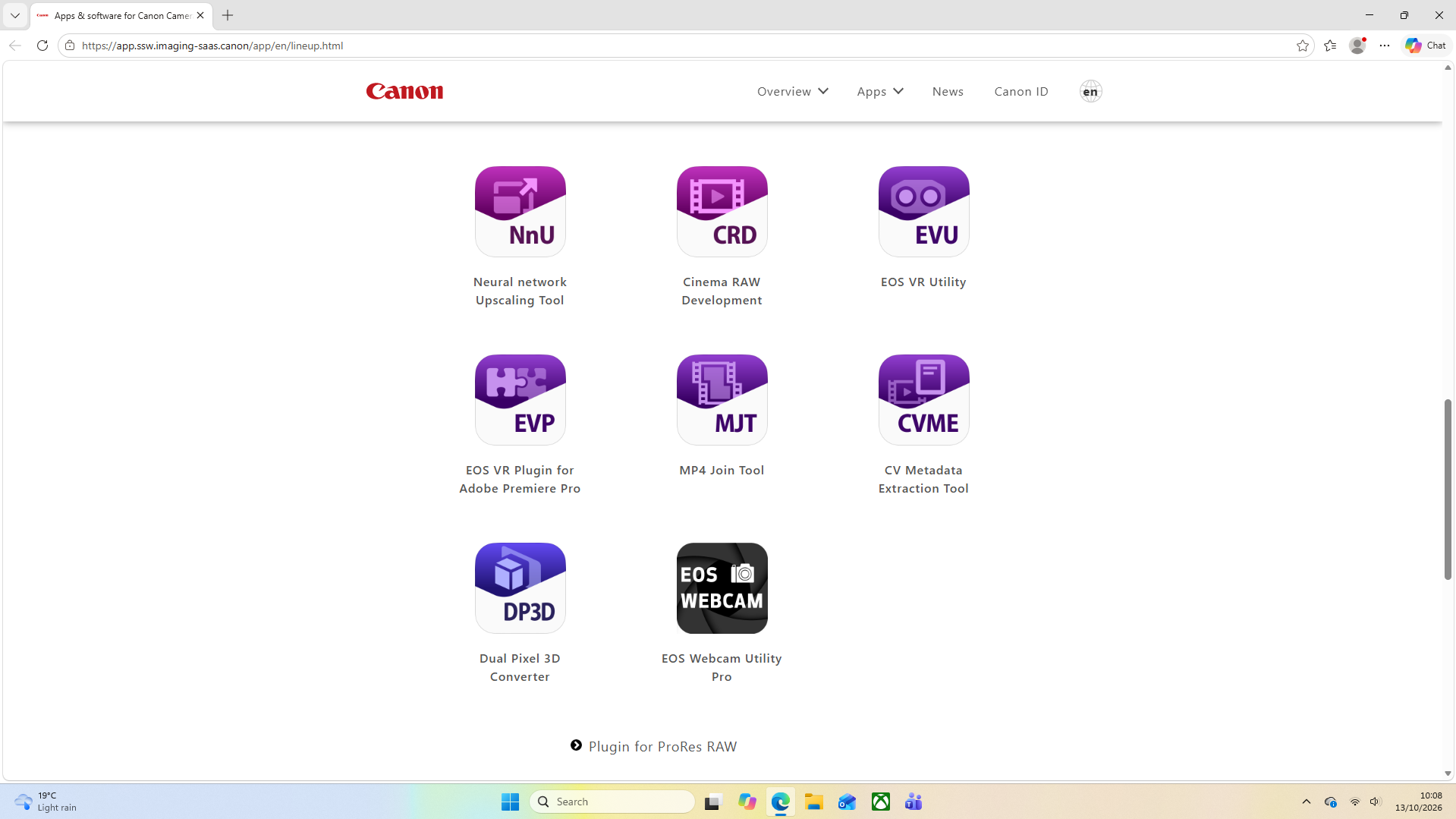
When you're up and running with Windows 11 you’ll be able to run the installation wizard which can be downloaded from Canon’s site. Make sure that once downloaded you extract the ZIP file and then double-click the DP3dInstaller-W1.0.0.13.exe file from the unzipped folder to begin the installation.
Image 1 of 2
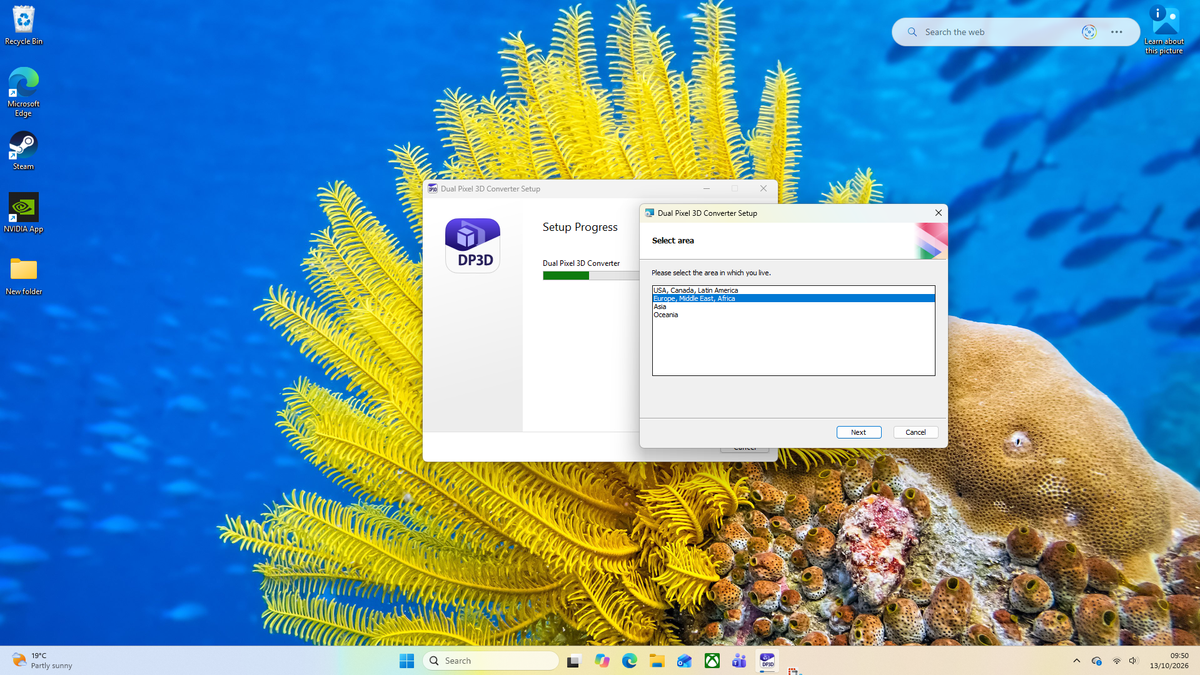
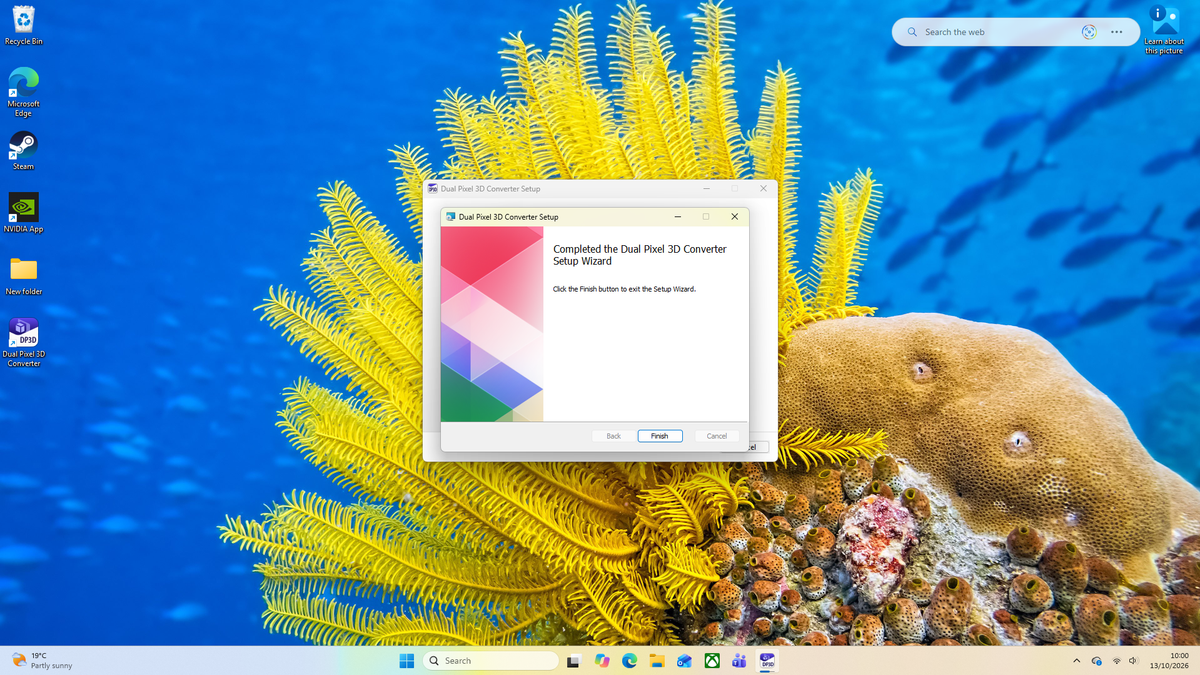
Now you’ll need to choose which area you live in - you have the options: USA, Canada, Latin America, Europe, Middle East, Africa, Asia and Oceania. In the following screen you can choose the country you live in and also select your language. Once you’ve ticked the box to accept the license agreement you can hit next which takes you to the final setup screen, click Install here.
It’s also worth noting at the bottom of the same Canon site, you can download five sample images made up of a mix of food and flowers which you can play around with if you are yet to shoot with Dual Pixel RAW enabled, or perhaps you don’t own a Canon EOS mirrorless camera and what to see what all the fuss is about. Note, the sample files are downloaded as a DP3D _Sample.zip file and you’ll need to extract these files by right-clicking on the folder and choosing Extract before you can use these images in DP3D.
Creating 3D images in the DP3D app
The DP3D app allows users to fine-tune the degree of depth, making a more pronounced 3D effect or a more subtle ‘flat’ appearance. The technology also makes it easy to isolate your subject and remove or replace the background before outputting a 3D model or stereoscopic photo.
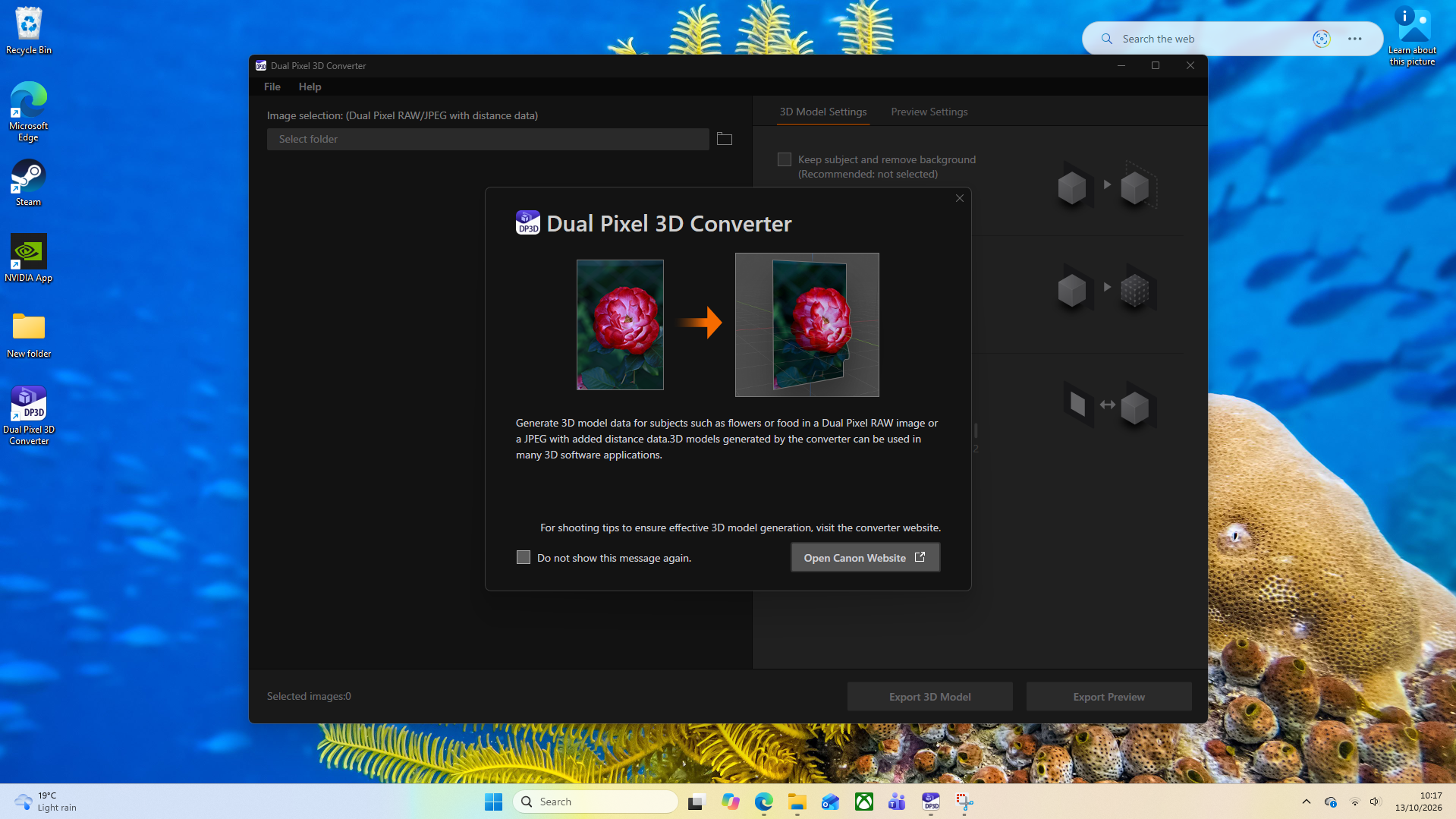
Dual Pixel RAW files and supported Canon EOS R8 Mark II JPEGs contain depth information derived from the slightly different views captured by the two photodiodes on each pixel. Using proprietary algorithms, Canon converts this phase-difference information into 3D shape data, which is combined with high-quality image data captured by selected EOS cameras as surface textures to create realistic and detailed 3D models.
Once you’ve loaded up DP3D you’ll need to click the folder icon at the top of the main window and then navigate to the folder where you’ve saved your Dual Pixel RAW files.
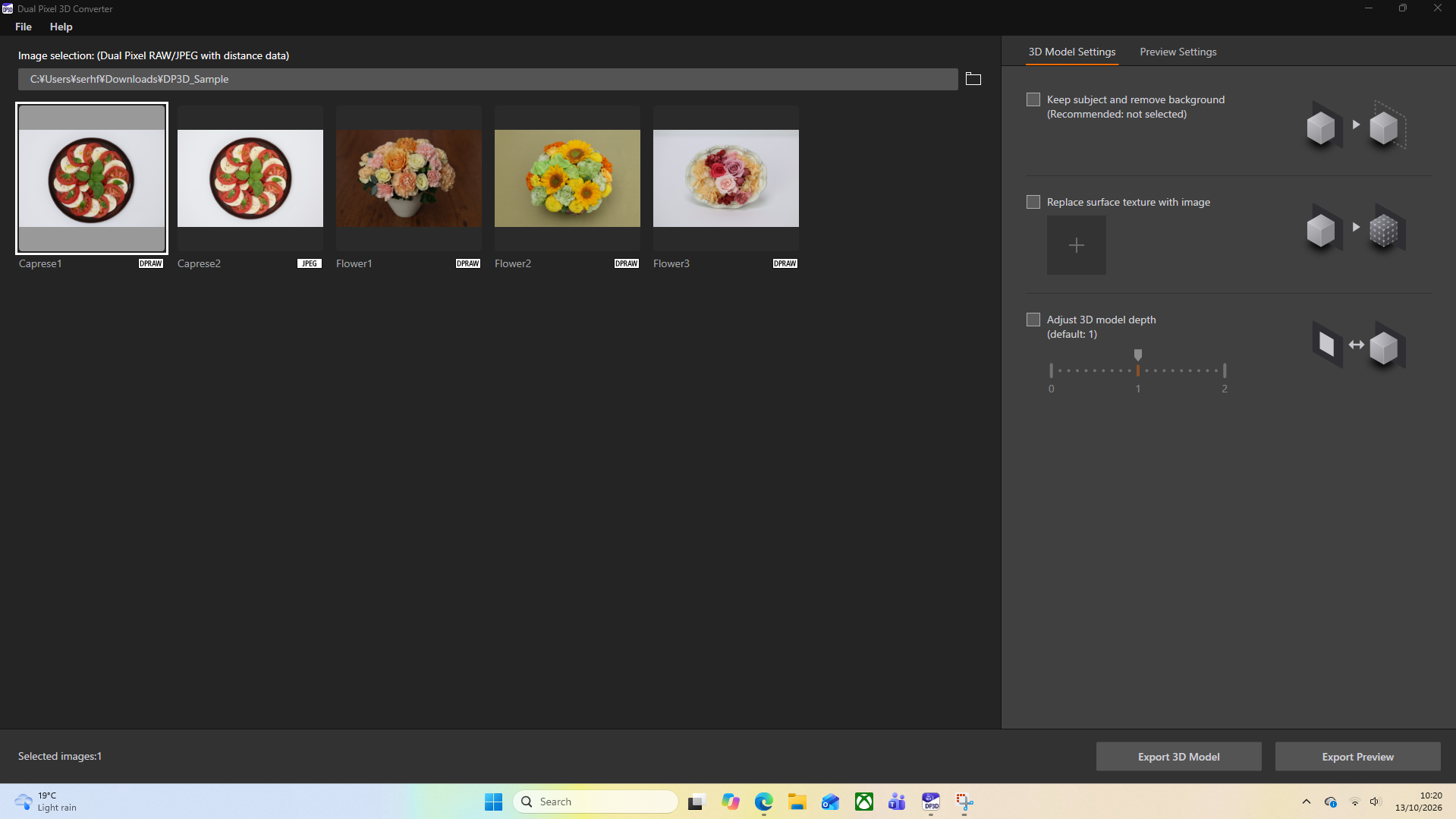
You have two main options – either create a 3D model which you can edit further in a 3D editor such as Blender, or you can create a Preview which creates a very short video with limited options, essentially doing a basic pan from left to right to show off the 3D depth effect. You also have options here to change the background, add a foreground and frame. You can also choose the quality of the video when you click Export Preview. Here you can also set the quality to High, Medium or Low quality (18, 8 or 4 Mbps), choose your own filename and where you want to save the video.
However, I found those options rather limiting within DP3D so I would instead click Export 3D Model where you’ll have the choice between OBJ and GLB files to edit further in your 3D editor of choice. You can also use Windows 3D viewer and even Preview on Mac to play around with these 3D files and explore the different angles produced by DP3D.
With the 3D file created you can use a program such as Windows 3D Viewer or Blender, which is free to download. In a program such as either of these options you’ll have way more options than DP3D for changing the angle, rotation and lighting, which is great for exporting still images. For videos, you’ll also be able to change the direction and duration of pans so you can get it looking perfect for what you need.
Conclusion
After playing around with DP3D for some time and with various pictures and subject matter, I think it’s fun and interesting that Canon has released it for free - after all, additional functionality to the cameras which we already own is certainly welcome.
However, the results have limited uses and more often than not look quite poor. Are there situations where somebody might need to get a little 3D animation from a 2D image? Sure — marketeers looking to animate food or product shots for videos and reels seems like a perfectly adequate use for Canon's new DP3D tech.
While it’s admirable that Canon is trying to squeeze the most out of the pixels taken in-camera, this is one of those situations where I sadly think AI can probably do it better.
Canon is trying to stretch and manipulate the pixels already there, whereas AI can create brand new pixels and frames based on what it thinks should be there, and that’s likely to create smoother results with fewer artefacts. For still images, the Rotate Object feature found in Photoshop Beta is likely to produce better results and is glimpse of what lies ahead in our editing futures.

Follow TechRadar on Google News and add us as a preferred source to get our expert news, reviews, and opinion in your feeds.
I started writing for photography magazines and websites back in 2012. I'm an expert gear reviewer, Photoshop specialist and have been a deputy editor of some of the world’s most beloved photography magazines
What's Your Reaction?
 Like
0
Like
0
 Dislike
0
Dislike
0
 Love
0
Love
0
 Funny
0
Funny
0
 Wow
0
Wow
0
 Sad
0
Sad
0
 Angry
0
Angry
0







Comments (0)