

Photoshop, Capture One, or Evoto: Which Handles Blemishes Best?
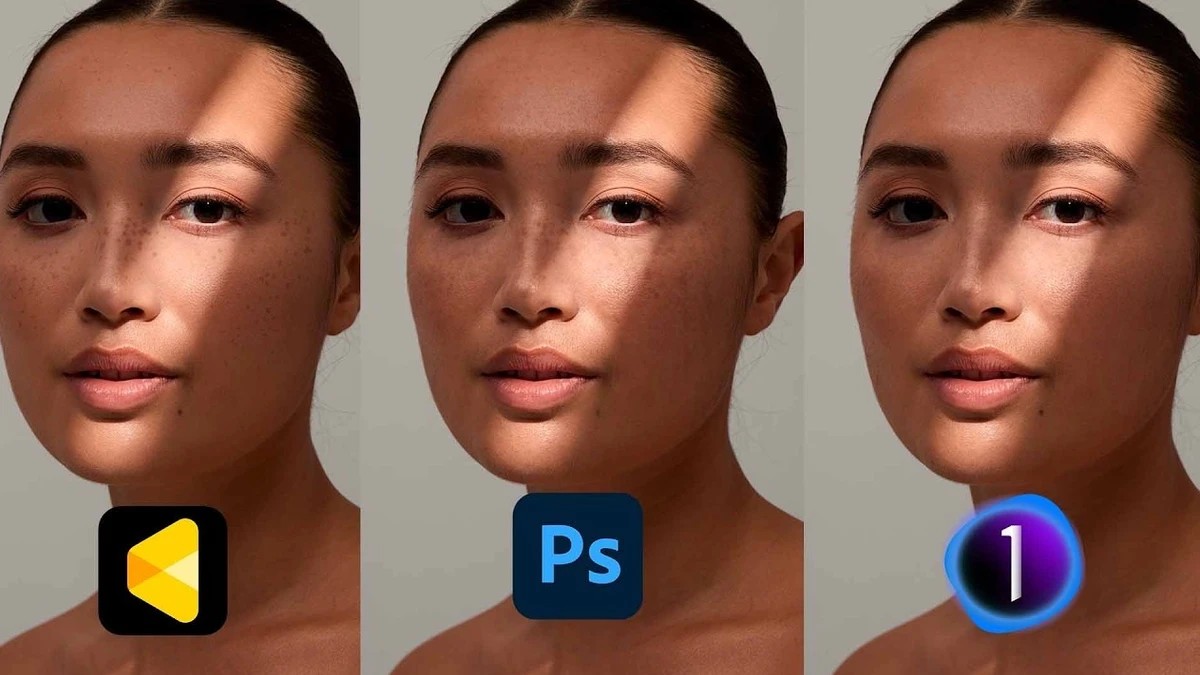
Photoshop, Capture One, and Evoto can now all remove blemishes with a slider, so the first pass of portrait skin cleanup no longer has to happen one spot at a time. Which one you trust on a client's face comes down to how each app decides what counts as a blemish and how much real skin it leaves alone.
Freckles are where automated blemish removal gets tested hardest, and Prince Meyson builds his comparison around that problem by running all three apps on three portraits: a woman with darker skin, a woman with lighter skin, and a woman with heavy freckles. In Photoshop, the tool lives inside the Camera Raw filter, under the Remove tab, where you choose Blemishes and click Apply. Processing took a few seconds on his newer computer, though he has seen it take minutes on older machines. Hovering with the overlay turned on shows exactly which spots were treated. The Amount slider controls strength, and the Fade slider decides how many freckles and moles survive. Pull Fade down and the moles on a subject's neck come right back; push it up and they disappear.
The Photoshop workflow has friction. When you open Camera Raw on a second image, it carries over the previous image's painted areas instead of analyzing the new face, and you can't record the step as an action. Meyson's workaround is to convert the layer to a smart object first, so you can reopen the filter and adjust later. Evoto puts its controls directly in the face refinement panel, with separate sliders for freckles and acne plus a mole removal option. Unlike the other two, it also works on skin beyond the face. Copy and paste works across images, and Evoto reads each new face instead of repeating the old corrections. Capture One keeps things to a single blemish slider in its retouch tools, with no freckle-specific control, so protecting an area means painting it out of the mask.
Freckles, moles, and birthmarks belong to the person in the frame, and plenty of subjects see them as part of who they are. Ask before the shoot what they want kept, and you'll set your sliders with a clear target instead of guessing at the computer. Volume should shape your tool choice as much as image quality. If you shoot headshot days, school portraits, or events, the minutes spent on per-image setup add up fast, and a tool that pastes cleanly across a batch can outweigh small differences in how a single forehead looks. A one-off editorial portrait gives you room to finish by hand with dodging and burning or frequency separation. Meyson's choice of three very different faces also shows a habit worth copying when you evaluate any skin tool. An app that looks great on one complexion or skin condition can behave differently on another, and a small test set of your own past clients reveals more than any sample image.
The heavily freckled portrait pushes all three apps to their limits. Photoshop handles it well at moderate settings but starts visibly replacing freckles when Fade goes high. Evoto clears the face quickly when pushed, but it reads some acne as freckles and some freckles as acne, which makes it hard to remove one blemish on the forehead while keeping everything else. Capture One needs a middle setting, around 67 in his test, to avoid wiping everything. In the side-by-side exports, the differences come down to texture. Photoshop keeps the skin rougher and closer to the original, while Evoto produces a smoother result that Meyson compares to an automatic pass of micro dodge and burn. On the second portrait, Photoshop removed the blemishes but left uneven color patches on the skin, while Evoto corrected that color along with the spots.
Meyson's image-by-image rankings and more are in the video above.
What's Your Reaction?
 Like
0
Like
0
 Dislike
0
Dislike
0
 Love
0
Love
0
 Funny
0
Funny
0
 Wow
0
Wow
0
 Sad
0
Sad
0
 Angry
0
Angry
0







Comments (0)