

You're using DND all wrong: 5 powerful Do Not Disturb settings to try on your iPhone today

Follow ZDNET: Add us as a preferred source on Google.
If you've found yourself constantly distracted by your iPhone's many, many notifications, you've probably tried out Do Not Disturb (DND) mode. But if you're only using it as a more advanced silencing mechanism, you're missing out on a lot of useful features.
Also: How to clear your iPhone cache (and why it's critical for faster performance)
I dug through settings and message boards to find the most helpful DND tips so you can get more out of your phone (and your attention span).
1. Enable DND only while using certain apps
If you use your phone to stream shows or movies, read, game, or use any specific apps where you'd rather be left without notifications, you can automatically turn on DND while you're in those apps. That way, you can, say, open Netflix, have DND enabled while you watch, close the app, and DND will turn off on its own.
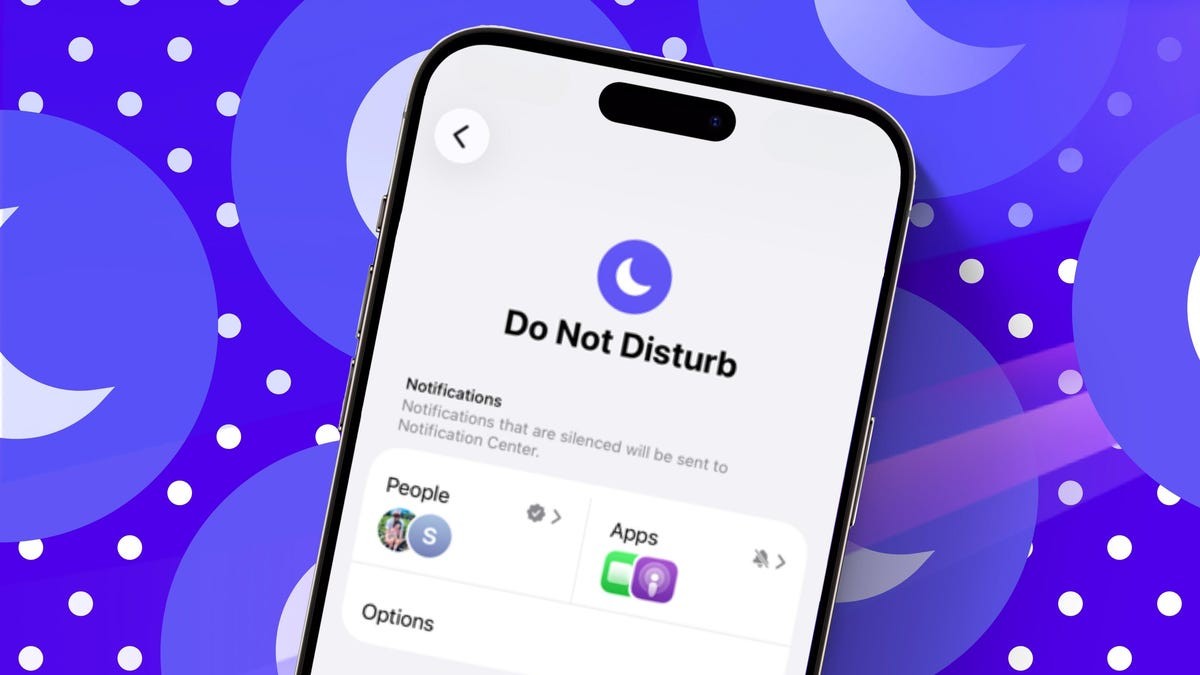
To set it up, go to Settings > Focus > Do Not Disturb > Set a Schedule > Add Schedule > App > Choose app. Select which apps you want and hit the check mark. You'll now see them in the App field on the Notifications screen, and you can easily remove them by clicking the "-" button on each.
2. Create a custom lock screen when DND is on (so you don't forget)
If you're someone who accidentally leaves your phone on DND, consider changing your lock screen to an image that only appears when you're in that mode. (It also goes the other way: When you choose that wallpaper for your lock screen, DND will automatically turn on.)
Also: You can lease an iPhone through Klarna now - but should you? I did the math
On your lock screen, tap and hold the image to open your wallpaper gallery.
Swipe right to see the wallpaper with Focus at the bottom. Tap Focus and change it to DND. Then, tap the wallpaper again, and you'll be in DND mode.
3. Keep people from seeing you're in DND mode
When you turn on DND, the default setting shows "(Contact name) has notifications silenced" when one of your contacts goes to text you. If you don't want people to see that, here's what to do (it's not under the main Focus settings section, so it's less intuitive to find):
Also: Your phone doesn't block SIM swapping attacks by default: Turn on these carrier settings now
Go to Privacy & Security > Focus. Under Shared With, toggle Messages off.
4. Update what calls can come through (including the dreaded double-dial)
If you want to ensure certain calls or texts can come through while in DND, you can update those settings here -- for example, you can add people individually or add your entire Favorites list. Just go to Settings > Focus > Do Not Disturb > Allow Notifications > People.
Also: I spent 2 years charging my phone exactly how Apple suggests - here's where it's at now
You can also toggle on "Allow Repeated Calls" so that a second call from the same person within three minutes will go through to your phone, with the assumption that it's actually an emergency.
5. Change your Action button to DND
Another quick way to access DND without going to the control panel is to set your Action button (on iPhone X and later) to DND so you can easily click it on and off.
Also: 14 secret phone codes that unlock hidden features on your Android and iPhone
To set it up, go to Settings > Action Button. Swipe over to Focus. From the drop-down menu, select Do Not Disturb.
That will link DND to the physical Action button.
For more iPhone tips, check out the top settings you should change on your phone right away and 12 settings to change to improve battery life.
What's Your Reaction?
 Like
0
Like
0
 Dislike
0
Dislike
0
 Love
0
Love
0
 Funny
0
Funny
0
 Wow
0
Wow
0
 Sad
0
Sad
0
 Angry
0
Angry
0











Comments (0)