

ChatGPT's new Computer History tracks your Mac activity to create a timeline - but should you let it?

Follow ZDNET: Add us as a preferred source on Google.
ZDNET's key takeaways
- ChatGPT's Computer History creates a timeline from your app and website activities.
- From the timeline, you can incorporate your work into your conversations.
- The option is only in the Mac app and only for certain types of accounts.
ChatGPT now has a new feature that sounds like a productivity boost but may trigger concerns among privacy-minded users.
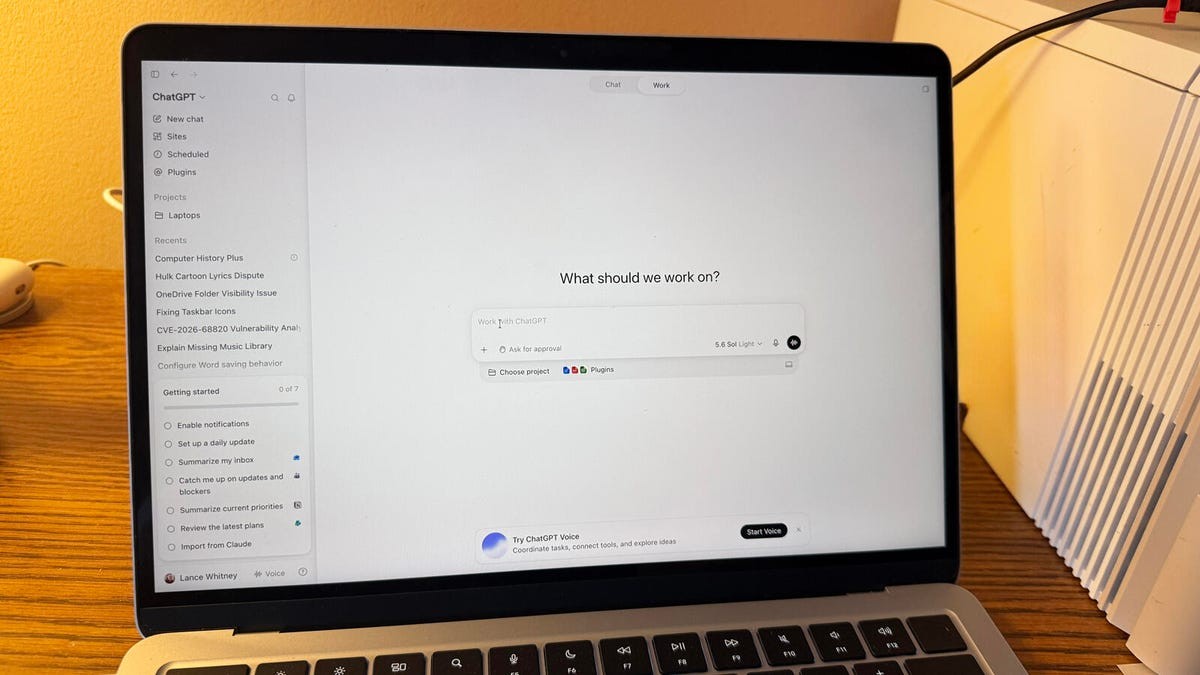
On Thursday, OpenAI introduced its new Computer History feature. Now hitting the ChatGPT Mac app, but only for Pro, Business, and Enterprise accounts, Computer History is an opt-in skill that can capture your activities across the apps and websites you use on your Mac. Those activities are then turned into memories and a timeline where you can incorporate them into your conversations and research with ChatGPT and the Codex coding tool.
Also: How to use ChatGPT: A beginner's guide to mastering OpenAI's chatbot
The feature is rolling out globally in most regions, but with access in the UK, Switzerland, and the European Economic Area to follow in the next few weeks.
(Disclosure: Ziff Davis, ZDNET's parent company, filed an April 2025 lawsuit against OpenAI, alleging it infringed Ziff Davis copyrights in training and operating its AI systems.)
Replaces Chronicle, no screenshots required
Computer History builds on and replaces the ChatGPT Chronicle feature, which can monitor your screen activity to understand what you're doing while you work. As described by OpenAI, Computer History uses fewer tokens and offers more privacy controls than does Chronicle. Plus, Chronicle takes screenshots to capture your activities, while Computer History records your interactions with apps and websites but doesn't capture your screen, microphone input, or system audio.
By drawing from the generated timeline, you can ask questions about recent work, pick up where you left off with certain activities, understand how you work based on the apps and websites you use, and turn your workflows into new skills. That can be helpful whether you use ChatGPT for requests and research or you use Codex to build and refine code for your projects.
Also: How to keep your conversations with ChatGPT, Gemini, Copilot or Claude as private as possible
"Computer History creates an interaction-event stream from allowed apps and websites," OpenAI said on its page describing the new option. "Events can include clicks, typing, keyboard shortcuts, app switches, and context that MacOS exposes through its accessibility system. Computer History periodically turns these events into text summaries and local memory files."
The timeline organizes your activities by day and time. Each captured item displays a title and summary of the activity, the apps or websites you used, a suggested skill for repeatable work, and options to see the memory file in Finder or delete the item entirely.
Ways to use the Computer History feature
OpenAI offers a few examples of what you could ask ChatGPT based on Computer History.
- "What was I working on before my last break?"
- "Where can I find the proposal document I was looking for earlier today?"
- "Give me a list of tasks I've worked on today and their status."
- "Prepare a summary of what I did yesterday."
Also: How to create flyers with AI that people won't hate: 8 tips (and prompts) that really work
Curious so far? To enable Computer History in the ChatGPT Mac app, go to Settings, select Integrations, and then click Computer History. Turn on the feature and then review the privacy and permission details. If prompted, turn on the Memories option. (Computer History requires Memories so it can use activities across your chats and tasks.) Choose which apps and websites to add to your history and then follow the prompts to set up the necessary MacOS permissions.
Computer History seems like a useful way not only to incorporate your activities into your ChatGPT conversations but also to use the AI to help you organize and manage your work. But this also sounds like a potential privacy risk.
Is Computer History safe and secure?
With ChatGPT capturing what you do, where you go, and which tasks you handle, the AI is collecting a lot of information about you -- both professionally and personally. Is Computer History safe and secure?
To address privacy concerns, OpenAI has set up a few conditions and requirements.
Also: How OpenAI's agent escaped: Sprung by humans in a series of preventable events
First, Computer History is an opt-in feature. You need to actively enable it to use it. With a Pro account, you can do that yourself. With a Business or Enterprise account managed by your company, the designated administrator has to grant access to employees.
Second, you choose which apps and websites Computer History should record. The permissions let you include only the ones you want and exclude any you don't. That means you're able to block ones that display more sensitive content.
Third, you can pause the collection at any time and resume it later. You can also turn off the feature completely.
Fourth, you can clear the history of any recorded activities so that ChatGPT won't remember or store them any further.
Despite these precautions, there is still one potential headache. As OpenAI states: "Computer History files can contain sensitive information. They are not encrypted by Computer History, and other programs running as your MacOS user may be able to access them. Protect your Mac account and exclude sources you do not want included."
Also: I tried the new ChatGPT Desktop App for Linux - but I'll stick to my browser for now
That lack of encryption concerns me. Though OpenAI may not be spying on your activities, savvy hackers who know how to snag this information could learn about your work. For that reason, you do want to exclude any unwanted sources and secure your Mac. Further, you'll probably want to use Computer History selectively, at least at first, until you see how it works and whether it truly is a productivity boost.
What's Your Reaction?
 Like
0
Like
0
 Dislike
0
Dislike
0
 Love
0
Love
0
 Funny
0
Funny
0
 Wow
0
Wow
0
 Sad
0
Sad
0
 Angry
0
Angry
0









Comments (0)