

Customizing your Samsung Galaxy phone is a bit easier with One UI 9
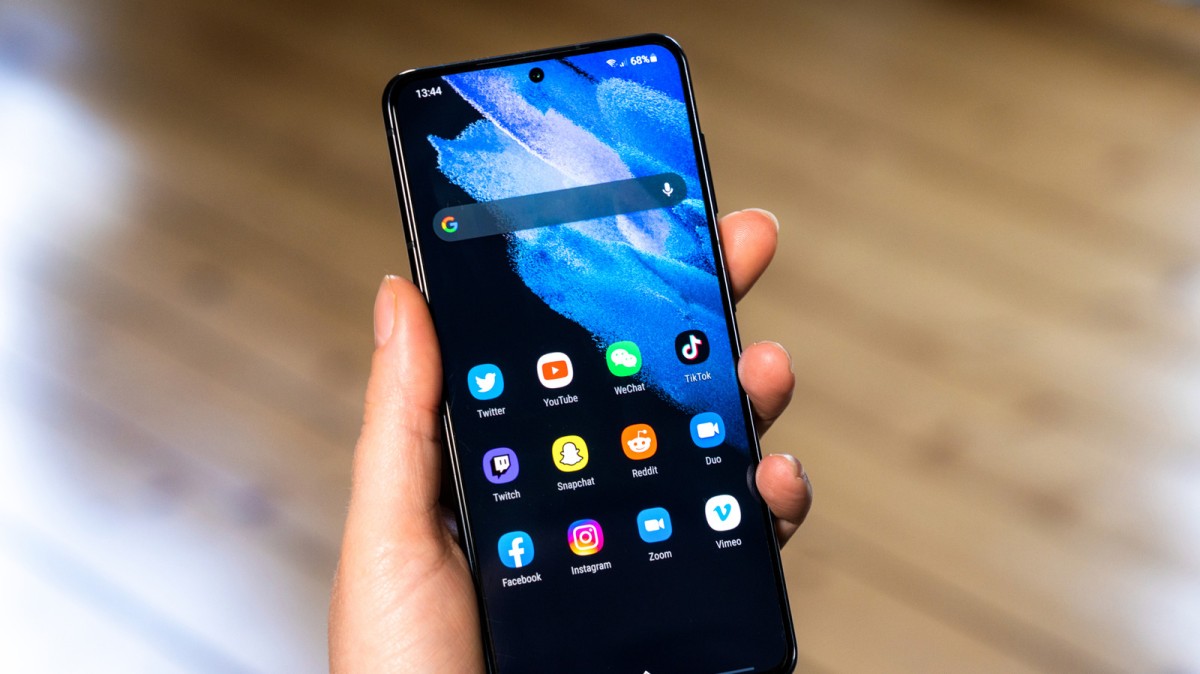
Now more than ever, your Samsung device can be tailored to your liking, all thanks to One UI 9.
Georgeclerk/Getty Images
Samsung One UI 9 is, for a great many phones across the world, here — and it's got quite the inventory of handy features. The most eye-catching among them have been One UI 9's new toys, such as Samsung's new My Fancam feature, which makes you the main character in your videos. However, some of the best parts of this patch are the updates to the UI and customizability, as they have granted users far more control over the look and feel of their Samsung phones.
One UI 9 might not be totally reinventing the Samsung wheel, but the little changes more than add up. Whether that's a few new toggles or the slate of changes to Good Lock and Quick Panel, you can take advantage of One UI 9's myriad improvements to completely customize your device. Thanks to this latest update, you can make your Samsung device more your own than ever before.
The new customization features in Home Up
Nwz/Shutterstock
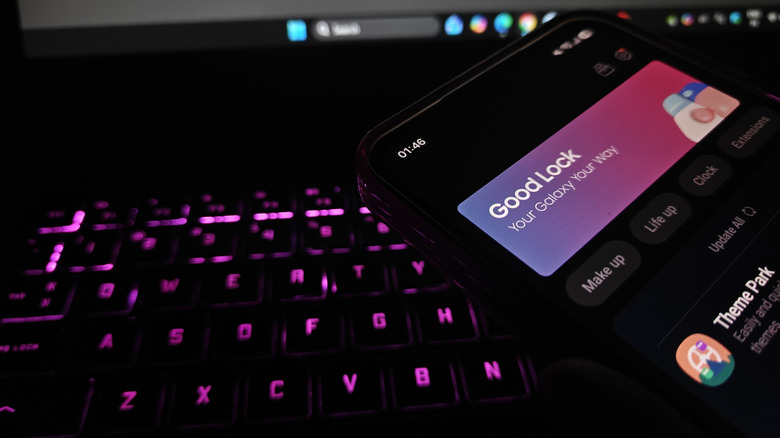
To properly get started with all the customization available, make sure you have Samsung's official Good Lock suite and its associated Home Up application; Samsung has added a great deal to this area of your phone, and it's what opens up much of the new customization. One of the most notable new tools here is the Favorites Background, which can be toggled on in the Home Screen area of Home Up. Once activated, you can tap the option to access the settings for Favorites Background — which does what it promises: You can add blur and shadow effects, change the image and color, and completely remodel the look of the background to your Favorites area. You can access a similar fleet of options for the Edge Panel by tapping, fittingly, Edge Panel in Home Up.
That's not all that's available in Home Up. Ever since Samsung's One UI 9 betas began to release, users have been messing with more and more of these customization options, including new multi-finger gestures in the Gesture settings, which allow you to assign swipes or pinches with a certain number of fingers to certain actions, such as assigning a two-finger swipe down to taking a screenshot or increasing volume. You can get incredibly granular here, with a suite of motions and actions to associate with them for two-, three-, four-, and five-finger gestures.
Customizing the Quick Panel with One UI 9
VIVEK PAYGUDE/Shutterstock
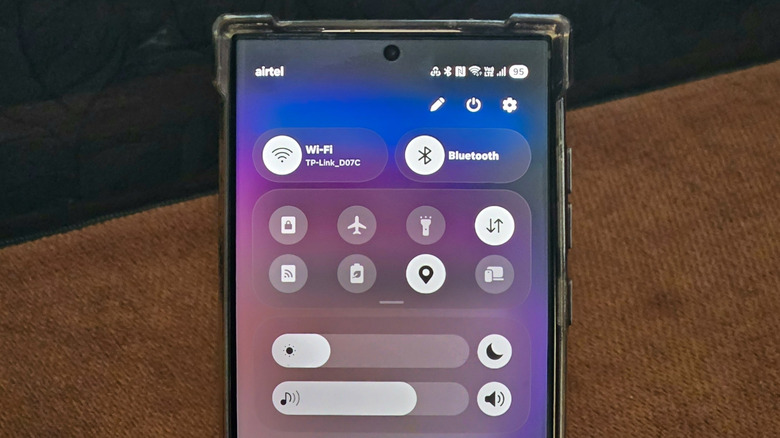
Customization in One UI 9 goes even further. If you have one of the Samsung phones that have received the One UI 9 update, you might want to look at the changes to the Quick Panel. Now, you can tap the Edit icon in the Quick Panel to access a lot of customization options.
When editing your Quick Panel layout, you can drag any of the elements in the area to a different position, tap and drag their right corner to resize them, or delete them entirely. You can tap Add a control to bring deleted toggles back and place them where you like, or go to Panel Settings > Together via the Edit menu to change the different toggles from separated panels into a unified shade. Moreover, sizing caps have been removed entirely, so you can resize individual elements on the Quick Panel as much as you like.
What's Your Reaction?
 Like
0
Like
0
 Dislike
0
Dislike
0
 Love
0
Love
0
 Funny
0
Funny
0
 Wow
0
Wow
0
 Sad
0
Sad
0
 Angry
0
Angry
0







Comments (0)