

Free Mac App Unravels All Your Annoying USB-C Cable Mysteries
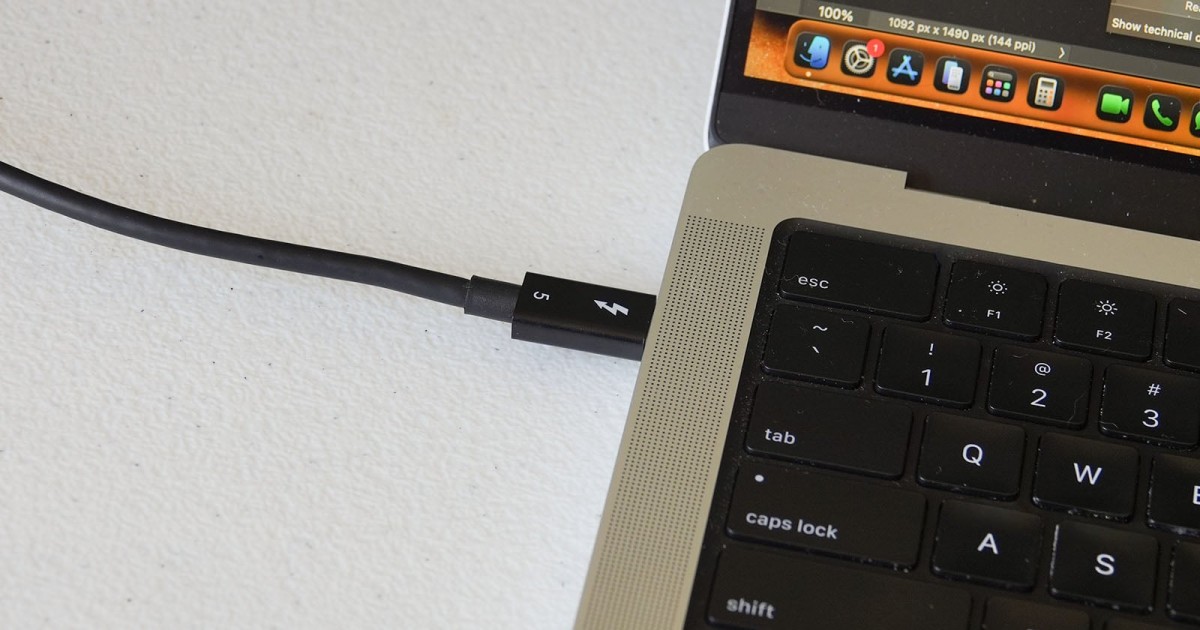
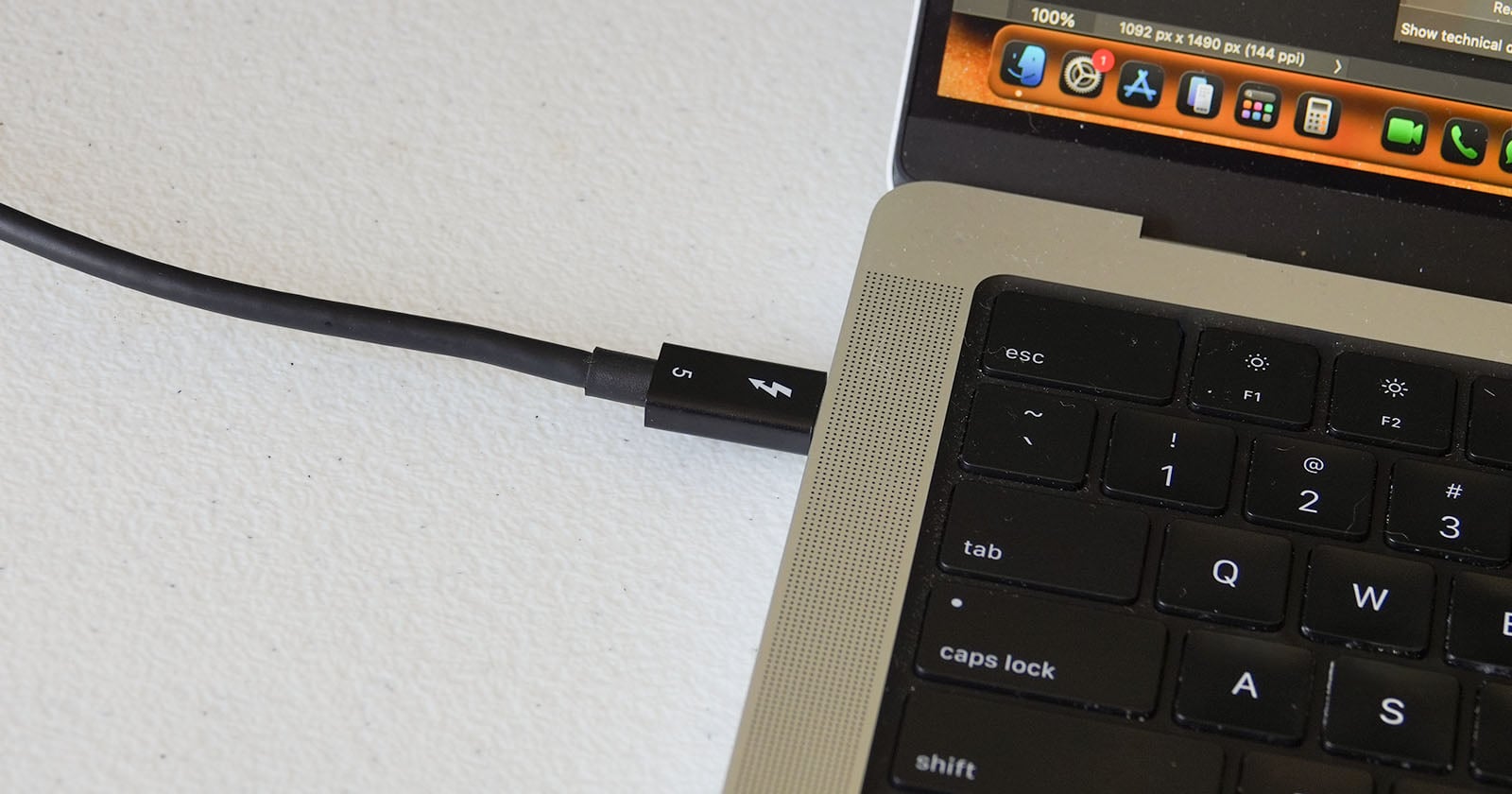
While some USB-C cables are accurately and extensively labeled, others are frustratingly blank. Other times, a cable doesn’t seem to be delivering its promised speeds or power delivery. Now there’s an excellent, accessible solution to these cable woes on Mac: WhatCable.
Apple’s macOS has access to a ton of vital information, some of which it fails to provide directly to the user. Among this treasure trove of hidden data are detailed specifications on the performance of attached USB-C cables.
As someone with a rat’s nest of USB-C cables, many of which are unlabeled and of unknown origin, I routinely plug one cable after another until I find the one that plays nice with a fast external SSD or quickly charges an attached device. It’s very annoying, and even testing doesn’t always help me determine exactly what a cable is capable of.
Enter WhatCable, a new free macOS app for Apple Silicon computers that can very quickly deliver useful, detailed information about an attached cable, including its speed and power delivery capabilities.
“Every USB-C cable looks the same,” WhatCable developer Darry Morley explains on the WhatCable website. “They are not.”
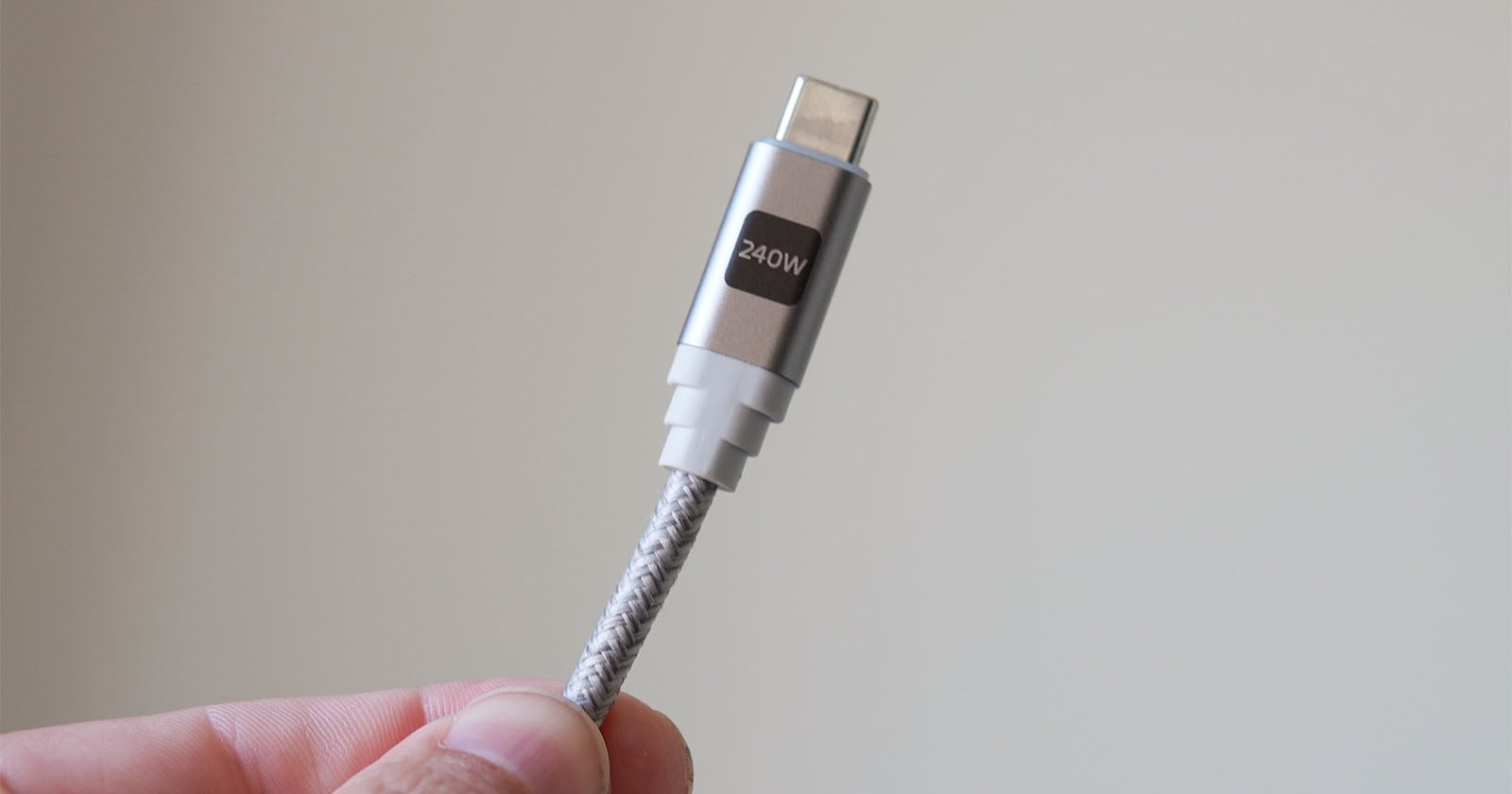 Some cables are clearly labeled with power delivery specs
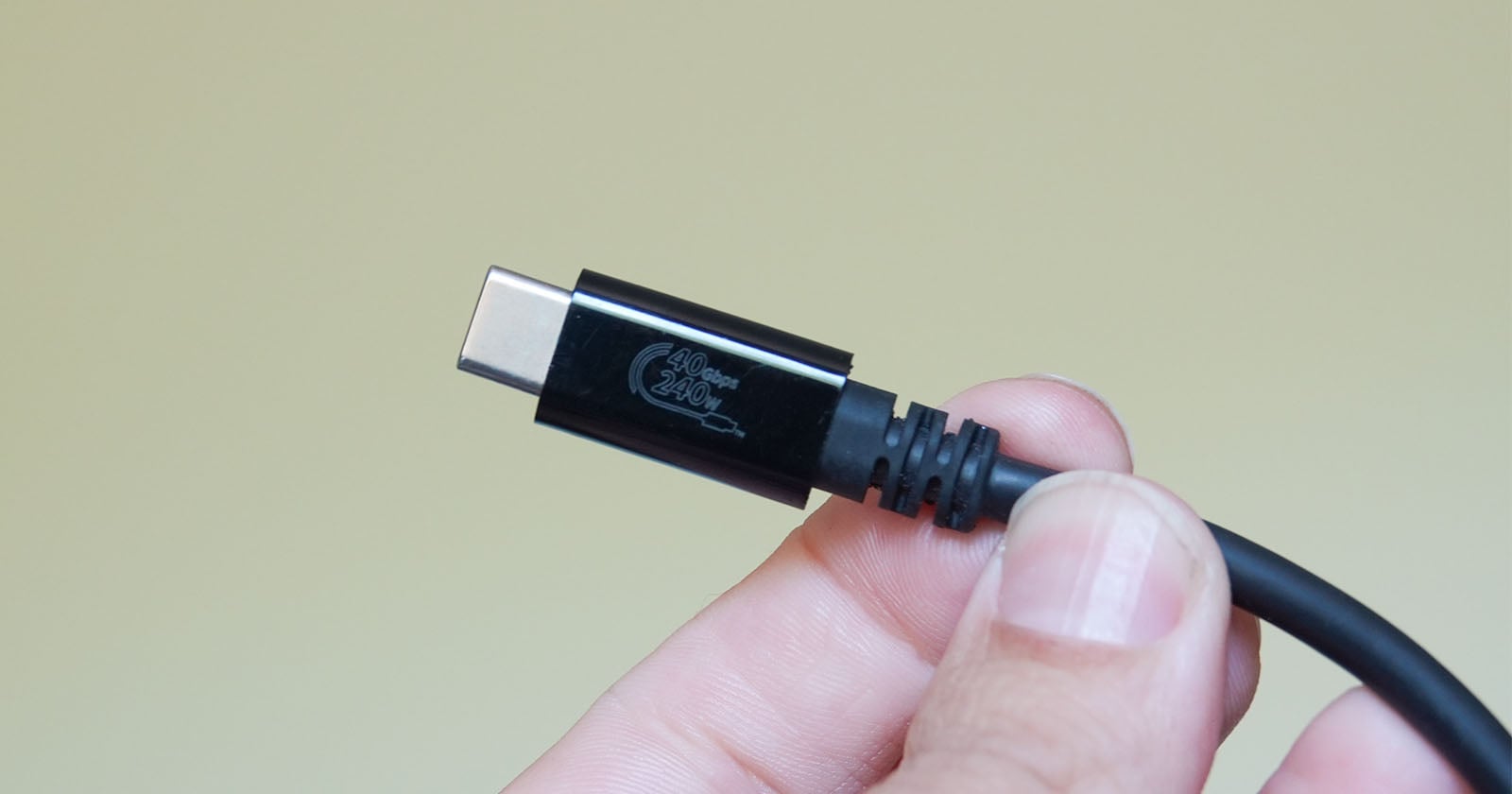 Others have data transfer speeds
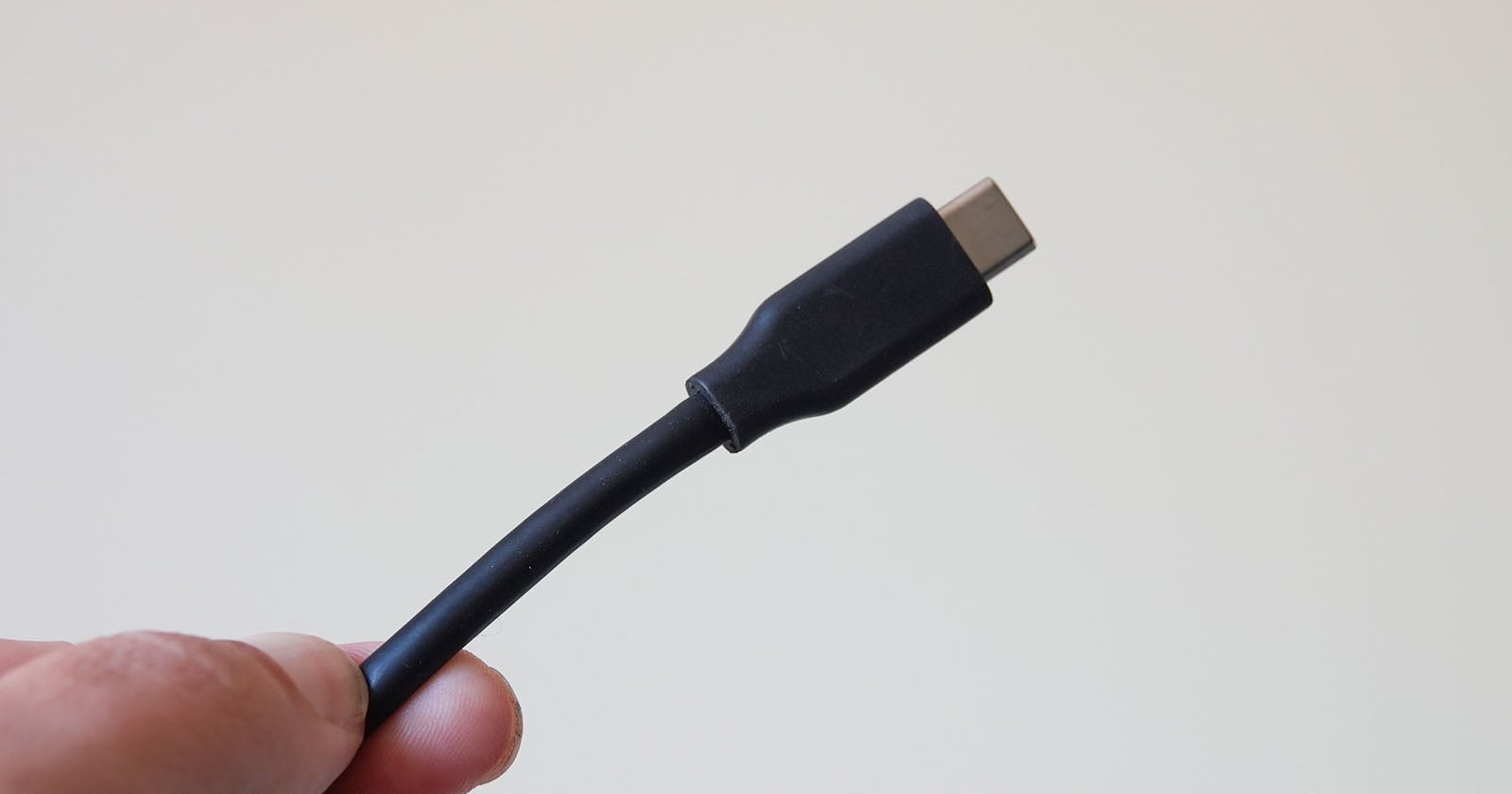 And many more still have no information on them at all
As reported by The Verge, the USB-C cable testing app takes the information that macOS already has about attached cables and presents it to the user in a clean, digestible way, whether through a Menu Bar application or a standard Dock-based experience.
Although macOS tends to hide this information from users, there’s nothing nefarious or sketchy happening here. The app’s developer notes that WhatCable utilizes public APIs.
Once the user plugs in a cable, WhatCable quickly spits out extensive data, even in its free version. It explains what cable is connected, what it is currently doing in terms of power and data transfer, and what its capabilities are.
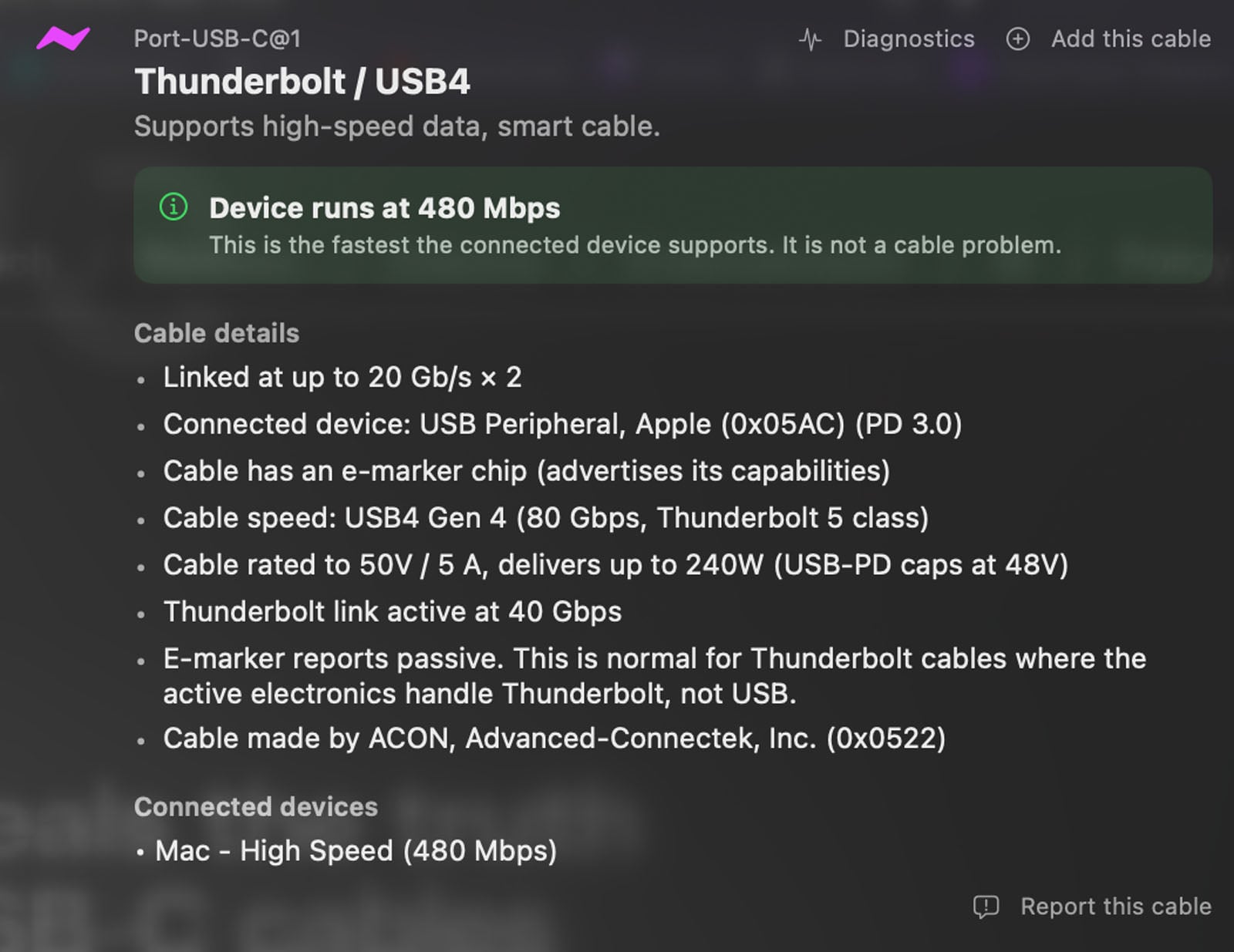
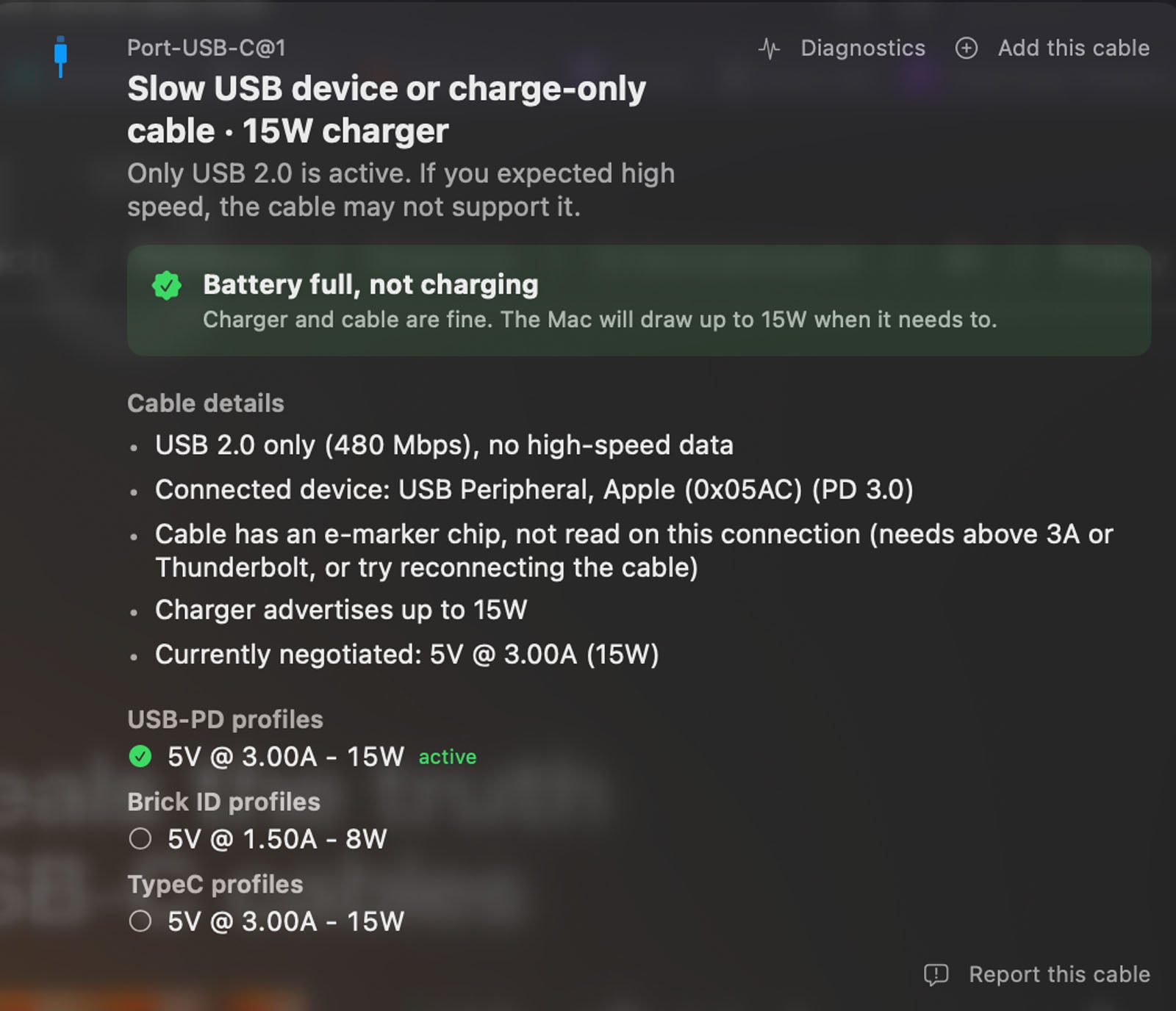
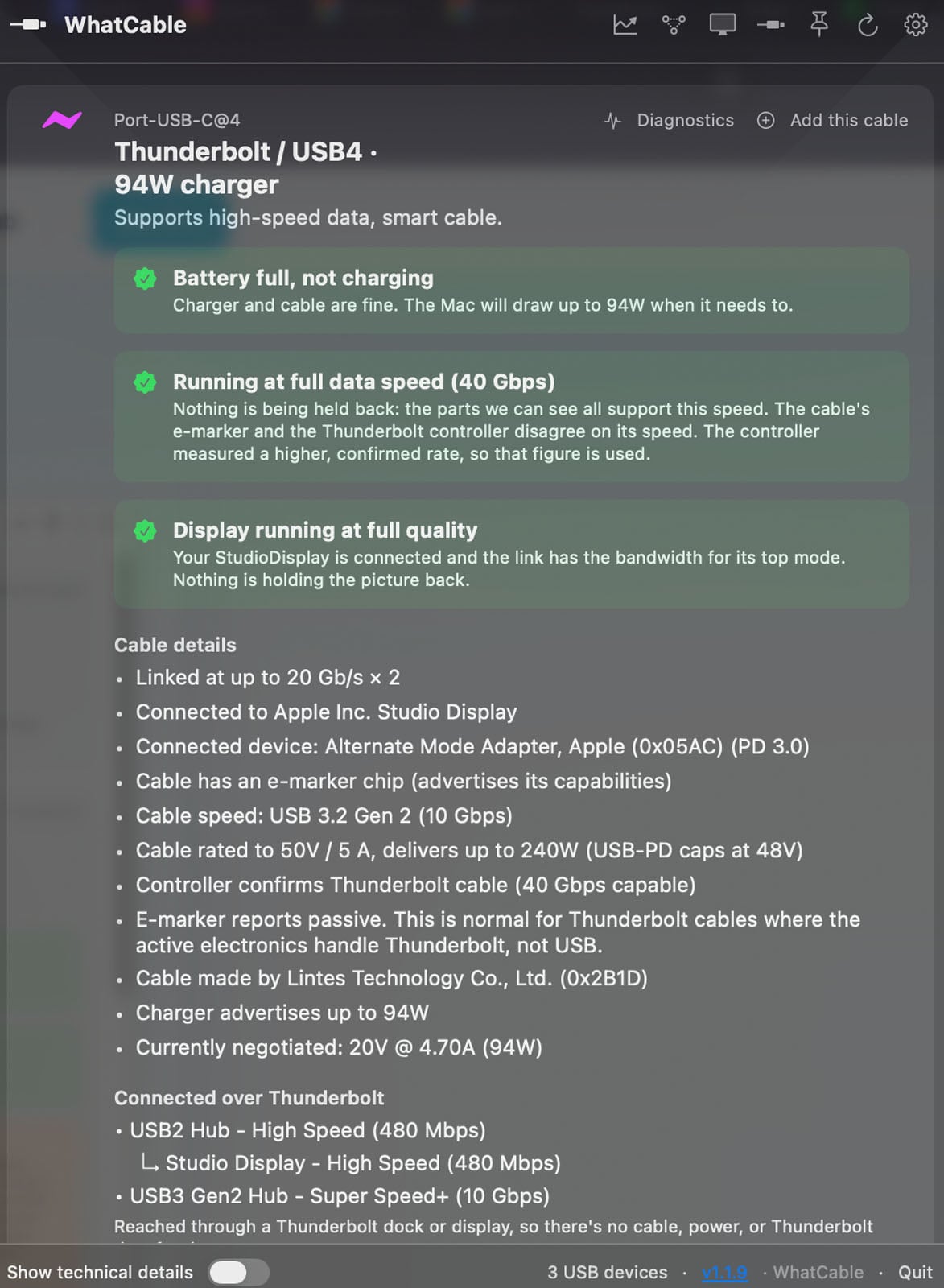
For example, I run an external Apple Studio Display (2021) from an M5 MacBook Pro for work. I use a third-party USB-C cable between the Studio Display and the Mac. In this case, the cable supports the expected 94 watts of power while simultaneously driving the display at full performance. The cable delivers its promised 40 Gbps transfer rate, and there are no problems at all. I can even see the USB hub on the back of the display through WhatCable, ensuring that the connected cable supports all of Apple’s promised specs.
However, while it’s great to have a fully operational cable that operates at full specs, I have other cables of, let’s say, dubious origin. It’s always a bit of a guessing game as to what it will do when I plug it in. WhatCable tells me exactly what a cable is supposed to do, and I can relegate slower USB2 ones to a charging-only pile.
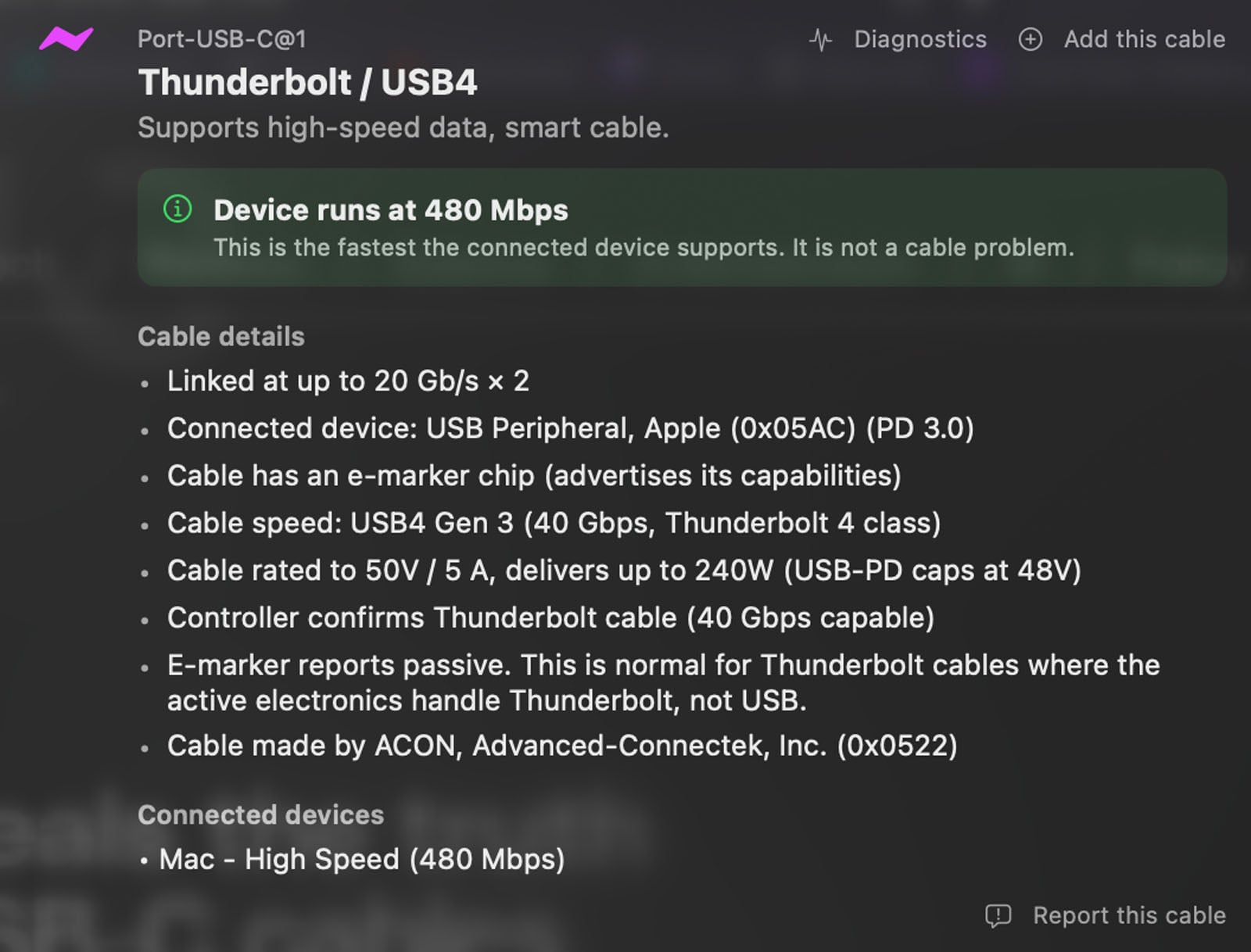
My best cable, a ProGrade Digital Thunderbolt 5 cable, is my go-to for testing external SSDs or quickly offloading memory cards. I tested that one, too, and the good news is that it is as advertised. It is a Thunderbolt 5 (USB4) cable that supports 80 Gbps on my M5-powered MacBook Pro. The cable has a verified e-chip inside, and I can see who made it. In this case, that’s Advanced-Connectek Inc., a 40-year-old electronic connector manufacturer.
The bad news is that I only have one of these super-fast cables lying around, so I need to keep a close eye on it. It should only ever be in the top drawer of my desk or in my primary work bag, which is useful information I can log directly inside WhatCable.
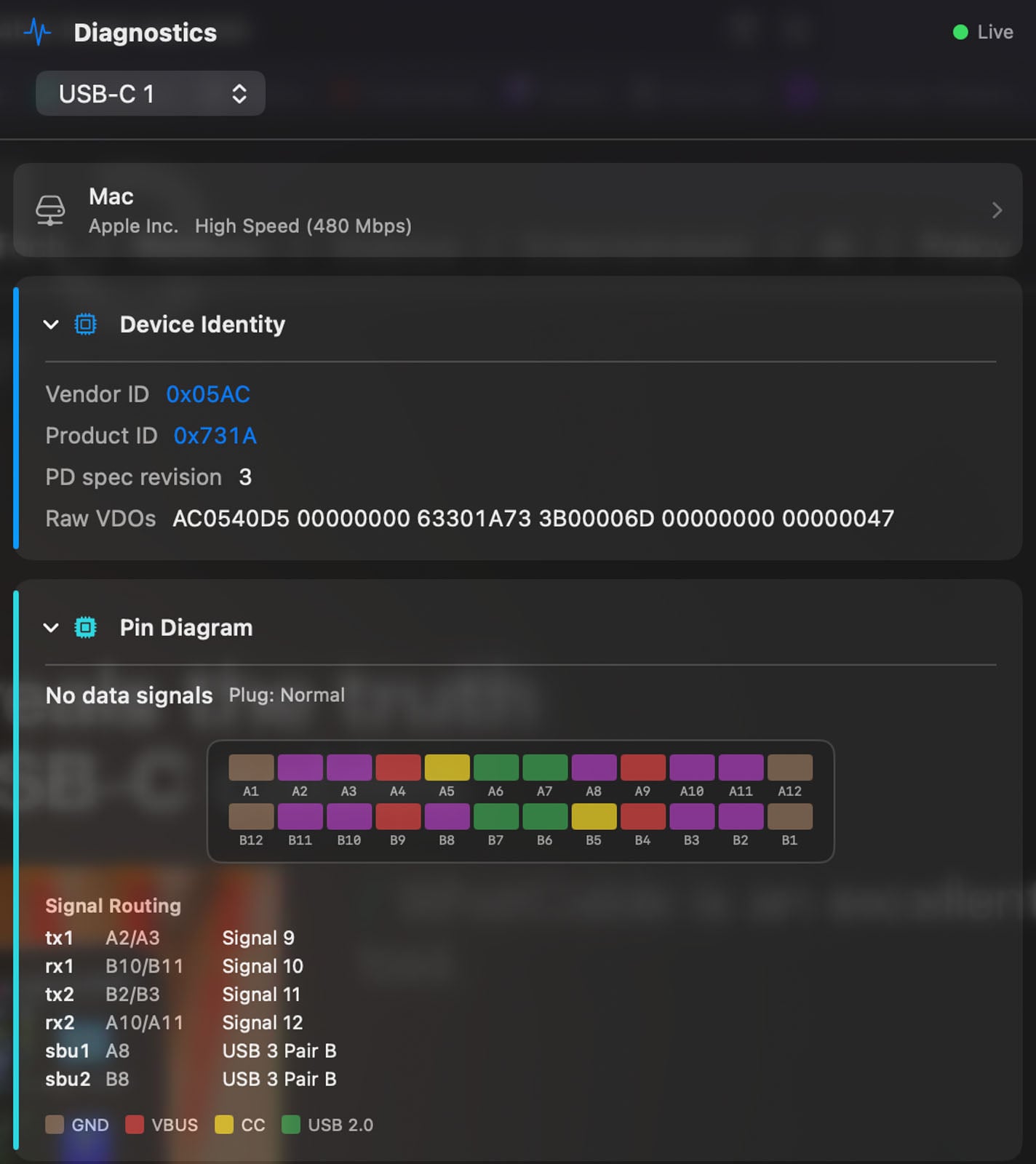
The Pro version of the app can be used to organize a user’s existing cables, allowing them to quickly pull up information about their tested cables and track any relevant notes. This is also helpful if a cable suddenly starts acting up, as the app can track its current performance against historical metrics to determine whether the cable has worn out.
If a cable isn’t working as expected, the upgraded app can also perform diagnostics, including detecting water damage and testing the connected pins.
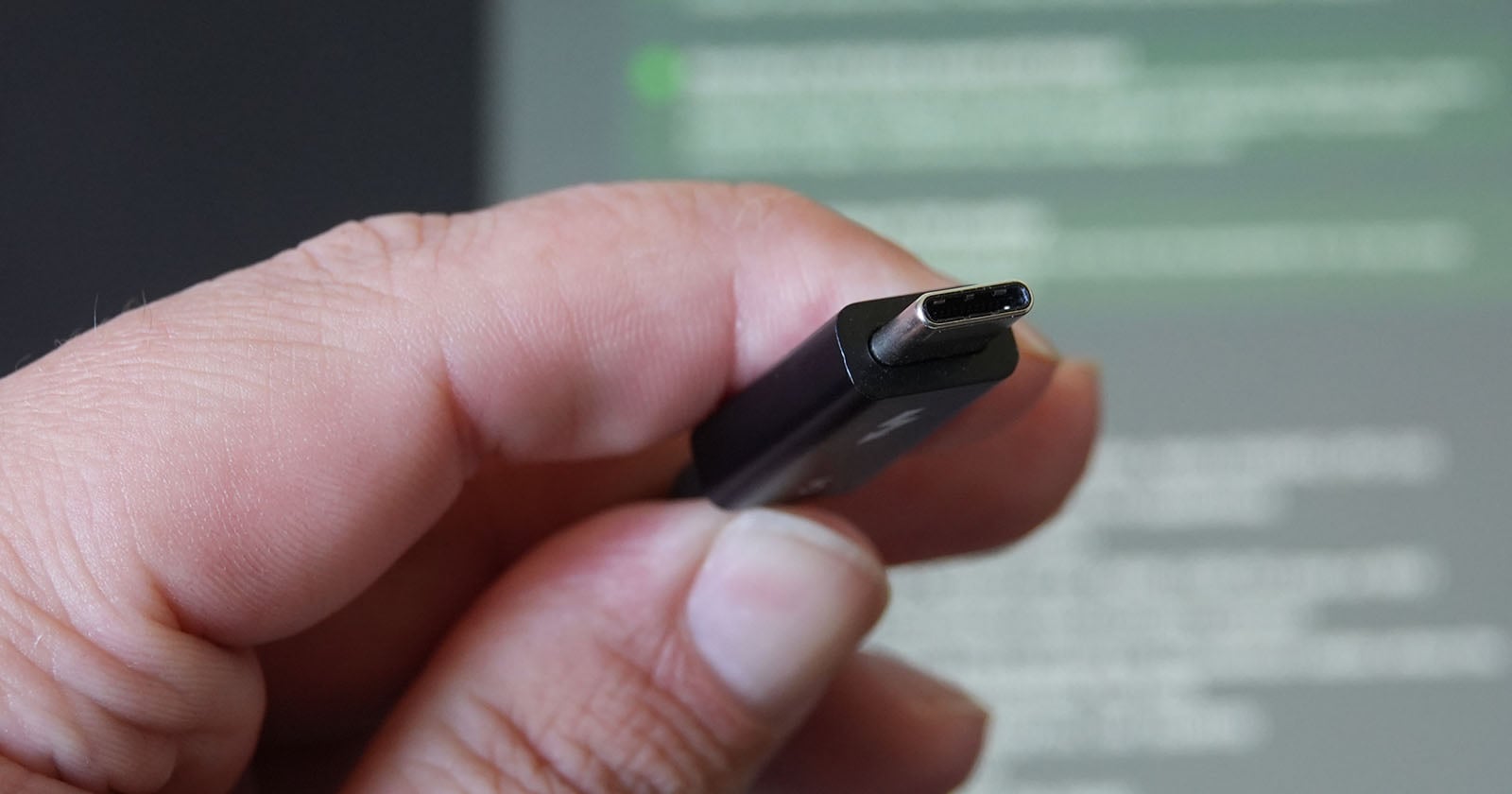
Other “Pro” features include the ability to monitor power and data passing through an attached cable in real time, as well as tools to monitor the health of your Mac’s USB-C ports.
Users can also report their attached cables if they want, which sends relevant data to a public database.
Pricing and Availability
I opted for the Pro upgrade, which costs about $13 for a lifetime license, so I could see everything the app has to offer. In my case, as someone who has had their fair share of cable problems, the cable history tools, live monitoring, and diagnostics are worth it. USB-C cables aren’t going anywhere, so it will be great to have an easy-to-use app that tells me everything I need to know about a cable in just a few seconds. No more exhausting tests.
The free version of WhatCable can still do a lot, and may do enough for many users. It provides quick information about the attached cable, including its current performance and vital specifications. This is great info.
This is not a formal review, but I highly recommend that Mac users try the free version of WhatCable to see if it makes their USB-C cable management easier. I suspect it will.
Image creditsWhatCable
What's Your Reaction?
 Like
0
Like
0
 Dislike
0
Dislike
0
 Love
0
Love
0
 Funny
0
Funny
0
 Wow
0
Wow
0
 Sad
0
Sad
0
 Angry
0
Angry
0











Comments (0)