

I tried Google Maps' new 3D Immersive View for Android Auto, and it fixed my biggest navigation problems

Follow ZDNET: Add us as a preferred source on Google.
ZDNET's key takeaways
- Immersive Navigation is Maps' biggest visual upgrade in a decade.
- Android Auto users can see 3D buildings, lanes, trees, and more.
- The mode shows real building outlines.
Android Auto just rolled out a huge upgrade, and while it doesn't include any new functionality, it does provide one of the biggest visual upgrades to Google Maps I've ever seen. As someone who relies on Maps to drive nearly every day, I can attest the upgrade is a huge improvement.
Four months ago, Google announced the "biggest transformation of the (Maps) navigation experience in over a decade," known as Immersive Navigation. Android users have been slowly getting the feature over the last few months, and it looks like it's finally arriving on car dashboards.
Also: 3 Android Auto automations that make my drives much easier - and how I set them up
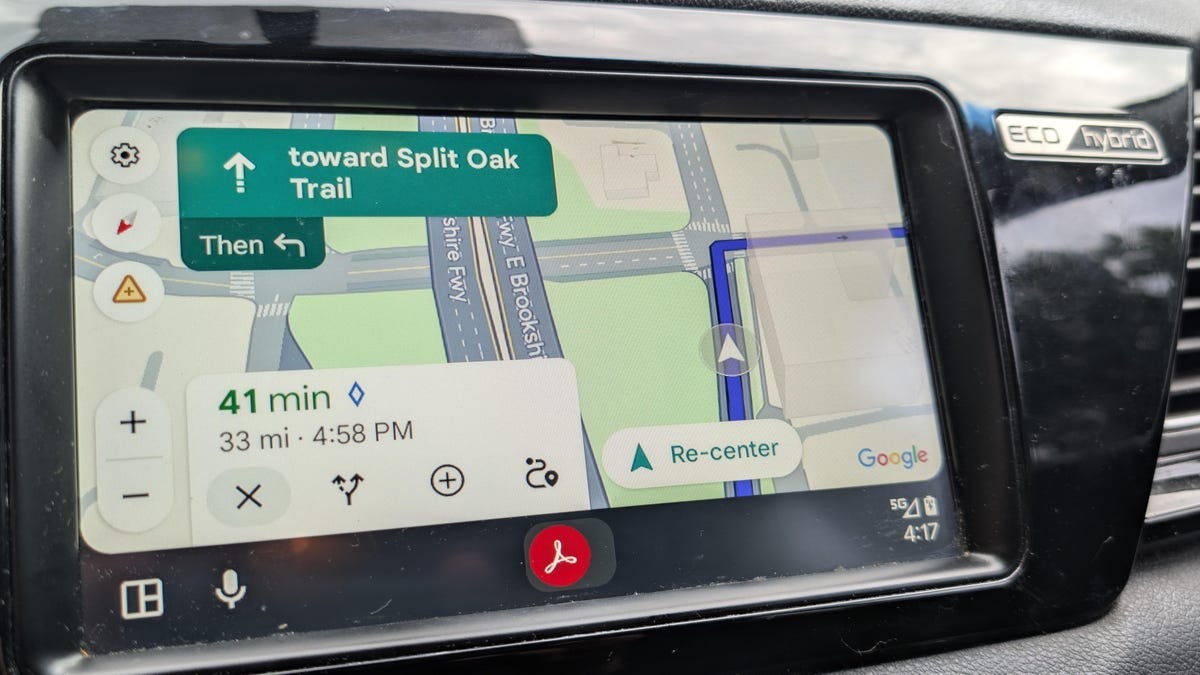
When I fired up Maps via Android Auto in my car recently, I didn't notice anything different at first because I live in a more rural area with not many buildings. But as I drove closer to more populated areas, I noticed the interface drastically improved. Instead of a flat, overhead, or slightly angled 2D view, Maps was 3D.
The updated Maps has lane markings, translucent true-to-life building outlines, markings that clearly show when you're traveling under or over a road, individual trees, and more. Even though the tree markers indicate foliage rather than actual trees, the feature helped me get an overview of the area.
Also: I started avoiding these 5 Android Auto mistakes, and it's drastically improved my drives
Maps has included 3D buildings in certain areas for years now. However, Google said the new imagery is courtesy of a recent Gemini integration that analyzes Street View and aerial photos to give an accurate depiction of landmarks and medians along your route.
Taking the new Maps for a test drive
I tested out Immersive Navigation on a drive around uptown Charlotte, N.C.
Also: I made 7 changes to my Android Auto setup for better functionality when I'm driving
The first thing I noticed was the new version of Maps makes it a lot easier to get your bearings. Buildings are shown on the map where they are, and with real outlines. However, buildings are also translucent, so you can see around them and anticipate your next move.
If you've ever navigated a city, you'll know that quick turns in succession can be a surprise. With this update to Maps, you can anticipate those turns. Maps also highlights entrances and parking lots for certain buildings, which might not match the address.
Lanes are marked in some areas (cities had more lane markings than rural areas), so you can easily tell where you need to be on the road to enter or exit. Also, overpasses and underpasses are now clearly shown, making it easy to tell if you need to take an elevated ramp or stay at ground level. I noticed that the Maps camera will now zoom in on tricky freeway splits or multi-lane junctions, giving you clear visuals on where you need to be.
Also: How I turned my old Android phone into a streaming stick for free - in 6 easy steps
There's also new voice guidance that's more conversational. Instead of saying, "In one mile, exit right," at times when it can be tricky to pin down the right place to go if you're not good at judging distance, you'll now hear something like, "Go past this exit and take the next one for South Tryon Street."
Even in a city where I've lived my whole life, it can be confusing sometimes to tell exactly where I need to go while driving. Maps has helped me with this issue many, many times, but the updated view is immensely more useful. It takes the spots where Maps had trouble before and makes them much easier to understand.
Google says the updated Maps is rolling out "slowly." It's been arriving on Android over the past months, but it's just now hitting Android Auto. If you don't see the update now, you should soon.
What's Your Reaction?
 Like
0
Like
0
 Dislike
0
Dislike
0
 Love
0
Love
0
 Funny
0
Funny
0
 Wow
0
Wow
0
 Sad
0
Sad
0
 Angry
0
Angry
0









Comments (0)