

How to Shoot and Edit a Giant Moonrise Behind a Landmark
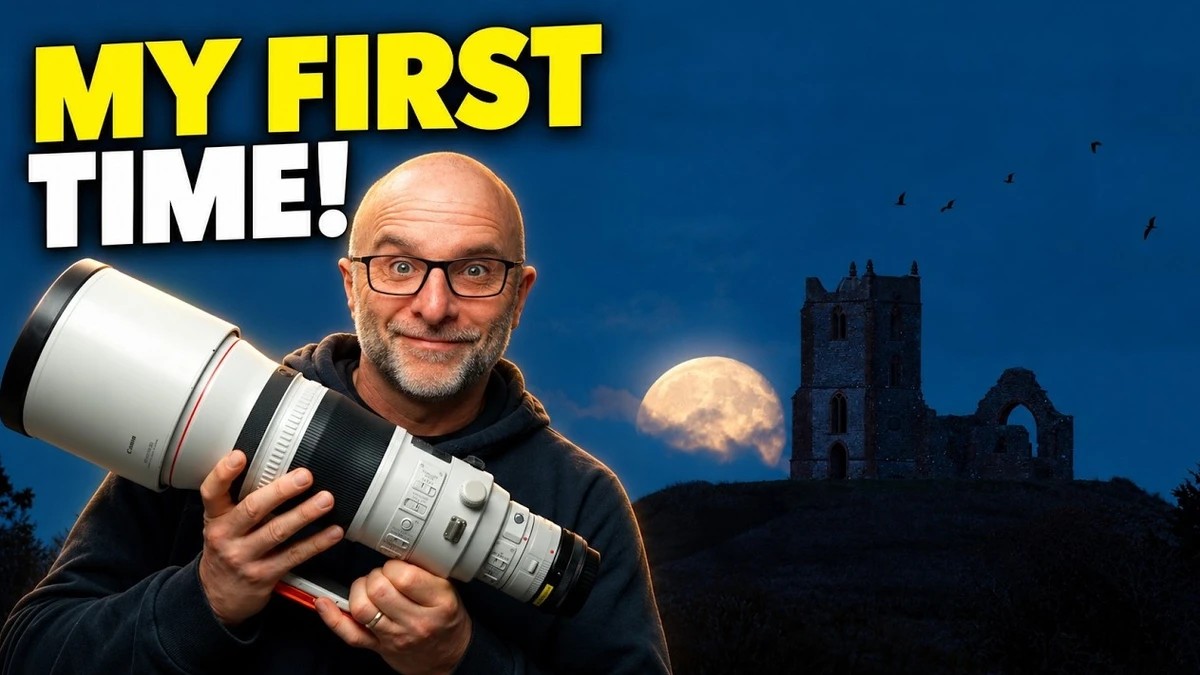
Getting the moon to rise behind a specific building means planning for a moment that lasts only a few minutes, then shooting it in fading light with a very long lens. Even with the time and direction worked out ahead, you can still find yourself in the wrong spot when it finally breaks the horizon.
Glyn Dewis tried this for the first time, photographing a moonrise behind a distant church alongside a friend who plans these shots regularly in PhotoPills. His kit was a Canon EOS R5 Mark II with a Canon EF 400mm f/2.8L IS III USM, mounted through a Canon Mount Adapter EF-EOS R and paired with a Canon 1.4x extender, which takes the lens to 560mm. Going in, the target settings were around 1/200 s, f/8, and the lowest ISO possible. The moon showed up later than expected, though, and by the time it cleared the horizon the ambient light had dropped, so the final frame landed at 1/125 s, f/5.6, and ISO 2,500. Dewis also committed to a single exposure instead of shooting the church and the moon as separate frames and blending them, which puts more of the work on the edit.
The plan was to catch the moon centered directly behind the church, and several frames show it lined up exactly that way. Once the rush was over and he looked back through the shots, Dewis preferred one where the moon sits off to the left, and that became the print. ISO 2,500 is modest for a modern sensor, but the scene was dark enough that a small exposure boost reveals plenty of noise. He skips Lightroom's built-in noise reduction, renames the file so it's easy to find, and runs it through DxO PureRAW 6 using DeepPRIME XD3, which also handles lens sharpness, vignetting, chromatic aberration, and distortion. The DNG goes back into Lightroom, where the Adaptive: Color profile, pulled back slightly in brightness, gets the image most of the way there.
The moon crosses roughly its own width in the sky about every two minutes, since the sky appears to turn a quarter of a degree each minute and the moon spans about half a degree. A perfect alignment behind a steeple is gone almost as soon as it arrives. Published moonrise times also assume a flat, clear horizon, so haze, low cloud, hills, or trees can keep the moon hidden for several minutes after it has technically risen, which is usually when the second-guessing starts. The size of the moon next to a building comes from where you stand, too. The moon's apparent size doesn't change with where you stand, so the farther you are from the church, the smaller the church becomes against it, and the long lens crops in tight enough to fill the frame with both. If you want a bigger moon behind a landmark, back away from the landmark, then use an app like PhotoPills to find the spot along that line where the two meet at the right time.
Noise reduction that strong smooths fine texture, and the mortar lines between the church's bricks were among the casualties. Dewis rebuilds them in Photoshop with a duplicate layer, the High Pass filter set to around a 5-pixel radius, and the Hard Light blend mode. Push the radius much higher and halos start forming along the edges against the sky. To keep the effect on the building, he hides the layer behind a black mask, makes a selection with the Object Selection Tool, and fills that area of the mask with white. The sky stays clean, and the brickwork reads sharply again even though the file went through heavy denoising.
A merged layer then gets a glow through the Camera Raw filter, where Dewis compares the diffusion, bloom, and halation styles on the moon before choosing one that keeps its surface detail. The birds crossing the final print flew past a few minutes before the moon appeared, in the identical composition, and he made versions with and without them. He brings five over from that earlier frame, removes the gray sky around them with Blend If sliders, and uses a quick workaround to turn the result into a regular layer he can darken.
Press play above to see how Dewis uses Blend If to cut the birds out of a gray sky.
What's Your Reaction?
 Like
0
Like
0
 Dislike
0
Dislike
0
 Love
0
Love
0
 Funny
0
Funny
0
 Wow
0
Wow
0
 Sad
0
Sad
0
 Angry
0
Angry
0









Comments (0)